
3770 lines
374 KiB
HTML
3770 lines
374 KiB
HTML
<!DOCTYPE html>
|
||
<html lang="en">
|
||
<head>
|
||
<meta charset="utf-8">
|
||
<meta http-equiv="X-UA-Compatible" content="IE=edge">
|
||
|
||
|
||
<title>Gitting Things Done – A Visual and Practical Guide to Git [Full Book]</title>
|
||
|
||
<meta name="HandheldFriendly" content="True">
|
||
<meta name="viewport" content="width=device-width, initial-scale=1.0">
|
||
|
||
<link rel="preconnect" href="https://fonts.googleapis.com">
|
||
<link rel="preconnect" href="https://fonts.gstatic.com" crossorigin="">
|
||
<link rel="preload" as="style" onload="this.onload=null;this.rel='stylesheet'" href="https://fonts.googleapis.com/css2?family=Lato:ital,wght@0,300;0,400;0,700;1,400&family=Roboto+Mono:wght@400;700&display=swap">
|
||
|
||
|
||
|
||
|
||
<link rel="preload" as="style" onload="this.onload=null;this.rel='stylesheet'" href="https://cdn.freecodecamp.org/news-assets/prism/1.29.0/themes/prism.min.css">
|
||
<noscript>
|
||
<link rel="stylesheet" href="https://cdn.freecodecamp.org/news-assets/prism/1.29.0/themes/prism.min.css">
|
||
</noscript>
|
||
<link rel="preload" as="style" onload="this.onload=null;this.rel='stylesheet'" href="https://cdn.freecodecamp.org/news-assets/prism/1.29.0/plugins/unescaped-markup/prism-unescaped-markup.min.css">
|
||
<noscript>
|
||
<link rel="stylesheet" href="https://cdn.freecodecamp.org/news-assets/prism/1.29.0/plugins/unescaped-markup/prism-unescaped-markup.min.css">
|
||
</noscript>
|
||
|
||
<script defer="" src="https://cdn.freecodecamp.org/news-assets/prism/1.29.0/components/prism-core.min.js"></script>
|
||
<script defer="" src="https://cdn.freecodecamp.org/news-assets/prism/1.29.0/plugins/autoloader/prism-autoloader.min.js"></script>
|
||
|
||
|
||
|
||
|
||
<link rel="preload" as="style" onload="this.onload=null;this.rel='stylesheet'" href="/news/assets/css/global-a9196627bc.css">
|
||
<link rel="stylesheet" type="text/css" href="/news/assets/css/screen-c0a6eeda6d.css">
|
||
<link rel="stylesheet" type="text/css" href="/news/assets/css/search-bar-124f5f949c.css">
|
||
|
||
|
||
<script defer="" src="https://cdn.freecodecamp.org/news-assets/algolia/algoliasearch-3-33-0/algoliasearch.min.js"></script>
|
||
<script defer="" src="https://cdn.freecodecamp.org/news-assets/algolia/autocomplete-0-36-0/autocomplete.min.js"></script>
|
||
|
||
|
||
<script defer="" src="https://cdn.freecodecamp.org/news-assets/dayjs/1.10.4/dayjs.min.js"></script>
|
||
<script defer="" src="https://cdn.freecodecamp.org/news-assets/dayjs/1.10.4/localizedFormat.min.js"></script>
|
||
<script defer="" src="https://cdn.freecodecamp.org/news-assets/dayjs/1.10.4/relativeTime.min.js"></script>
|
||
|
||
|
||
|
||
<script defer="" src="https://cdn.freecodecamp.org/news-assets/dayjs/1.10.4/locale/en.min.js"></script>
|
||
|
||
|
||
|
||
<script>let client,index;document.addEventListener("DOMContentLoaded",(()=>{client=algoliasearch("QMJYL5WYTI","89770b24481654192d7a5c402c6ad9a0"),index=client.initIndex("news")})),document.addEventListener("DOMContentLoaded",(()=>{const e=window.screen.width,t=window.screen.height,n=e>=767&&t>=768?8:5,o=document.getElementById("search-form"),s=document.getElementById("search-input"),a=document.getElementById("dropdown-container");let i,d,c;s.addEventListener("input",(e=>{i=e.target.value})),o.addEventListener("submit",(e=>{e.preventDefault(),function(){if(d=document.getElementsByClassName("aa-cursor")[0],d&&i){const e=d.querySelector("a").href;window.location.assign(e)}else!d&&i&&c&&window.location.assign(`https://www.freecodecamp.org/news/search?query=${i}`)}()}));const l=autocomplete("#search-input",{hint:!1,keyboardShortcuts:["s",191],openOnFocus:!0,appendTo:a,debug:!0},[{source:autocomplete.sources.hits(index,{hitsPerPage:n}),debounce:250,templates:{suggestion:e=>(c=!0,`\n <a href="${e.url}">\n <div class="algolia-result">\n <span>${e._highlightResult.title.value}</span>\n </div>\n </a>\n `),empty:()=>(c=!1,'\n <div class="aa-suggestion footer-suggestion no-hits-footer">\n <div class="algolia-result">\n <span>\n No tutorials found\n </span>\n </div>\n </div>\n '),footer:e=>{if(!e.isEmpty)return`\n <div class="aa-suggestion footer-suggestion">\n <a id="algolia-footer-selector" href="https://www.freecodecamp.org/news/search?query=${i}">\n <div class="algolia-result algolia-footer">\n See all results for ${i}\n </div>\n </a>\n </div>\n `}}}]).on("autocomplete:selected",((e,t,n,o)=>{d=t?t.url:`https://www.freecodecamp.org/news/search?query=${i}`,"click"!==o.selectionMethod&&"tabKey"!==o.selectionMethod&&c&&window.location.assign(d)}));document.addEventListener("click",(e=>{e.target!==s&&l.autocomplete.close()}))})),document.addEventListener("DOMContentLoaded",(()=>{dayjs.extend(dayjs_plugin_localizedFormat),dayjs.extend(dayjs_plugin_relativeTime),dayjs.locale("en")}));const isAuthenticated=document.cookie.split(";").some((e=>e.trim().startsWith("jwt_access_token="))),isDonor=document.cookie.split(";").some((e=>e.trim().startsWith("isDonor=true")));</script>
|
||
|
||
|
||
<script src="https://securepubads.g.doubleclick.net/tag/js/gpt.js" crossorigin="anonymous" async=""></script>
|
||
|
||
|
||
|
||
|
||
|
||
|
||
<script>
|
||
document.addEventListener('DOMContentLoaded', function() {
|
||
var sidebar = document.querySelector('.sidebar');
|
||
var isSideBarDisplayed = window.getComputedStyle(sidebar).display !== 'none';
|
||
var topBannerAd = document.querySelector('.banner-ad-top');
|
||
var isScreenLarge = window.innerWidth > 900;
|
||
function prepareAdSlot(elementId) {
|
||
// Get the element by ID
|
||
const targetElement = document.getElementById(elementId);
|
||
|
||
// Ensure the element exists before proceeding
|
||
if (!targetElement) {
|
||
console.error(`Element with ID ${elementId} not found`);
|
||
return;
|
||
}
|
||
|
||
const parentElement = targetElement.parentElement;
|
||
// Change the background color of the parent element
|
||
|
||
if (parentElement) {
|
||
console.log(elementId)
|
||
|
||
if(elementId === 'banner-ad-top' || elementId === 'gam-ad-bottom' ) {
|
||
parentElement.style.backgroundColor = '#eeeef0';
|
||
if(getComputedStyle(parentElement).visibility === 'hidden') {
|
||
parentElement.style.visibility = 'inherit';
|
||
}
|
||
}
|
||
|
||
// Get the sibling elements
|
||
const siblingElements = parentElement.children;
|
||
|
||
for (let i = 0; i < siblingElements.length; i++) {
|
||
const sibling = siblingElements[i];
|
||
|
||
// Skip the banner-ad-top element itself
|
||
if (sibling === targetElement) continue;
|
||
|
||
// Log the sibling or perform any other action
|
||
console.log('Found sibling:', sibling);
|
||
|
||
// Check visibility
|
||
if(getComputedStyle(sibling).visibility === 'hidden') {
|
||
sibling.style.visibility = 'inherit';
|
||
}
|
||
|
||
// Check if display is 'none', then change it to 'block'
|
||
if (getComputedStyle(sibling).display === 'none') {
|
||
sibling.style.display = 'block';
|
||
}
|
||
}
|
||
} else {
|
||
console.warn('No parent element found');
|
||
}
|
||
}
|
||
|
||
|
||
window.googletag = window.googletag || {cmd: []};
|
||
googletag.cmd.push(function() {
|
||
|
||
if(isSideBarDisplayed){
|
||
var sidebarHeight = sidebar.offsetHeight;
|
||
var adTextSideBarHeight = 0;
|
||
var sideBarAdContainert = 600 + 17;
|
||
|
||
var styles = window.getComputedStyle(sidebar);
|
||
var avaiableSideAdSpace = sidebarHeight - adTextSideBarHeight - parseFloat(styles.paddingTop) - parseFloat(styles.paddingBottom);
|
||
var numSideElements = Math.floor(avaiableSideAdSpace / sideBarAdContainert);
|
||
for (var i = 0; i < numSideElements; i++) {
|
||
// container element
|
||
var containerElement = document.createElement('div');
|
||
containerElement.classList.add('ad-wrapper');
|
||
|
||
//text element
|
||
var textElement = document.createElement('div');
|
||
textElement.classList.add('ad-text');
|
||
textElement.innerText = localizedAdText;
|
||
|
||
// ad element
|
||
var adElement = document.createElement('div');
|
||
var sideAdElementId = 'side-gam-ad-' + i;
|
||
adElement.id = sideAdElementId;
|
||
adElement.classList.add('side-bar-ad-slot');
|
||
|
||
// finalize setup
|
||
containerElement.appendChild(textElement);
|
||
containerElement.appendChild(adElement);
|
||
sidebar.appendChild(containerElement);
|
||
googletag.defineSlot('/23075930536/post-side', [[292, 30], [240, 400], [300, 75], [216, 54], [250, 360], [300, 50], 'fluid', [300, 31], [120, 20], [300, 250], [120, 30], [180, 150], [200, 446], [168, 42], [200, 200], [160, 600], [120, 90], [125, 125], [240, 133], [120, 60], [1, 1], [120, 240], [220, 90], [216, 36], [250, 250], [168, 28], [234, 60], [120, 600], [300, 600], [88, 31], [300, 100]], sideAdElementId).addService(googletag.pubads());
|
||
}
|
||
}
|
||
|
||
if(isScreenLarge){
|
||
// Show the container
|
||
topBannerAd.style.display = 'flex';
|
||
|
||
// Define the ad slot with size mapping
|
||
googletag.cmd.push(function() {
|
||
var mapping = googletag.sizeMapping()
|
||
.addSize([1024, 768], [[970, 90], [728, 90]]) // Large screens: 970x90 or 728x90
|
||
.addSize([768, 0], [[468, 60]]) // Medium screens: 468x60
|
||
.addSize([0, 0], [[320, 50]]) // Small screens: 320x50
|
||
.build();
|
||
|
||
// Define the ad slot
|
||
googletag.defineSlot('/23075930536/post-top', [[970, 90], [728, 90], [468, 60], [320, 50]], 'banner-ad-top')
|
||
.defineSizeMapping(mapping) // Apply size mapping to this slot
|
||
.addService(googletag.pubads());
|
||
});
|
||
}
|
||
|
||
// Define bottom ad
|
||
googletag.defineSlot('/23075930536/post-bottom', ['fluid'], 'gam-ad-bottom').addService(googletag.pubads());
|
||
|
||
// Enable lazy loading with default settings.
|
||
googletag.pubads().enableLazyLoad();
|
||
|
||
googletag.pubads().addEventListener("slotRequested", (event) => {
|
||
console.log(`Slot ${event.slot.getSlotElementId()} fetched`);
|
||
});
|
||
|
||
googletag.pubads().addEventListener("slotOnload", (event) => {
|
||
const elementId = event.slot.getSlotElementId();
|
||
prepareAdSlot(elementId);
|
||
console.log(`Slot ${event.slot.getSlotElementId()} rendered`);
|
||
});
|
||
|
||
googletag.pubads().enableSingleRequest();
|
||
googletag.enableServices();
|
||
|
||
|
||
// Trigger lazy loading
|
||
googletag.display('gam-ad-bottom');
|
||
|
||
});
|
||
});
|
||
</script>
|
||
|
||
|
||
|
||
|
||
|
||
|
||
<script>(function(w,d,s,l,i){w[l]=w[l]||[];w[l].push({'gtm.start':
|
||
new Date().getTime(),event:'gtm.js'});var f=d.getElementsByTagName(s)[0],
|
||
j=d.createElement(s),dl=l!='dataLayer'?'&l='+l:'';j.async=true;j.src=
|
||
'https://www.googletagmanager.com/gtm.js?id='+i+dl;f.parentNode.insertBefore(j,f);
|
||
})(window,document,'script','dataLayer','GTM-5D6RKKP');</script>
|
||
|
||
|
||
|
||
|
||
|
||
|
||
|
||
|
||
|
||
|
||
|
||
|
||
|
||
|
||
|
||
|
||
|
||
|
||
|
||
|
||
|
||
|
||
|
||
<link rel="icon" href="https://cdn.freecodecamp.org/universal/favicons/favicon.ico" type="image/png">
|
||
|
||
|
||
<link rel="canonical" href="https://www.freecodecamp.org/news/gitting-things-done-book/">
|
||
|
||
<meta name="referrer" content="no-referrer-when-downgrade">
|
||
|
||
|
||
|
||
|
||
<meta name="description" content="Introduction Git is awesome. Most software developers use Git on a daily basis. But how many truly understand Git? Do you feel like you know what's going on under the hood as you use Git to perform various tasks? For example, what happens when you us...">
|
||
|
||
|
||
<meta property="og:site_name" content="freeCodeCamp.org">
|
||
<meta property="og:type" content="article">
|
||
<meta property="og:title" content="Gitting Things Done – A Visual and Practical Guide to Git [Full Book]">
|
||
|
||
<meta property="og:description" content="Introduction Git is awesome. Most software developers use Git on a daily basis. But how many truly understand Git? Do you feel like you know what's going on under the hood as you use Git to perform various tasks? For example, what happens when you us...">
|
||
|
||
<meta property="og:url" content="https://www.freecodecamp.org/news/gitting-things-done-book/">
|
||
<meta property="og:image" content="https://www.freecodecamp.org/news/content/images/2023/12/Gitting-Things-Done-Cover-with-Photo.png">
|
||
<meta property="article:published_time" content="2024-01-08T17:12:21.000Z">
|
||
<meta property="article:modified_time" content="2024-01-08T17:12:21.000Z">
|
||
|
||
<meta property="article:tag" content="book">
|
||
|
||
<meta property="article:tag" content="Git">
|
||
|
||
<meta property="article:tag" content="GitHub">
|
||
|
||
<meta property="article:tag" content="version control">
|
||
|
||
<meta property="article:publisher" content="https://www.facebook.com/freecodecamp">
|
||
|
||
|
||
|
||
<meta name="twitter:card" content="summary_large_image">
|
||
<meta name="twitter:title" content="Gitting Things Done – A Visual and Practical Guide to Git [Full Book]">
|
||
|
||
<meta name="twitter:description" content="Introduction Git is awesome. Most software developers use Git on a daily basis. But how many truly understand Git? Do you feel like you know what's going on under the hood as you use Git to perform various tasks? For example, what happens when you us...">
|
||
|
||
<meta name="twitter:url" content="https://www.freecodecamp.org/news/gitting-things-done-book/">
|
||
<meta name="twitter:image" content="https://www.freecodecamp.org/news/content/images/2023/12/Gitting-Things-Done-Cover-with-Photo.png">
|
||
<meta name="twitter:label1" content="Written by">
|
||
<meta name="twitter:data1" content="Omer Rosenbaum">
|
||
<meta name="twitter:label2" content="Filed under">
|
||
<meta name="twitter:data2" content="book, Git, GitHub, version control">
|
||
<meta name="twitter:site" content="@freecodecamp">
|
||
|
||
|
||
<meta property="og:image:width" content="1280">
|
||
<meta property="og:image:height" content="720">
|
||
|
||
|
||
|
||
<script type="application/ld+json">{
|
||
"@context": "https://schema.org",
|
||
"@type": "Article",
|
||
"publisher": {
|
||
"@type": "Organization",
|
||
"name": "freeCodeCamp.org",
|
||
"url": "https://www.freecodecamp.org/news/",
|
||
"logo": {
|
||
"@type": "ImageObject",
|
||
"url": "https://cdn.freecodecamp.org/platform/universal/fcc_primary.svg",
|
||
"width": 2100,
|
||
"height": 240
|
||
}
|
||
},
|
||
"image": {
|
||
"@type": "ImageObject",
|
||
"url": "https://www.freecodecamp.org/news/content/images/2023/12/Gitting-Things-Done-Cover-with-Photo.png",
|
||
"width": 1280,
|
||
"height": 720
|
||
},
|
||
"url": "https://www.freecodecamp.org/news/gitting-things-done-book/",
|
||
"mainEntityOfPage": {
|
||
"@type": "WebPage",
|
||
"@id": "https://www.freecodecamp.org/news/"
|
||
},
|
||
"datePublished": "2024-01-08T17:12:21.000Z",
|
||
"dateModified": "2024-01-08T17:12:21.000Z",
|
||
"keywords": "book, Git, GitHub, version control",
|
||
"description": "Introduction\nGit is awesome.\nMost software developers use Git on a daily basis. But how many truly understand Git? Do you feel like you know what's going on under the hood as you use Git to perform various tasks?\nFor example, what happens when you us...",
|
||
"headline": "Gitting Things Done – A Visual and Practical Guide to Git [Full Book]",
|
||
"author": {
|
||
"@type": "Person",
|
||
"name": "Omer Rosenbaum",
|
||
"url": "https://www.freecodecamp.org/news/author/omerros/",
|
||
"sameAs": [],
|
||
"image": {
|
||
"@type": "ImageObject",
|
||
"url": "https://cdn.hashnode.com/res/hashnode/image/upload/v1723363637693/639d28f7-9988-40dd-9e95-cb5fffbadb78.png",
|
||
"width": 96,
|
||
"height": 96
|
||
}
|
||
}
|
||
}</script>
|
||
|
||
|
||
<meta name="generator" content="Eleventy">
|
||
<link rel="alternate" type="application/rss+xml" title="freeCodeCamp.org" href="https://www.freecodecamp.org/news/rss/">
|
||
|
||
|
||
|
||
|
||
|
||
<meta name="x-fcc-source" data-test-label="x-fcc-source" content="Hashnode">
|
||
|
||
</head>
|
||
|
||
|
||
<body class="home-template">
|
||
|
||
|
||
|
||
<noscript><iframe src="https://www.googletagmanager.com/ns.html?id=GTM-5D6RKKP" height="0" width="0" style="display:none;visibility:hidden"></iframe></noscript>
|
||
|
||
|
||
|
||
<div class="site-wrapper">
|
||
<nav class="site-nav nav-padding">
|
||
<div class="site-nav-left">
|
||
|
||
<form id="search-form" data-test-label="search-bar">
|
||
<div role="search" class="searchbox__wrapper">
|
||
<label class="fcc_sr_only" for="search-input">
|
||
Search
|
||
</label>
|
||
<input type="search" placeholder="
|
||
Search 11,400+ tutorials
|
||
" id="search-input">
|
||
<button type="submit" class="ais-SearchBox-submit">
|
||
<svg class="ais-SearchBox-submitIcon" xmlns="https://www.w3.org/2000/svg" width="10" height="10" viewBox="0 0 40 40">
|
||
<path d="M26.804 29.01c-2.832 2.34-6.465 3.746-10.426 3.746C7.333 32.756 0 25.424 0 16.378 0 7.333 7.333 0 16.378 0c9.046 0 16.378 7.333 16.378 16.378 0 3.96-1.406 7.594-3.746 10.426l10.534 10.534c.607.607.61 1.59-.004 2.202-.61.61-1.597.61-2.202.004L26.804 29.01zm-10.426.627c7.323 0 13.26-5.936 13.26-13.26 0-7.32-5.937-13.257-13.26-13.257C9.056 3.12 3.12 9.056 3.12 16.378c0 7.323 5.936 13.26 13.258 13.26z"></path>
|
||
</svg>
|
||
|
||
<span class="fcc_sr_only">Submit your search query</span>
|
||
</button>
|
||
<div id="dropdown-container"></div>
|
||
</div>
|
||
</form>
|
||
|
||
</div>
|
||
<div class="site-nav-middle">
|
||
<a class="site-nav-logo" href="https://www.freecodecamp.org/news/" data-test-label="site-nav-logo"><img src="https://cdn.freecodecamp.org/platform/universal/fcc_primary.svg" alt="freeCodeCamp.org"></a>
|
||
</div>
|
||
<div class="site-nav-right">
|
||
<div class="nav-group">
|
||
<a class="nav-forum" id="nav-forum" rel="noopener noreferrer" href="https://forum.freecodecamp.org/" target="_blank" data-test-label="forum-button">Forum</a>
|
||
<a class="toggle-button-nav" id="nav-donate" rel="noopener noreferrer" href="https://www.freecodecamp.org/donate/" target="_blank" data-test-label="donate-button">Donate</a>
|
||
</div>
|
||
</div>
|
||
</nav>
|
||
|
||
|
||
|
||
<a class="banner" id="banner" data-test-label="banner" rel="noopener noreferrer" target="_blank">
|
||
<p id="banner-text"></p>
|
||
</a>
|
||
|
||
|
||
|
||
<script>document.addEventListener("DOMContentLoaded",(()=>{const e=document.getElementById("banner"),t=document.getElementById("banner-text");if(isAuthenticated){t.innerHTML=isDonor?"Thank you for supporting freeCodeCamp through <span>your donations</span>.":"Support our charity and our mission. <span>Donate to freeCodeCamp.org</span>.",e.href=isDonor?"https://www.freecodecamp.org/news/how-to-donate-to-free-code-camp/":"https://www.freecodecamp.org/donate";const o=isDonor?"donor":"authenticated";e.setAttribute("text-variation",o)}else t.innerHTML="Learn to code — <span>free 3,000-hour curriculum</span>",e.href="https://www.freecodecamp.org/",e.setAttribute("text-variation","default")}));</script>
|
||
|
||
|
||
<div id="error-message"></div>
|
||
|
||
|
||
<main id="site-main" class="post-template site-main outer">
|
||
|
||
<div class="banner-ad-top" data-test-label="banner-ad">
|
||
|
||
<div class="ad-text" data-test-label="ad-text">ADVERTISEMENT</div>
|
||
<div id="banner-ad-top"></div>
|
||
</div>
|
||
|
||
|
||
<div class="inner ad-layout">
|
||
<article class="post-full post">
|
||
<header class="post-full-header">
|
||
<section class="post-full-meta">
|
||
<time class="post-full-meta-date" data-test-label="post-full-meta-date" datetime="2024-01-08T17:12:21.000Z">
|
||
January 8, 2024
|
||
</time>
|
||
|
||
<span class="date-divider">/</span>
|
||
<a dir="ltr" href="/news/tag/book/">
|
||
#book
|
||
</a>
|
||
|
||
</section>
|
||
<h1 class="post-full-title" data-test-label="post-full-title">Gitting Things Done – A Visual and Practical Guide to Git [Full Book]</h1>
|
||
</header>
|
||
|
||
<div class="post-full-author-header" data-test-label="author-header-no-bio">
|
||
|
||
|
||
|
||
|
||
|
||
|
||
<section class="author-card" data-test-label="author-card">
|
||
|
||
|
||
<img srcset="https://cdn.hashnode.com/res/hashnode/image/upload/v1723363637693/639d28f7-9988-40dd-9e95-cb5fffbadb78.png 60w" sizes="60px" src="https://cdn.hashnode.com/res/hashnode/image/upload/v1723363637693/639d28f7-9988-40dd-9e95-cb5fffbadb78.png" class="author-profile-image" alt="Omer Rosenbaum" width="96" height="96" onerror="this.style.display='none'" data-test-label="profile-image">
|
||
|
||
|
||
|
||
<section class="author-card-content author-card-content-no-bio">
|
||
<span class="author-card-name">
|
||
<a href="/news/author/omerros/" data-test-label="profile-link">
|
||
|
||
Omer Rosenbaum
|
||
|
||
</a>
|
||
</span>
|
||
|
||
</section>
|
||
</section>
|
||
|
||
|
||
</div>
|
||
|
||
<figure class="post-full-image">
|
||
|
||
<picture>
|
||
<source media="(max-width: 700px)" sizes="1px" srcset="data:image/gif;base64,R0lGODlhAQABAIAAAAAAAP///yH5BAEAAAAALAAAAAABAAEAAAIBRAA7 1w">
|
||
<source media="(min-width: 701px)" sizes="(max-width: 800px) 400px, (max-width: 1170px) 700px, 1400px" srcset="https://www.freecodecamp.org/news/content/images/size/w300/2023/12/Gitting-Things-Done-Cover-with-Photo.png 300w, https://www.freecodecamp.org/news/content/images/size/w600/2023/12/Gitting-Things-Done-Cover-with-Photo.png 600w, https://www.freecodecamp.org/news/content/images/size/w1000/2023/12/Gitting-Things-Done-Cover-with-Photo.png 1000w, https://www.freecodecamp.org/news/content/images/size/w2000/2023/12/Gitting-Things-Done-Cover-with-Photo.png 2000w">
|
||
<img onerror="this.style.display='none'" src="https://www.freecodecamp.org/news/content/images/size/w2000/2023/12/Gitting-Things-Done-Cover-with-Photo.png" alt="Gitting Things Done – A Visual and Practical Guide to Git [Full Book]" ,="" width="1280" height="720" data-test-label="feature-image">
|
||
</picture>
|
||
|
||
</figure>
|
||
<section class="post-full-content">
|
||
<div class="post-and-sidebar">
|
||
<section class="post-content " data-test-label="post-content">
|
||
|
||
<h2 id="heading-introduction">Introduction</h2>
|
||
<p>Git is awesome.</p>
|
||
<p>Most software developers use Git on a daily basis. But how many truly understand Git? Do <em>you</em> feel like you know what's going on under the hood as you use Git to perform various tasks?</p>
|
||
<p>For example, what happens when you use <code>git commit</code>? What is stored between commits? Is it just a diff between the current and previous commit? If so, how is the diff encoded? Or is an entire snapshot of the repository stored each time?</p>
|
||
<p>Most people who use Git don't know the answers to the questions posed above. But does it really matter? Do you really have to know all of those things?</p>
|
||
<p>I'd argue that it does matter. As professionals, we should strive to understand the tools we use, especially if we use them all the time, like Git.</p>
|
||
<p>Even more acutely, I've found that understanding how Git actually works is <strong>useful</strong> in many scenarios — whether resolving merge conflicts, looking to conduct an interesting rebase, or even just when something goes slightly wrong. </p>
|
||
<p>So many times have I received questions about Git from experienced, highly skilled software engineers. I have seen wonderful developers react in fear when something happened in their commit history, and they just didn't know what to do. It doesn't have to be this way.</p>
|
||
<p>By reading this book, you will gain a new perspective of Git. You will feel <strong>confident</strong> when working with Git, and you will <strong>understand</strong> Git's underlying mechanisms, at least those that are useful to understand. You will <em>Git</em> it. You will be <em>Gitting things done</em>.</p>
|
||
<h1 id="heading-table-of-contents">Table of Contents</h1>
|
||
<ul>
|
||
<li><a class="post-section-overview" href="#heading-introduction">Introduction</a></li>
|
||
<li><a class="post-section-overview" href="#heading-part-1-main-objects-and-introducing-changes">Part 1 - Main Objects and Introducing Changes</a><ul>
|
||
<li><a class="post-section-overview" href="#heading-chapter-1-git-objects">Chapter 1 - Git Objects</a></li>
|
||
<li><a class="post-section-overview" href="#heading-chapter-2-branches-in-git">Chapter 2 - Branches in Git</a></li>
|
||
<li><a class="post-section-overview" href="#heading-chapter-3-how-to-record-changes-in-git">Chapter 3 - How to Record Changes in Git</a></li>
|
||
<li><a class="post-section-overview" href="#heading-chapter-4-how-to-create-a-repo-from-scratch">Chapter 4 - How to Create a Repo From Scratch</a></li>
|
||
<li><a class="post-section-overview" href="#heading-chapter-5-how-to-work-with-branches-in-git-under-the-hood">Chapter 5 - How to Work with Branches in Git — Under the Hood</a></li>
|
||
</ul>
|
||
</li>
|
||
<li><a class="post-section-overview" href="#heading-part-2-branching-and-integrating-changes">Part 2 - Branching and Integrating Changes</a><ul>
|
||
<li><a class="post-section-overview" href="#heading-chapter-6-diffs-and-patches">Chapter 6 - Diffs and Patches</a></li>
|
||
<li><a class="post-section-overview" href="#heading-chapter-7-understanding-git-merge">Chapter 7 - Understanding Git Merge</a></li>
|
||
<li><a class="post-section-overview" href="#heading-chapter-8-understanding-git-rebase">Chapter 8 - Understanding Git Rebase</a></li>
|
||
</ul>
|
||
</li>
|
||
<li><a class="post-section-overview" href="#heading-part-3-undoing-changes">Part 3 - Undoing Changes</a><ul>
|
||
<li><a class="post-section-overview" href="#heading-chapter-9-git-reset">Chapter 9 - Git Reset</a></li>
|
||
<li><a class="post-section-overview" href="#heading-chapter-10-additional-tools-for-undoing-changes">Chapter 10 - Additional Tools for Undoing Changes</a></li>
|
||
<li><a class="post-section-overview" href="#heading-chapter-11-exercises">Chapter 11 - Exercises</a></li>
|
||
</ul>
|
||
</li>
|
||
<li><a class="post-section-overview" href="#heading-part-4-amazing-and-useful-git-tools">Part 4 - Amazing and Useful Git Tools</a><ul>
|
||
<li><a class="post-section-overview" href="#heading-chapter-12-git-log">Chapter 12 - Git Log</a></li>
|
||
<li><a class="post-section-overview" href="#heading-chapter-13-git-bisect">Chapter 13 - Git Bisect</a></li>
|
||
<li><a class="post-section-overview" href="#heading-chapter-14-other-useful-commands">Chapter 14 - Other Useful Commands</a></li>
|
||
</ul>
|
||
</li>
|
||
<li><a class="post-section-overview" href="#heading-summary">Summary</a></li>
|
||
<li><a class="post-section-overview" href="#heading-appendixes">Appendixes</a></li>
|
||
</ul>
|
||
<h2 id="heading-who-is-this-book-for">Who Is This Book For?</h2>
|
||
<p>Any software developer who wants to deepen their knowledge about Git.</p>
|
||
<p>If you are experienced with Git - I am sure you will be able to deepen your knowledge. Even if you are new to Git - I will start with an overview of the mechanisms of Git, and the terms used throughout this book.</p>
|
||
<p>This book is for you. I wrote it so you can learn more about Git, and also come to appreciate, or even love Git.</p>
|
||
<p>You will also notice that I use a casual style throughout the book. I believe that learning Git should be insightful and fun. Learning new things is always hard, and I felt like writing in a less casual style wouldn't really make a good service. And as I already mentioned - this book is for you.</p>
|
||
<h2 id="heading-who-am-i">Who Am I?</h2>
|
||
<p>This book is about you, and your journey with Git. But I would like to tell you a bit about why I think I can contribute to your journey.</p>
|
||
<p>I am the CTO and one of the co-founders of <a target="_blank" href="https://swimm.io">Swimm.io</a>, a knowledge management tool for code. Part of what we do is linking parts from code in Git repositories to parts of the documentation, and then tracking changes in the repository to update the documentation if needed. </p>
|
||
<p>At Swimm, I got to dissect parts of Git, understand its underlying mechanisms and also gain intuition about why Git is implemented the way it is.</p>
|
||
<p>Before founding Swimm I practiced teaching in many different environments - among them, managing the Cyber track of Israel Tech Challenge, founding Check Point Security Academy, and writing a full text book.</p>
|
||
<p>This book is my attempt to make the most of both worlds - my teaching experience as well as my in-depth hands-on experience with Git, and give you the best learning experience I can.</p>
|
||
<h2 id="heading-the-approach-of-this-book">The Approach of This Book</h2>
|
||
<p>This is definitely not the first book about Git. When sitting down to write it, I had three principles in mind.</p>
|
||
<ol>
|
||
<li><strong>Practical</strong> - in this book, you will learn how to accomplish things in Git. How to introduce changes, how to undo them, and how to fix things when they go wrong. You will understand how Git works not just for the sake of understanding, but with a practical mindset. I sometimes refer to this as the "practicality principle" - which guides me in deciding whether to include certain topics, and to what extent.</li>
|
||
<li><strong>In depth</strong> - you will dive deep into Git's way of operating, to understand its mechanisms. You will build your understanding gradually, and always link your knowledge to real scenarios you might face in your work. In order to achieve an in-depth understanding, I almost always prefer the command line over graphical interfaces, so you can really see what commands are running.</li>
|
||
<li><strong>Visual</strong> - as I strive to provide you with intuition, the chapters will be accompanied by visual aids.</li>
|
||
</ol>
|
||
<h2 id="heading-why-is-this-book-publicly-available">Why Is This Book Publicly Available?</h2>
|
||
<p>I think everyone should have access to high quality content about Git, and I'd like this book to get to as many people as possible.</p>
|
||
<p>If you would like to support this book, you are welcome to buy the <a target="_blank" href="https://www.amazon.com/dp/B0CQXTJ5V5">Paperback version</a>, an <a target="_blank" href="https://www.buymeacoffee.com/omerr/e/197232">E-Book version</a>, or <a target="_blank" href="https://www.buymeacoffee.com/omerr">buy me a coffee</a>. Thank you!</p>
|
||
<h2 id="heading-accompanying-videos">Accompanying Videos</h2>
|
||
<p>I have covered many topics from this book on my YouTube channel - Brief (<a target="_blank" href="https://www.youtube.com/@BriefVid">https://www.youtube.com/@BriefVid</a>). You are welcome to check them out as well.</p>
|
||
<h2 id="heading-get-your-hands-dirty">Get Your Hands Dirty</h2>
|
||
<p>Throughout this book, I will mostly use the second person singular - and directly write to <em>you</em>. I will ask <em>you</em> to get your hands dirty, run the commands yourself, so you actually get to <em>feel</em> what it's like to use do things with Git, not just read about it.</p>
|
||
<h2 id="heading-gits-feelings">Git's Feelings</h2>
|
||
<p>Throughout the book, I sometimes refer to Git with words such as "believes", "thinks", or "wants". As you may argue, Git is not a human, and it doesn't have feelings or beliefs. Well, that's true, but in order for us to enjoy playing around with Git, and to help you enjoy reading (and me writing) this book, I feel like referring to Git as more than just code makes it all so much more enjoyable.</p>
|
||
<h2 id="heading-my-setup">My Setup</h2>
|
||
<p>I will include screenshots. There's no need for your setup to match mine, but if you're curious about my setup, then:</p>
|
||
<ul>
|
||
<li>I am using Ubuntu 20.04 (WSL).</li>
|
||
<li>For my terminal, I use <a target="_blank" href="https://ohmyz.sh/">Oh My Zsh</a></li>
|
||
<li>I also use plugins for Oh My Zsh, you can <a target="_blank" href="https://www.freecodecamp.org/news/jazz-up-your-zsh-terminal-in-seven-steps-a-visual-guide-e81a8fd59a38/">follow this tutorial on freeCodeCamp</a>.</li>
|
||
<li><a target="_blank" href="https://github.com/mlange-42/git-graph">git-graph (my alias is <code>gg</code>)</a></li>
|
||
</ul>
|
||
<h2 id="heading-feedback-is-welcome">Feedback Is Welcome</h2>
|
||
<p>This book has been created to help you and people like you learn, understand Git, and apply that knowledge in real life. </p>
|
||
<p>Right from the beginning, I asked for feedback and was lucky to receive it from great people (see <a class="post-section-overview" href="#heading-acknowledgements">Acknowledgments</a>) to make sure the book achieves these goals. If you liked something about this book, felt that something was missing, or that something needed improvement - I would love to hear from you. Please reach out at <a target="_blank" href="mailto:gitting.things@gmail.com">gitting.things@gmail.com</a>.</p>
|
||
<h2 id="heading-note">Note</h2>
|
||
<p>This book is provided for free on freeCodeCamp as described above and according to <a target="_blank" href="https://creativecommons.org/licenses/by-nc-sa/4.0/deed.en">Creative Commons Attribution-NonCommercial-ShareAlike 4.0 International</a>.</p>
|
||
<p>If you would like to support this book, you are welcome to buy the <a target="_blank" href="https://www.amazon.com/dp/B0CQXTJ5V5">Paperback version</a>, an <a target="_blank" href="https://www.buymeacoffee.com/omerr/e/197232">E-Book version</a>, or <a target="_blank" href="https://www.buymeacoffee.com/omerr">buy me a coffee</a>. Thank you!</p>
|
||
<h1 id="heading-part-1-main-objects-and-introducing-changes">Part 1 - Main Objects and Introducing Changes</h1>
|
||
<h2 id="heading-chapter-1-git-objects">Chapter 1 - Git Objects</h2>
|
||
<p>It's time to start your journey into the depths of Git. In this chapter - starting with the basics - you will learn about the most important Git objects, and adopt a way of thinking about Git. Let's get to it!</p>
|
||
<h3 id="heading-git-as-a-system-for-maintaining-a-file-system">Git as a System for Maintaining a File System</h3>
|
||
<p>While there are different ways to use Git, I'll adopt here the way I've found to be the most clear and useful: Viewing Git as a system maintaining a file system, and specifically - snapshots of that file system over time.</p>
|
||
<p>A file system begins with a root directory (in UNIX-based systems, <code>/</code>), which usually contains other directories (for example, <code>/usr</code> or <code>/bin</code>). These directories contain other directories, and/or files (for example, <code>/usr/1.txt</code>). On a Windows machine, a root directory of a drive would be <code>C:\</code>, and a subdirectory could be <code>C:\users</code>. I will adopt the convention of UNIX-based systems throughout this book.</p>
|
||
<h3 id="heading-blobs">Blobs</h3>
|
||
<p>In Git, the contents of files are stored in objects called <strong>blob</strong>s, short for binary large objects.</p>
|
||
<p>The difference between blobs and files is that files also contain meta-data. For example, a file "remembers" when it was created, so if you move that file from one directory into another directory, its creation time remains the same.</p>
|
||
<p>Blobs, in contrast, are just binary streams of data, like a file's contents. A blob does not register its creation date, its name, or anything other than its contents.</p>
|
||
<p>Every blob in Git is identified by its <a target="_blank" href="https://en.wikipedia.org/wiki/SHA-1">SHA-1 hash</a>. SHA-1 hashes consist of 20 bytes, usually represented by 40 characters in hexadecimal form. Throughout this book I will sometimes show just the first characters of that hash. As hashes, and specifically SHA-1 hashes are so ubiquitous within Git, it is important you understand the basic characteristics of hashes.</p>
|
||
<h3 id="heading-hashes">Hashes</h3>
|
||
<p>A hash is a deterministic, one-way mathematical function.</p>
|
||
<p><em>Deterministic</em> means that the same input will provide the same output. That is - you take a stream of data, run a hash function on that stream, and you get a result. </p>
|
||
<p>For example, if you provide the SHA-1 hash function with the stream <code>hello</code>, you will get <code>0xaaf4c61ddcc5e8a2dabede0f3b482cd9aea9434d</code>. If you run the SHA-1 hash function again, from a different machine, and provide it the same data (<code>hello</code>), you will get the same value.</p>
|
||
<p>Git uses SHA-1 as its hash function in order to identify objects. It relies on it being deterministic, such that an object will always have the same identifier.</p>
|
||
<p>A <em>one-way</em> function is a function that is hard to invert given an output. That is, it is impossible (or at least, very hard) to tell, given the result of the hash function (for example <code>0xaaf4c61ddcc5e8a2dabede0f3b482cd9aea9434d</code>), what input yielded that result (in this example, <code>hello</code>).</p>
|
||
<h3 id="heading-back-to-git">Back to Git</h3>
|
||
<p>Back to Git - Blobs, just like other Git objects, have SHA-1 hashes associated with them.</p>
|
||
<p><img src="https://www.freecodecamp.org/news/content/images/2023/12/blob_sha.png" alt="Blobs have corresponding SHA-1 values" width="479" height="280" loading="lazy">
|
||
<em>Blobs have corresponding SHA-1 values</em></p>
|
||
<p>As I said in the beginning, Git can be viewed as a system to maintain a file system. File systems consist of files and directories. A blob is the Git object representing the contents of a file.</p>
|
||
<h3 id="heading-trees">Trees</h3>
|
||
<p>In Git, the equivalent of a directory is a <strong>tree</strong>. A tree is basically a directory listing, referring to blobs, as well as other trees.</p>
|
||
<p>Trees are identified by their SHA-1 hashes as well. Referring to these objects, either blobs or other trees, happens via the SHA-1 hash of the objects.</p>
|
||
<p><img src="https://www.freecodecamp.org/news/content/images/2023/12/tree_objs.png" alt="A tree is a directory listing" width="900" height="296" loading="lazy">
|
||
<em>A tree is a directory listing</em></p>
|
||
<p>Consider the drawing above. Note that the tree <code>CAFE7</code> refers to the blob <code>F92A0</code> as the file <code>pic.png</code>. In another tree, that same blob may have another name - but as long as the contents are the same, it will still be the same blob object, and still have the same SHA-1 value.</p>
|
||
<p><img src="https://www.freecodecamp.org/news/content/images/2023/12/tree_sub_trees.png" alt="A tree may contain sub-trees, as well as blobs" width="900" height="209" loading="lazy">
|
||
<em>A tree may contain sub-trees, as well as blobs</em></p>
|
||
<p>The diagram above is equivalent to a file system with a root directory that has one file at <code>/test.js</code>, and a directory named <code>/docs</code> consisting of two files: <code>/docs/pic.png</code>, and <code>/docs/1.txt</code>.</p>
|
||
<h3 id="heading-commits">Commits</h3>
|
||
<p>Now it's time to take a snapshot of that file system — and store all the files that existed at that time, along with their contents.</p>
|
||
<p>In Git, a snapshot is a <strong>commit</strong>. A commit object includes a pointer to the main tree (the root directory of the file system), as well as other meta-data such as the committer (the user who authored the commit), a commit message, and the commit time.</p>
|
||
<p>In most cases, a commit also has one or more parent commits — the previous snapshot (or snapshots). Of course, commit objects are also identified by their SHA-1 hashes. These are the hashes you are probably used to seeing when you use commands such as <code>git log</code>.</p>
|
||
<p><img src="https://www.freecodecamp.org/news/content/images/2023/12/commit.png" alt="A commit is a snapshot in time. It refers to the root tree. As this is the first commit, it has no parents" width="900" height="178" loading="lazy">
|
||
<em>A commit is a snapshot in time. It refers to the root tree. As this is the first commit, it has no parents</em></p>
|
||
<p>Every commit holds the entire snapshot, not just differences between itself and its parent commit or commits.</p>
|
||
<p>How can that work? Doesn't that mean that Git has to store a lot of data for every commit?</p>
|
||
<p>Examine what happens if you change the contents of a file. Say that you edit the file <code>1.txt</code>, and add an exclamation mark — that is, you changed the content from <code>HELLO WORLD</code>, to <code>HELLO WORLD!</code>.</p>
|
||
<p>Well, this change means that Git creates a new blob object, with a new SHA-1 hash. This makes sense, as <code>sha1("HELLO WORLD")</code> is different from <code>sha1("HELLO WORLD!")</code>.</p>
|
||
<p><img src="https://www.freecodecamp.org/news/content/images/2023/12/new_blob_new_sha.png" alt="Changing the blob results in a new SHA-1" width="900" height="202" loading="lazy">
|
||
<em>Changing the blob results in a new SHA-1</em></p>
|
||
<p>Since you have a new hash, then the tree's listing should also change. After all, your tree no longer points to blob <code>73D8A</code>, but rather blob <code>62E7A</code> instead. Since you change the tree's contents, you also change its hash.</p>
|
||
<p><img src="https://www.freecodecamp.org/news/content/images/2023/12/new_tree_new_hash.png" alt="The tree that points to the changed blob needs to change as well" width="900" height="195" loading="lazy">
|
||
<em>The tree that points to the changed blob needs to change as well</em></p>
|
||
<p>And now, since the hash of that tree is different, you also need to change the parent tree — as the latter no longer points to tree <code>CAFE7</code>, but rather to tree <code>24601</code>. Consequently, the parent tree will also have a new hash.</p>
|
||
<p><img src="https://www.freecodecamp.org/news/content/images/2023/12/new_root_tree.png" alt="The root tree also changes, and so does its hash" width="900" height="199" loading="lazy">
|
||
<em>The root tree also changes, and so does its hash</em></p>
|
||
<p>Almost ready to create a new commit object, and it seems like you are going to store a lot of data — the entire file system, once more! But is that really necessary?</p>
|
||
<p>Actually, some objects, specifically blob objects, haven't changed since the previous commit — the blob <code>F92A0</code> remained intact, and so did the blob <code>F00D1</code>.</p>
|
||
<p>So this is the trick — as long as an object doesn't change, Git doesn't store it again. In this case, Git doesn't need to store blob <code>F92A0</code> or blob <code>F00D1</code> once more. Git can refer to them using only their hash values. You can then create your commit object.</p>
|
||
<p><img src="https://www.freecodecamp.org/news/content/images/2023/12/new_commit.png" alt="Blobs that remained intact are referenced by their hash values" width="1811" height="688" loading="lazy">
|
||
<em>Blobs that remained intact are referenced by their hash values</em></p>
|
||
<p>Since this commit is not the first commit, it also has a parent commit — commit <code>A1337</code>.</p>
|
||
<h3 id="heading-considering-hashes">Considering Hashes</h3>
|
||
<p>After introducing blobs, trees, and commits - consider the hashes of these objects. Assume I wrote the string <code>Git is awesome!</code>, and created a blob object from it. You did the same on your system. Would we have the same hash?</p>
|
||
<p>The answer is — Yes. Since the blobs consist of the same data, they'll have the same SHA-1 values.</p>
|
||
<p>What if I made a tree that references the blob of <code>Git is awesome!</code>, and gave it a specific name and metadata, and you did exactly the same on your system. Would we have the same hash?</p>
|
||
<p>Again, yes. Since the tree objects are the same, they would have the same hash.</p>
|
||
<p>What if I created a commit pointing to that tree with the commit message <code>Hello</code>, and you did the same on your system? Would we have the same hash?</p>
|
||
<p>In this case, the answer is — No. Even though our commit objects refer to the same tree, they have different commit details — time, committer, and so on.</p>
|
||
<h3 id="heading-how-are-objects-stored">How Are Objects Stored?</h3>
|
||
<p>You now understand the purpose of blobs, trees, and commits. In the next chapters, you will also create these objects yourself. Despite being interesting, understanding how these objects are actually encoded and stored is not vital to your understanding, and for gitting things done.</p>
|
||
<h4 id="heading-short-recap-git-objects">Short Recap - Git Objects</h4>
|
||
<p>To recap, in this section we introduced three Git objects:</p>
|
||
<ul>
|
||
<li><strong>Blob</strong> — contents of a file.</li>
|
||
<li><strong>Tree</strong> — a directory listing (of blobs and trees).</li>
|
||
<li><strong>Commit</strong> — a snapshot of the working tree.</li>
|
||
</ul>
|
||
<p>In the next chapter, we will understand branches in Git.</p>
|
||
<h2 id="heading-chapter-2-branches-in-git">Chapter 2 - Branches in Git</h2>
|
||
<p>In the previous chapter, I suggested that we should view Git as a system for maintaining a file system.</p>
|
||
<p>One of the wonders of Git is that it enables multiple people to work on that file system, in parallel, (mostly) without interfering with each other's work. Most people would say that they are "working on branch <code>X</code>." But what does that <em>actually</em> mean?</p>
|
||
<p><strong>A branch is just a named reference to a commit.</strong></p>
|
||
<p>You can always reference a commit by its SHA-1 hash, but humans usually prefer other ways to name objects. A branch is one way to reference a commit, but it's really just that.</p>
|
||
<p>In most repositories, the main line of development is done in a branch called <code>main</code>. This is just a name, and it's created when you use <code>git init</code>, making it widely used. However, you could use any other name you'd like.</p>
|
||
<p>Typically, the branch points to the latest commit in the line of development you are currently working on.</p>
|
||
<p><img src="https://www.freecodecamp.org/news/content/images/2023/12/branch_01.png" alt="A branch is just a named reference to a commit" width="646" height="586" loading="lazy">
|
||
<em>A branch is just a named reference to a commit</em></p>
|
||
<p>To create another branch, you can use the <code>git branch</code> command. When you do that, Git creates another pointer. If you created a branch called <code>test</code>, by using <code>git branch test</code>, you would be creating another pointer that points to the same commit as the branch you are on:</p>
|
||
<p><img src="https://www.freecodecamp.org/news/content/images/2023/12/git_branch.png" alt="Using creates another pointer" width="641" height="588" loading="lazy">
|
||
<em>Using <code>git branch</code> creates another pointer</em></p>
|
||
<p>How does Git know which branch you're currently on? It keeps another designated pointer, called <code>HEAD</code>. Usually, <code>HEAD</code> points to a branch, which in turns points to a commit. In the case described, <code>HEAD</code> might point to <code>main</code>, which in turn points to commit <code>B2424</code>. In some cases, <code>HEAD</code> can also point to a commit directly.</p>
|
||
<p><img src="https://www.freecodecamp.org/news/content/images/2023/12/head_main.png" alt=" points to the branch you are currently on" width="942" height="588" loading="lazy">
|
||
<em><code>HEAD</code> points to the branch you are currently on</em></p>
|
||
<p>To switch the active branch to be <code>test</code>, you can use the command <code>git checkout test</code>, or <code>git switch test</code>. Now you can already guess what this command actually does — it just changes <code>HEAD</code> to point to <code>test</code>.</p>
|
||
<p><img src="https://www.freecodecamp.org/news/content/images/2023/12/head_test.png" alt=" changes where points" width="935" height="592" loading="lazy">
|
||
<em><code>git checkout test</code> changes where <code>HEAD</code> points</em></p>
|
||
<p>You could also use <code>git checkout -b test</code> before creating the <code>test</code> branch, which is the equivalent of running <code>git branch test</code> to create the branch, and then <code>git checkout test</code> to move <code>HEAD</code> to point to the new branch.</p>
|
||
<p>At the point represented in the drawing above, what would happen if you made some changes and created a new commit using <code>git commit</code>? Which branch will the new commit be added to?</p>
|
||
<p>The answer is the <code>test</code> branch, as this is the active branch (since <code>HEAD</code> points to it). Afterwards, the <code>test</code> pointer will move to the newly added commit. Note that <code>HEAD</code> still points to <code>test</code>.</p>
|
||
<p><img src="https://www.freecodecamp.org/news/content/images/2023/12/test_commit-1.png" alt="Every time we use , the branch pointer moves to the newly created commit" width="1041" height="878" loading="lazy">
|
||
<em>Every time we use <code>git commit</code>, the branch pointer moves to the newly created commit</em></p>
|
||
<p>If you go back to <code>main</code> by using <code>git checkout main</code>, Git will move <code>HEAD</code> to point to <code>main</code> again.</p>
|
||
<p><img src="https://www.freecodecamp.org/news/content/images/2023/12/back_to_main-1.png" alt="The resulting state after using " width="1043" height="878" loading="lazy">
|
||
<em>The resulting state after using <code>git checkout main</code></em></p>
|
||
<p>Now, if you create another commit, which branch will it be added to?</p>
|
||
<p>That's right, it will be added to the <code>main</code> branch (and its parent would be commit <code>B2424</code>).</p>
|
||
<p><img src="https://www.freecodecamp.org/news/content/images/2023/12/commit_to_main-1.png" alt="The resulting state after creating another commit on the branch" width="1069" height="879" loading="lazy">
|
||
<em>The resulting state after creating another commit on the <code>main</code> branch</em></p>
|
||
<h3 id="heading-short-recap-branches">Short Recap - Branches</h3>
|
||
<ul>
|
||
<li>A branch is a named reference to a commit.</li>
|
||
<li>When you use <code>git commit</code>, Git creates a commit object, and moves the branch to point to the newly created commit.</li>
|
||
<li><code>HEAD</code> is a special pointer telling Git which branch is the active branch (in rare cases, it can point directly to a commit).</li>
|
||
</ul>
|
||
<p>In the next chapters, you will learn how to introduce changes to Git. You will create a repository from scratch — without using <code>git init</code>, <code>git add</code>, or <code>git commit</code>. This will allow you to deepen your understanding of what is happening under the hood when you work with Git. You will also create new branches, switch branches, and create additional commits — all without using <code>git branch</code> or <code>git checkout</code>. I don't know about you, but I am excited already!</p>
|
||
<h2 id="heading-chapter-3-how-to-record-changes-in-git">Chapter 3 - How to Record Changes in Git</h2>
|
||
<p>So far, we've learned about four different entities in Git:</p>
|
||
<ol>
|
||
<li><strong>Blob</strong> — contents of a file.</li>
|
||
<li><strong>Tree</strong> — a directory listing (of blobs and trees).</li>
|
||
<li><strong>Commit</strong> — a snapshot of the working tree, with some meta-data such as the time or the commit message.</li>
|
||
<li><strong>Branch</strong> — a named reference to a commit.</li>
|
||
</ol>
|
||
<p>The first three are <em>objects</em>, whereas the fourth is one way to refer to objects (specifically, commits).</p>
|
||
<p>Now, it's time to understand how to introduce changes in Git.</p>
|
||
<p>When you work on your source code, you work from a <strong>working dir</strong>. A working dir(ectory) (also called "working tree") is any directory on your file system which has a repository associated with it. It contains the folders and files of your project, and also a directory called <code>.git</code> that we will talk more about later. Remember that we said that Git is a system to maintain a file system. The working directory is the root of the file system for Git.</p>
|
||
<p>After you make some changes, you might want to record them in your repository. A <strong>repository</strong> (in short: "repo") is a collection of commits, each of which is an archive of what the project's working tree looked like at a past date, whether on your machine or someone else's. That is, as I said before, a commit is a snapshot of the working tree.</p>
|
||
<p>A repository also includes things other than your code files, such as <code>HEAD</code> and <code>branches</code>.</p>
|
||
<p><img src="https://www.freecodecamp.org/news/content/images/2023/12/working_dir_repo.png" alt="A working dir alongside the repository" width="1279" height="941" loading="lazy">
|
||
<em>A working dir alongside the repository</em></p>
|
||
<p>Note regarding the drawing conventions I use: I include <code>.git</code> within the working directory, to remind you that it is a folder within the project's folder on the filesystem. The <code>.git</code> folder actually contains the objects of the repository, as we will see in <a class="post-section-overview" href="#heading-chapter-4-how-to-create-a-repo-from-scratch">chapter 4</a>.</p>
|
||
<p>There are other version control systems where changes are committed directly from the working dir to the repository. In Git, this is not the case. Instead, changes are first registered in something called the <strong>index</strong>, or the <strong>staging area</strong>.</p>
|
||
<p>Both of these terms refer to the same thing, and they are used often in Git's documentation. I will use these terms interchangeably throughout this book, as you should feel comfortable with both of them.</p>
|
||
<p>You can think of adding changes to the index as a way of "confirming" your changes, one by one, before creating a commit (which records all your approved changes at once).</p>
|
||
<p>When you <code>checkout</code> a branch, Git populates the index and the working dir with the contents of the files as they exist in the commit that branch is pointing to. When you use <code>git commit</code>, Git creates a new commit object based on the state of the index.</p>
|
||
<p><img src="https://www.freecodecamp.org/news/content/images/2023/12/working_dir_index_repo.png" alt="The three "states" - working dir, index, and repository" width="2000" height="805" loading="lazy">
|
||
<em>The three "states" - working dir, index, and repository</em></p>
|
||
<p>Using the index allows you to carefully prepare each commit. For example, you may have two files with changes in your working dir:</p>
|
||
<p><img src="https://www.freecodecamp.org/news/content/images/2023/12/working_dir_index_repo_02.png" alt="Working dir includes two files with changes" width="2000" height="817" loading="lazy">
|
||
<em>Working dir includes two files with changes</em></p>
|
||
<p>For example, assume these two files are <code>1.txt</code> and <code>2.txt</code>. It is possible to only add one of them (for instance, <code>1.txt</code>) to the index, by using <code>git add 1.txt</code>:</p>
|
||
<p><img src="https://www.freecodecamp.org/news/content/images/2023/12/working_dir_index_repo_03.png" alt="The state after staging " width="2000" height="811" loading="lazy">
|
||
<em>The state after staging <code>1.txt</code></em></p>
|
||
<p>As a result, the state of the index matches the state of <code>HEAD</code> (in this case, "Commit 2"), with the exception of the file <code>1.txt</code>, which matches the state of <code>1.txt</code> in the working directory. Since you did not stage <code>2.txt</code>, the index does not include the updated version of <code>2.txt</code>. So the state of <code>2.txt</code> in the index matches the state of <code>2.txt</code> in "Commit 2".</p>
|
||
<p>Behind the scenes - once you stage a version of a file, Git creates a blob object with the file's contents. This blob object is then added to the index. As long as you only modify the file on the working directory, without staging it, the changes you make are not recorded in blob objects. </p>
|
||
<p>When considering the previous figure, note that I do not draw the staged version of the file as part of the "repository", as in this representation, the "repository" refers to a tree of commits and their references, and this blob has not been a part of any commit.</p>
|
||
<p>Now, you can use <code>git commit</code> to record the change to <code>1.txt</code> <em>only</em>:</p>
|
||
<p><img src="https://www.freecodecamp.org/news/content/images/2023/12/working_dir_index_repo_04.png" alt="The state after using " width="2000" height="808" loading="lazy">
|
||
<em>The state after using <code>git commit</code></em></p>
|
||
<p>Using <code>git commit</code> performs two main operations:</p>
|
||
<ol>
|
||
<li>It creates a new commit object. This commit object reflects the state of the index when you ran the <code>git commit</code> command.</li>
|
||
<li>Updates the active branch to point to the newly created commit. In this example, <code>main</code> now points to "Commit 3", the new commit object.</li>
|
||
</ol>
|
||
<h3 id="heading-how-to-create-a-repo-the-conventional-way">How to Create a Repo — The Conventional Way</h3>
|
||
<p>Let's make sure that you understand how the terms we've introduced relate to the process of creating a new repository. This is a quick high-level view, before diving much deeper into this process.</p>
|
||
<p>Initialize a new repository using <code>git init my_repo</code>, and then change your directory to that of the repository using <code>cd my_repo</code>:</p>
|
||
<p><img src="https://www.freecodecamp.org/news/content/images/2023/12/git_init.png" alt="Image" width="1237" height="161" loading="lazy">
|
||
<em><code>git init</code></em></p>
|
||
<p>By using <code>tree -f .git</code> you can see that running <code>git init my_repo</code> resulted in quite a few sub-directories inside <code>.git</code>. (The flag <code>-f</code> includes files in tree's output).</p>
|
||
<p>Note: if you're using Windows, run <code>tree /f .git</code>.</p>
|
||
<p><img src="https://www.freecodecamp.org/news/content/images/2023/12/git_init_tree_f.png" alt="The output of after using " width="627" height="877" loading="lazy">
|
||
<em>The output of <code>tree -f .git</code> after using <code>git init</code></em></p>
|
||
<p>Create a file inside the <code>my_repo</code> directory:</p>
|
||
<p><img src="https://www.freecodecamp.org/news/content/images/2023/12/create_f_txt.png" alt="Creating " width="1073" height="31" loading="lazy">
|
||
<em>Creating <code>f.txt</code></em></p>
|
||
<p>This file is within your working directory. If you run <code>git status</code>, you'll see this file is untracked:</p>
|
||
<p><img src="https://www.freecodecamp.org/news/content/images/2023/12/create_f_txt_git_status.png" alt="The result of " width="1073" height="324" loading="lazy">
|
||
<em>The result of <code>git status</code></em></p>
|
||
<p>Files in your working directory can be in one of two states: <strong>tracked</strong> or <strong>untracked</strong>.</p>
|
||
<p><strong>Tracked</strong> files are files that Git "knows" about. They either were in the last commit, or they are staged now (that is, they are in the staging area).</p>
|
||
<p><strong>Untracked</strong> files are everything else — any files in your working directory that were not in your last commit, and are not in your staging area.</p>
|
||
<p>The new file (<code>f.txt</code>) is currently untracked, as you haven't added it to the staging area, and it hasn't been included in a previous commit.</p>
|
||
<p><img src="https://www.freecodecamp.org/news/content/images/2023/12/drawing_new_untracked_file.png" alt=" is in the working directory (and untracked)" width="2000" height="571" loading="lazy">
|
||
<em><code>f.txt</code> is in the working directory (and untracked)</em></p>
|
||
<p>You can now add this file to the staging area (also referred to as staging this file) by using <code>git add f.txt</code>. You can verify that it has been staged by running <code>git status</code>:</p>
|
||
<p><img src="https://www.freecodecamp.org/news/content/images/2023/12/git_add_status.png" alt="Adding the new file to the staging area" width="657" height="320" loading="lazy">
|
||
<em>Adding the new file to the staging area</em></p>
|
||
<p>So now the state of the index matches that of the working dir:</p>
|
||
<p><img src="https://www.freecodecamp.org/news/content/images/2023/12/drawing_new_staged_file.png" alt="The state after adding the new file" width="2000" height="571" loading="lazy">
|
||
<em>The state after adding the new file</em></p>
|
||
<p>You can now create a commit using <code>git commit</code>:</p>
|
||
<p><img src="https://www.freecodecamp.org/news/content/images/2023/12/initial_commit.png" alt="Committing an initial commit" width="695" height="148" loading="lazy">
|
||
<em>Committing an initial commit</em></p>
|
||
<p>If you run <code>git status</code> again, you'll see that the status is clean - that is, the state of <code>HEAD</code> (which points to your initial commit) equals the state of the index, and also the state of the working dir. By using <code>git log</code> you will see indeed that <code>HEAD</code> points to <code>main</code> which in turn points to your new commit:</p>
|
||
<p><img src="https://www.freecodecamp.org/news/content/images/2023/12/initial_commit_git_log.png" alt="The output of after introducing the first commit" width="884" height="190" loading="lazy">
|
||
<em>The output of <code>git log</code> after introducing the first commit</em></p>
|
||
<p>Has something changed within the <code>.git</code> directory? Run <code>tree -f .git</code> to check:</p>
|
||
<p><img src="https://www.freecodecamp.org/news/content/images/2023/12/tree_f_after_initial_commit.png" alt="A lot of things have changed within " width="988" height="1287" loading="lazy">
|
||
<em>A lot of things have changed within <code>.git</code></em></p>
|
||
<p>Apparently, quite a lot has changed. It's time to dive deeper into the structure of <code>.git</code> and understand what is going on under the hood when you run <code>git init</code>, <code>git add</code> or <code>git commit</code>. That's exactly what the next chapter will cover.</p>
|
||
<h3 id="heading-recap-how-to-record-changes-in-git">Recap - How to Record Changes in Git</h3>
|
||
<p>You learned about the three different "states" of the file system that Git maintains:</p>
|
||
<ul>
|
||
<li><strong>Working dir(ectory)</strong> (also called "working tree") - any directory on your file system which has a repository associated with it.</li>
|
||
<li><strong>Index</strong>, or the <strong>Staging Area</strong> - a playground for the next commit.</li>
|
||
<li><strong>Repository</strong> (in short: "repo") - a collection of commits, each of which is a snapshot of the working tree.</li>
|
||
</ul>
|
||
<p>When you introduce changes in Git, you almost always follow this order:</p>
|
||
<ol>
|
||
<li>You change the working directory first</li>
|
||
<li>Then you stage these changes (or some of them) to the index</li>
|
||
<li>And finally, you commit these changes - thereby updating the repository with a new commit. The state of this new commit matches the state of the index.</li>
|
||
</ol>
|
||
<p>Ready to dive deeper?</p>
|
||
<h2 id="heading-chapter-4-how-to-create-a-repo-from-scratch">Chapter 4 - How to Create a Repo From Scratch</h2>
|
||
<p>So far we've covered some Git fundamentals, and now you should be ready to really <em>Git</em> going (I can't seem to get enough of that pun).</p>
|
||
<p>In order to deeply understand how Git works, you will create a repository, but this time — you will build it from scratch. As in other chapters, I encourage you to try out the commands alongside this chapter.</p>
|
||
<h3 id="heading-how-to-set-up-git">How to Set Up <code>.git</code></h3>
|
||
<p>Create a new directory, and run <code>git status</code> within it:</p>
|
||
<p><img src="https://www.freecodecamp.org/news/content/images/2023/12/new_dir_git_status.png" alt=" in a new directory" width="978" height="155" loading="lazy">
|
||
<em><code>git status</code> in a new directory</em></p>
|
||
<p>Alright, so Git seems unhappy as you don't yet have a <code>.git</code> folder. The natural thing to do would be to create that directory and try again:</p>
|
||
<p><img src="https://www.freecodecamp.org/news/content/images/2023/12/mkdir_git_git_status.png" alt=" after creating " width="990" height="334" loading="lazy">
|
||
<em><code>git status</code> after creating <code>.git</code></em></p>
|
||
<p>Apparently, creating a <code>.git</code> directory is just not enough. You need to add some content to that directory.</p>
|
||
<p>A Git repository has two main components:</p>
|
||
<ul>
|
||
<li>A collection of <strong>objects</strong> — blobs, trees, and commits.</li>
|
||
<li>A system of <strong>naming</strong> those objects — called references.</li>
|
||
</ul>
|
||
<p>A repository may also contain other things, such as hooks, but at the very least — it must include objects and references.</p>
|
||
<p>Create a directory for the objects at <code>.git/objects</code>, and a directory for the references (in short: "refs") at <code>.git/refs</code> (on Windows systems — <code>.git\ objects</code> and <code>.git\refs</code>, respectively).</p>
|
||
<p><img src="https://www.freecodecamp.org/news/content/images/2023/12/create_folders_git_tree.png" alt="Considering the directory tree" width="620" height="259" loading="lazy">
|
||
<em>Considering the directory tree</em></p>
|
||
<p>One type of reference is branches. Internally, Git calls branches by the name <code>heads</code>. Create a directory for branches — <code>.git/refs/heads</code>.</p>
|
||
<p><img src="https://www.freecodecamp.org/news/content/images/2023/12/create_heads_folder_git_tree.png" alt="The directory tree" width="636" height="260" loading="lazy">
|
||
<em>The directory tree</em></p>
|
||
<p>This still doesn't change the result of <code>git status</code>:</p>
|
||
<p><img src="https://www.freecodecamp.org/news/content/images/2023/12/create_heads_folder_git_status.png" alt=" after creating " width="972" height="352" loading="lazy">
|
||
<em><code>git status</code> after creating <code>.git/refs/heads</code></em></p>
|
||
<p>How does Git know where to start when looking for a commit in the repository? As I explained earlier, it looks for <code>HEAD</code>, which points to the current active branch (or commit, in some cases).</p>
|
||
<p>So, you need to create <code>HEAD</code>, which is just a file residing at <code>.git/HEAD</code>. You can apply the following:</p>
|
||
<p>On UNIX:</p>
|
||
<pre><code class="lang-bash"><span class="hljs-built_in">echo</span> <span class="hljs-string">"ref: refs/heads/main"</span> > .git/HEAD
|
||
</code></pre>
|
||
<p>On Windows:</p>
|
||
<pre><code class="lang-bash"><span class="hljs-built_in">echo</span> ref: refs/heads/main > .git\HEAD
|
||
</code></pre>
|
||
<p>So you now know how <code>HEAD</code> is implemented — it is simply a file, and its contents describe what it points to.</p>
|
||
<p>Following the command above, <code>git status</code> seems to change its mind:</p>
|
||
<p><img src="https://www.freecodecamp.org/news/content/images/2023/12/create_head_git_status.png" alt=" is just a file" width="919" height="235" loading="lazy">
|
||
<em><code>HEAD</code> is just a file</em></p>
|
||
<p>Notice that Git "believes" you are on a branch called <code>main</code>, even though you haven't created this branch. <code>main</code> is just a name. You can also make Git believe you are on a branch called <code>banana</code> if you wish:</p>
|
||
<p><img src="https://www.freecodecamp.org/news/content/images/2023/12/banana.png" alt="Creating a branch named " width="1084" height="240" loading="lazy">
|
||
<em>Creating a branch named <code>banana</code></em></p>
|
||
<p>Switch back to <code>main</code>, as you will keep working from (mostly) there throughout this chapter, just to adhere to the regular convention:</p>
|
||
<pre><code class="lang-bash"><span class="hljs-built_in">echo</span> <span class="hljs-string">"ref: refs/heads/main"</span> > .git/HEAD
|
||
</code></pre>
|
||
<p>Now that you have your <code>.git</code> directory ready, you can work your way to make a commit (again, without using <code>git add</code> or <code>git commit</code>).</p>
|
||
<h3 id="heading-plumbing-vs-porcelain-commands-in-git">Plumbing vs Porcelain Commands in Git</h3>
|
||
<p>At this point, it would be helpful to make a distinction between two types of Git commands: plumbing and porcelain. The application of the terms oddly comes from toilets, traditionally made of porcelain, and the infrastructure of plumbing (pipes and drains).</p>
|
||
<p>The porcelain layer provides a user-friendly interface to the plumbing. Most people only deal with the porcelain. Yet, when things go (terribly) wrong, and someone wants to understand why, they would have to roll up their sleeves and deal with the plumbing.</p>
|
||
<p>Git uses this terminology as an analogy to separate the low-level commands that users don't usually need to use directly ("plumbing" commands) from the more user-friendly high level commands ("porcelain" commands).</p>
|
||
<p>So far, you have dealt with porcelain commands — <code>git init</code>, <code>git add</code> or <code>git commit</code>. It's time to go deeper, and get yourself acquainted with some plumbing commands.</p>
|
||
<h3 id="heading-how-to-create-objects-in-git">How to Create Objects in Git</h3>
|
||
<p>Start by creating an object and writing it into the objects database of Git, residing within <code>.git/objects</code>. To know the SHA-1 hash value of a blob, you can <code>git hash-object</code> (yes, a plumbing command), in the following way:</p>
|
||
<p>On UNIX:</p>
|
||
<pre><code class="lang-bash"><span class="hljs-built_in">echo</span> <span class="hljs-string">"Git is awesome"</span> | git hash-object --stdin
|
||
</code></pre>
|
||
<p>On Windows:</p>
|
||
<pre><code class="lang-bash">> <span class="hljs-built_in">echo</span> Git is awesome | git hash-object --stdin
|
||
</code></pre>
|
||
<p>By using <code>--stdin</code> you are instructing <code>git hash-object</code> to take its input from the standard input. This will provide you with the relevant hash value:</p>
|
||
<p><img src="https://www.freecodecamp.org/news/content/images/2023/12/hash_object.png" alt="Getting a blob's SHA-1" width="1155" height="90" loading="lazy">
|
||
<em>Getting a blob's SHA-1</em></p>
|
||
<p>In order to actually write that blob into Git's object database, you can add the <code>-w</code> switch for <code>git hash-object</code>. Then, you check the contents of the <code>.git</code> folder, and see that they have changed:</p>
|
||
<p><img src="https://www.freecodecamp.org/news/content/images/2023/12/write_blob.png" alt="Writing a blob to the objects' database" width="1214" height="414" loading="lazy">
|
||
<em>Writing a blob to the objects' database</em></p>
|
||
<p>You can see that the hash of your blob is <code>7a9bd34a0244eaf2e0dda907a521f43d417d94f6</code>. You can also see that a directory has been created under <code>.git/objects</code>, a directory named <code>7a</code>, and within it, a file by the name of <code>9bd34a0244eaf2e0dda907a521f43d417d94f6</code>.</p>
|
||
<p>What Git did here is take the <em>first two characters</em> of the SHA-1 hash, and use them as the name of a directory. The remaining characters are used as the filename for the file that actually contains the blob.</p>
|
||
<p>Why is that so? Consider a fairly big repository, one that has 400,000 objects (blobs, trees, and commits) in its database. Looking up a hash inside that list of 400,000 hashes might take a while. Thus, Git simply divides that problem by <code>256</code>. </p>
|
||
<p>To look up the hash above, Git would first look for the directory named <code>7a</code> inside the directory <code>.git/objects</code>, which may have up to 256 directories (<code>00</code> through <code>FF</code>). Then, it will search within that directory, narrowing down the search as it goes.</p>
|
||
<p>Back to the process of generating a commit. You have just created an object. What is the type of that object? You can use another plumbing command, <code>git cat-file -t</code> (<code>-t</code> stands for "type"), to check that out:</p>
|
||
<p><img src="https://www.freecodecamp.org/news/content/images/2023/12/cat_file_t_blob.png" alt="Using reveals the type of the Git object" width="1280" height="93" loading="lazy">
|
||
_Using <code>git cat-file -t &lt;object_sha&gt;</code> reveals the type of the Git object_</p>
|
||
<p>Not surprisingly, this object is a blob. You can also use <code>git cat-file -p</code> (<code>-p</code> stands for "pretty-print") to see its contents:</p>
|
||
<p><img src="https://www.freecodecamp.org/news/content/images/2023/12/cat_file_p_blob.png" alt="Image" width="1275" height="151" loading="lazy">
|
||
<em><code>git cat-file -p</code></em></p>
|
||
<p>This process of creating a blob object under <code>.git/objects</code> usually happens when you add something to the staging area — that is, when you use <code>git add</code>. So blobs are not created every time you save a file to the file system (the working dir), but only when you stage it.</p>
|
||
<p>Remember that Git creates a blob of the <em>entire</em> file that is staged. Even if a single character is modified or added, the file has a new blob with a new hash (as in the example in <a class="post-section-overview" href="#heading-chapter-1-git-objects">chapter 1</a> where you added <code>!</code> at the end of a line).</p>
|
||
<p>Will there be any change to <code>git status</code>?</p>
|
||
<p><img src="https://www.freecodecamp.org/news/content/images/2023/12/git_status_after_blob.png" alt=" after creating a blob object" width="1275" height="320" loading="lazy">
|
||
<em><code>git status</code> after creating a blob object</em></p>
|
||
<p>Apparently, no. Adding a blob object to Git's internal database does not change the status, as Git does not know of any tracked (or untracked) files at this stage.</p>
|
||
<p>You need to track this file — add it to the staging area. To do that, you can use another plumbing command, <code>git update-index</code>, like so:</p>
|
||
<pre><code class="lang-bash">git update-index --add --cacheinfo 100644 <blob-hash> <filename>
|
||
</code></pre>
|
||
<p>Note: The <code>cacheinfo</code> is a 16-bit file mode as stored by Git, following the layout of POSIX types and modes. This is not within the scope of this book, as it is really not important for you to Git things done.</p>
|
||
<p>Running the command above will result in a change to <code>.git</code>'s contents:</p>
|
||
<p><img src="https://www.freecodecamp.org/news/content/images/2023/12/update_index.png" alt="The state of after updating the index" width="1815" height="380" loading="lazy">
|
||
<em>The state of <code>.git</code> after updating the index</em></p>
|
||
<p>Can you spot the change? A new file by the name of <code>index</code> has been created. This is it — the famous index (or staging area), is basically a file that resides within <code>.git/index</code>.</p>
|
||
<p>So now that your blob has been added to the index, do you expect <code>git status</code> to look different?</p>
|
||
<p><img src="https://www.freecodecamp.org/news/content/images/2023/12/git_status_after_update_index.png" alt=" after using " width="1015" height="389" loading="lazy">
|
||
<em><code>git status</code> after using <code>git update-index</code></em></p>
|
||
<p>That's interesting! Two things happened here.</p>
|
||
<p>First, you can see that <code>awesome.txt</code> appears in <em>green</em>, in the "Changes to be committed" area. That is so because the index now includes <code>awesome.txt</code>, waiting to be committed.</p>
|
||
<p>Second, we can see that <code>awesome.txt</code> appears in <em>red</em> — because Git believes the file <code>awesome.txt</code> has been deleted, and the fact that the file has been deleted is not staged.</p>
|
||
<p>(Note: You may have noticed that I sometimes refer to Git with words such as "believes", "thinks", or "wants". As I explained in the <a class="post-section-overview" href="#heading-introduction">introduction of this book</a> - in order for us to enjoy playing around with Git, and reading (and writing) this book, I feel like referring to Git as more than just code makes it all so much more enjoyable.)</p>
|
||
<p>This happens as you added the blob with the contents <code>Git is awesome</code> to the objects' database, and updated the index that the file <code>awesome.txt</code> holds the contents of that blob, but you never actually created that file on disk.</p>
|
||
<p>You can easily solve this by taking the contents of the blob and writing them to our file system, to a file called <code>awesome.txt</code>:</p>
|
||
<pre><code class="lang-bash"><span class="hljs-built_in">echo</span> <span class="hljs-string">"Git is awesome"</span> > awesome.txt
|
||
</code></pre>
|
||
<p>As a result, it will no longer appear in red by <code>git status</code>:</p>
|
||
<p><img src="https://www.freecodecamp.org/news/content/images/2023/12/git_status_after_creating_file_on_disk.png" alt=" after creating on disk" width="1008" height="323" loading="lazy">
|
||
<em><code>git status</code> after creating <code>awesome.txt</code> on disk</em></p>
|
||
<p>So now it's time to create a commit object from your staging area. As explained in <a class="post-section-overview" href="#heading-chapter-1-git-objects">chapter 1</a>, a commit object has a reference to a tree, so you need to create a tree.</p>
|
||
<p>You can achieve this using the command <code>git write-tree</code>, which records the contents of the index in a tree object. Of course, you can use git <code>cat-file -t</code> to see that it's indeed a tree:</p>
|
||
<p><img src="https://www.freecodecamp.org/news/content/images/2023/12/write_tree.png" alt="Creating a tree object with the contents of the index" width="1298" height="151" loading="lazy">
|
||
<em>Creating a tree object with the contents of the index</em></p>
|
||
<p>And you can use <code>git cat-file -p</code> to see its contents:</p>
|
||
<p><img src="https://www.freecodecamp.org/news/content/images/2023/12/cat_file_p_tree.png" alt=" to see the tree's contents" width="1301" height="217" loading="lazy">
|
||
<em><code>git cat-file -p</code> to see the tree's contents</em></p>
|
||
<p>Great, so you created a tree, and now you need to create a commit object that references this tree. To do that, you can use the command:</p>
|
||
<pre><code class="lang-bash">git commit-tree <tree-hash> -m <commit message>
|
||
</code></pre>
|
||
<p><img src="https://www.freecodecamp.org/news/content/images/2023/12/commit-tree.png" alt="Committing using the tree object" width="1504" height="63" loading="lazy">
|
||
<em>Committing using the tree object</em></p>
|
||
<p>You should now feel comfortable with the commands used to check the created object's type, and print its contents:</p>
|
||
<p><img src="https://www.freecodecamp.org/news/content/images/2023/12/commit_object_cat_file.png" alt="Creating a commit object" width="1297" height="268" loading="lazy">
|
||
<em>Creating a commit object</em></p>
|
||
<p>Note that this commit object doesn't have a parent, because it is the first commit. When you add another commit you will probably want to declare its parent — don't worry, you will do so later.</p>
|
||
<p>The last hash that we got — <code>b6d05ee40344ef5d53502539772086da14ad2b07</code> – is a commit's hash. You should actually be used to using these hashes — you probably look at them all the time (when using <code>git log</code>, for instance). Note that this commit object points to a tree object, with its own hash, which you rarely specify explicitly.</p>
|
||
<p>Will something change in <code>git status</code>?</p>
|
||
<p><img src="https://www.freecodecamp.org/news/content/images/2023/12/git_status_after_creating_commit_object.png" alt=" after creating a commit object" width="1305" height="467" loading="lazy">
|
||
<em><code>git status</code> after creating a commit object</em></p>
|
||
<p>No, nothing has changed. Why is that?</p>
|
||
<p>Well, to know that your file has been committed, Git needs to know about the latest commit. How does Git do that? It goes to the <code>HEAD</code>:</p>
|
||
<p><img src="https://www.freecodecamp.org/news/content/images/2023/12/looking_at_head_1.png" alt="Looking at the contents of " width="706" height="70" loading="lazy">
|
||
<em>Looking at the contents of <code>HEAD</code></em></p>
|
||
<p><code>HEAD</code> points to <code>main</code>, but what is <code>main</code>? You haven't really created it yet.</p>
|
||
<p>As we explained earlier in <a class="post-section-overview" href="#heading-chapter-2-branches-in-git">chapter 2</a>, a branch is simply a named reference to a commit. And in this case, we would like <code>main</code> to refer to the commit object with the hash <code>b6d05ee40344ef5d53502539772086da14ad2b07</code>.</p>
|
||
<p>You can achieve this by creating a file at <code>.git/refs/heads/main</code>, with the contents of this hash, like so:</p>
|
||
<p><img src="https://www.freecodecamp.org/news/content/images/2023/12/creating_main.png" alt="Creating " width="1466" height="643" loading="lazy">
|
||
<em>Creating <code>main</code></em></p>
|
||
<p>In sum, a branch is just a file inside <code>.git/refs/heads</code>, containing a hash of the commit it refers to.</p>
|
||
<p>Now, finally, <code>git status</code> and <code>git log</code> seem to appreciate our efforts:</p>
|
||
<p><img src="https://www.freecodecamp.org/news/content/images/2023/12/git_status_commit_1.png" alt="Image" width="647" height="124" loading="lazy">
|
||
<em><code>git status</code></em></p>
|
||
<p><img src="https://www.freecodecamp.org/news/content/images/2023/12/git_log_commit_1.png" alt="Image" width="881" height="155" loading="lazy">
|
||
<em><code>git log</code></em></p>
|
||
<p>You have successfully created a commit without using porcelain commands! How cool is that?</p>
|
||
<h3 id="heading-recap-how-to-create-a-repo-from-scratch">Recap - How to Create a Repo From Scratch</h3>
|
||
<p>In this chapter, you fearlessly deep-dived into Git. You stopped using porcelain commands and switched to plumbing commands.</p>
|
||
<p>By using echo and low-level commands such as <code>git hash-object</code>, you were able to create a blob, add it to the index, create a tree of the index, and create a commit object pointing to that tree.</p>
|
||
<p>You also learned that <code>HEAD</code> is a file, located in <code>.git/HEAD</code>. Branches are also files, located under <code>.git/refs/heads</code>. When you understand how Git operates, those abstract notions of <code>HEAD</code> or "branches" become very tangible.</p>
|
||
<p>The next chapter will deepen your understanding of how branches work under the hood.</p>
|
||
<h2 id="heading-chapter-5-how-to-work-with-branches-in-git-under-the-hood">Chapter 5 - How to Work with Branches in Git — Under the Hood</h2>
|
||
<p>In the previous chapter you created a repository and a commit without using <code>git init</code>, <code>git add</code> or <code>git commit</code>. In this chapter, you we will create and switch between branches without using porcelain commands (<code>git branch</code>, <code>git switch</code>, or <code>git checkout</code>).</p>
|
||
<p>It's perfectly understandable if you are excited, I am too!</p>
|
||
<p>Continuing from the previous chapter - you only have one branch, named <code>main</code>. To create another one with the name <code>test</code> (as the equivalent of <code>git branch test</code>), you would need to create a file named <code>test</code> within <code>.git/refs/heads</code>, and the contents of that file would be the same commit's hash as the <code>main</code> branch points to.</p>
|
||
<p><img src="https://www.freecodecamp.org/news/content/images/2023/12/create_test_branch.png" alt="Creating branch" width="1462" height="122" loading="lazy">
|
||
<em>Creating <code>test</code> branch</em></p>
|
||
<p>If you use <code>git log</code>, you can see that this is indeed the case — both <code>main</code> and <code>test</code> point to this commit:</p>
|
||
<p><img src="https://www.freecodecamp.org/news/content/images/2023/12/git_log_after_creating_test_branch.png" alt=" after creating branch" width="964" height="149" loading="lazy">
|
||
<em><code>git log</code> after creating <code>test</code> branch</em></p>
|
||
<p>(Note: if you run this command and don't see a valid output, you may have written something other than the commit's hash into <code>.git/refs/heads/test</code>.)</p>
|
||
<p>Next, switch to our newly created branch (the equivalent of <code>git checkout test</code>). How would you do that? Try to answer for yourself before moving on to the next paragraph.</p>
|
||
<p>To change the active branch, you should change <code>HEAD</code> to point to your new branch:</p>
|
||
<p><img src="https://www.freecodecamp.org/news/content/images/2023/12/change_head_to_test.png" alt="Switching to branch by changing " width="1039" height="150" loading="lazy">
|
||
<em>Switching to branch <code>test</code> by changing <code>HEAD</code></em></p>
|
||
<p>As you can see, <code>git status</code> confirms that <code>HEAD</code> now points to <code>test</code>, which is, therefore, the active branch.</p>
|
||
<p>You can now use the commands you have already used in the previous chapter to create another file and add it to the index:</p>
|
||
<p><img src="https://www.freecodecamp.org/news/content/images/2023/12/writing_another_file.png" alt="Writing and staging another file" width="1909" height="177" loading="lazy">
|
||
<em>Writing and staging another file</em></p>
|
||
<p>Following the commands above, you:</p>
|
||
<ul>
|
||
<li>Create a blob with the content of <code>Another File</code> (using <code>git hash-object</code>).</li>
|
||
<li>Add it to the index by the name <code>another_file.txt</code> (using <code>git update-index</code>).</li>
|
||
<li>Create a corresponding file on disk with the contents of the blob (using <code>git cat-file -p</code>).</li>
|
||
<li>Create a tree object representing the index (using <code>git write-tree</code>).</li>
|
||
</ul>
|
||
<p>It's now time to create a commit referencing this tree. This time, you should also specify the parent of this commit — which would be the previous commit. You specify the parent using the <code>-p</code> switch of <code>git commit-tree</code>:</p>
|
||
<p><img src="https://www.freecodecamp.org/news/content/images/2023/12/commit_2.png" alt="Creating another commit object" width="2121" height="123" loading="lazy">
|
||
<em>Creating another commit object</em></p>
|
||
<p>We have just created a commit, with a tree as well as a parent, as you can see:</p>
|
||
<p><img src="https://www.freecodecamp.org/news/content/images/2023/12/cat_file_commit_2.png" alt="Observing the new commit object" width="1309" height="240" loading="lazy">
|
||
<em>Observing the new commit object</em></p>
|
||
<p>(Note: the SHA-1 value of your commit object will be different than the one shown in the screenshot above, as it includes the timestamp of the commit, and also author's details - which would be different on your machine.)</p>
|
||
<p>Will <code>git log</code> show us the new commit?</p>
|
||
<p><img src="https://www.freecodecamp.org/news/content/images/2023/12/git_log_after_creating_commit_2.png" alt=" after creating "Commit 2"" width="981" height="147" loading="lazy">
|
||
<em><code>git log</code> after creating "Commit 2"</em></p>
|
||
<p>As you can see, <code>git log</code> doesn't show anything new. Why is that?</p>
|
||
<p>Remember that <code>git log</code> traces the branches to find relevant commits to show. It shows us now <code>test</code> and the commit it points to, and it also shows <code>main</code> which points to the same commit.</p>
|
||
<p>That's right — you need to change <code>test</code> to point to the new commit object. You can do that by changing the contents of <code>.git/refs/heads/test</code>:</p>
|
||
<pre><code class="lang-bash"><span class="hljs-built_in">echo</span> 22267a945af8fde78b62ee7f705bbecfdd276b3d > .git/refs/heads/<span class="hljs-built_in">test</span>
|
||
</code></pre>
|
||
<p>And now if you run <code>git log</code>:</p>
|
||
<p><img src="https://www.freecodecamp.org/news/content/images/2023/12/git_log_after_updating_test_branch.png" alt=" after updating branch" width="893" height="352" loading="lazy">
|
||
<em><code>git log</code> after updating <code>test</code> branch</em></p>
|
||
<p>It worked!</p>
|
||
<p><code>git log</code> goes to <code>HEAD</code>, which tells Git to go to the branch <code>test</code>, which points to commit <code>222..3d</code>, which links back to its parent commit <code>b6d..07</code>.</p>
|
||
<p>Feel free to admire the beauty, I Git you. 😊</p>
|
||
<p>By inspecting your repository's folder, you can see that you have six different objects under the folder <code>.git/objects</code> - these are the two blobs you created (one for <code>awesome.txt</code> and one for <code>file.txt</code>), two commit objects ("Commit 1" and "Commit 2"), and the tree objects - each pointed to by one of the commit objects.</p>
|
||
<p><img src="https://www.freecodecamp.org/news/content/images/2023/12/tree_after_commit_2.png" alt="The tree listing after creating "Commit 2"" width="778" height="702" loading="lazy">
|
||
<em>The tree listing after creating "Commit 2"</em></p>
|
||
<p>You also have <code>.git/HEAD</code> that points to the active branch or commit, and two branches - within <code>.git/refs/heads</code>.</p>
|
||
<h3 id="heading-recap-how-to-work-with-branches-in-git-under-the-hood">Recap - How to Work with Branches in Git — Under the Hood</h3>
|
||
<p>In this chapter you understood how branches actually work in Git.</p>
|
||
<p>The main things we covered:</p>
|
||
<ul>
|
||
<li>A branch is a file under <code>.git/refs/heads</code>, where the content of the file is a SHA-1 value of a commit.</li>
|
||
<li>To create a new branch, Git simply creates a new file under <code>.git/refs/heads</code> with the name of the branch - for example, <code>.git/refs/heads/my_branch</code> for the branch <code>my_branch</code>.</li>
|
||
<li>To switch the active branch, Git modifies the contents of <code>.git/HEAD</code> to refer to the new active branch. <code>.git/HEAD</code> may also point to a commit object directly.</li>
|
||
<li>When committing using <code>git commit</code>, Git creates a commit object, and also moves the current branch (that is, the contents of the file under <code>.git/refs/heads</code>) to point to the newly created commit object.</li>
|
||
</ul>
|
||
<h2 id="heading-part-1-summary">Part 1 - Summary</h2>
|
||
<p>This part introduced you to the internals of Git. We started by covering <a class="post-section-overview" href="#heading-chapter-1-git-objects">the basic objects</a> — blobs, trees, and commits.</p>
|
||
<p>You learned that a <strong>blob</strong> holds the contents of a file. A <strong>tree</strong> is a directory-listing, containing blobs and/or sub-trees. A <strong>commit</strong> is a snapshot of our working directory, with some meta-data such as the time or the commit message.</p>
|
||
<p>You learned about <strong><a class="post-section-overview" href="#heading-chapter-2-branches-in-git">branches</a></strong>, seeing that they are nothing but a named reference to a commit.</p>
|
||
<p>You learned the process of <a class="post-section-overview" href="#heading-chapter-3-how-to-record-changes-in-git">recording changes in Git</a>, and that it involves the <strong>working directory</strong>, a directory that has a repository associated with it, the <strong>staging area (index)</strong> which holds the tree for the next commit, and the <strong>repository</strong>, which is a collection of commits and references.</p>
|
||
<p>We clarified how these terms relate to Git commands we know by creating a new repository and committing a file using the well-known <code>git init</code>, <code>git add</code>, and <code>git commit</code>.</p>
|
||
<p>Then you <a class="post-section-overview" href="#heading-chapter-4-how-to-create-a-repo-from-scratch">created a new repository from scratch</a>, by using <code>echo</code> and low-level commands such as <code>git hash-object</code>. You created a blob, added it to the index, created a tree object representing the index, and even created a commit object pointing to that tree.</p>
|
||
<p>You were also able to create and <a class="post-section-overview" href="#heading-chapter-5-how-to-work-with-branches-in-git-under-the-hood">switch between branches by modifying files directly</a>. Kudos to those of you who tried this on your own!</p>
|
||
<p>All together, after following along through this part, you should feel that you've deepened your understanding of what is happening under the hood when working with Git.</p>
|
||
<p>The next part will explore different strategies for integrating changes when working in different branches in Git - specifically, merge and rebase.</p>
|
||
<h1 id="heading-part-2-branching-and-integrating-changes">Part 2 - Branching and Integrating Changes</h1>
|
||
<h2 id="heading-chapter-6-diffs-and-patches">Chapter 6 - Diffs and Patches</h2>
|
||
<p>In Part 1 you learned how Git works under the hood, the different Git objects, and how to create a repo from scratch.</p>
|
||
<p>When teams work with Git, they introduce sequences of changes, usually in branches, and then they need to combine different change histories together. To really understand how this is achieved, you should learn how Git treats diffs and patches. You will then apply your knowledge to understand the process of merge and rebase.</p>
|
||
<p>Many of the interesting processes in Git like merging, rebasing, or even committing are based on diffs and patches. Developers work with diffs all the time, whether using Git directly or relying on the IDE's diff view. In this chapter, you will learn what Git diffs and patches are, their structure, and how to apply patches.</p>
|
||
<p>As a reminder from the <a class="post-section-overview" href="#heading-chapter-1-git-objects">chapter on Git Objects</a>, a commit is a snapshot of the working tree at a certain point in time, in addition to some meta-data.</p>
|
||
<p>Yet, it is really hard to make sense of individual commits by looking at the entire working tree. Rather, it is more helpful to look at how different a commit is from its parent commit, that is, the diff between these commits.</p>
|
||
<p>So, what do I mean when I say "diff"? Let's start with some history.</p>
|
||
<h3 id="heading-git-diffs-history">Git Diff's History</h3>
|
||
<p>Git's <code>diff</code> is based on the diff utility on UNIX systems. <code>diff</code> was developed in the early 1970's on the Unix operating system. The first released version shipped with the Fifth Edition of Unix in 1974.</p>
|
||
<p><code>git diff</code> is a command that takes two inputs, and computes the difference between them. Inputs can be commits, but also files, and even files that have never been introduced to the repository.</p>
|
||
<p><img src="https://www.freecodecamp.org/news/content/images/2023/12/git_diff_definition.png" alt="Git diff takes two inputs, which can be commits or files" width="1248" height="189" loading="lazy">
|
||
<em>Git diff takes two inputs, which can be commits or files</em></p>
|
||
<p>This is important - <code>git diff</code> computes the <em>difference</em> between two strings, which most of the time happen to consist of code, but not necessarily.</p>
|
||
<h3 id="heading-time-to-get-hands-on">Time to Get Hands-On</h3>
|
||
<p>As always, you are encouraged to run the commands yourself while reading this chapter. Unless noted otherwise, I will use the following repository:</p>
|
||
<p><a target="_blank" href="https://github.com/Omerr/gitting_things_repo.git">https://github.com/Omerr/gitting_things_repo.git</a></p>
|
||
<p>You can clone it locally and have the same starting point I am using for this chapter.</p>
|
||
<p>Consider this short text file on my machine, called <code>file.txt</code>, which consists of 6 lines:</p>
|
||
<p><img src="https://www.freecodecamp.org/news/content/images/2023/12/file_txt_1.png" alt=" consists of six lines" width="459" height="217" loading="lazy">
|
||
<em><code>file.txt</code> consists of six lines</em></p>
|
||
<p>Now, modify this file a bit. Remove the second line, and insert a new line as the fourth line. Add an exclamation mark (<code>!</code>) to the end of the last line, so you get this result:</p>
|
||
<p><img src="https://www.freecodecamp.org/news/content/images/2023/12/new_file_txt_1.png" alt="After modifying , we get different six lines" width="476" height="205" loading="lazy">
|
||
<em>After modifying <code>file.txt</code>, we get different six lines</em></p>
|
||
<p>Save this file with a new name, <code>new_file.txt</code>.</p>
|
||
<p>Now you can run <code>git diff</code> to compute the difference between the files like so:</p>
|
||
<pre><code class="lang-bash">git diff --no-index file.txt new_file.txt
|
||
</code></pre>
|
||
<p>(I will explain the <code>--no-index</code> switch of this command later. For now it's enough to understand it allows us to compare between two files that are not part of a Git repository.)</p>
|
||
<p><img src="https://www.freecodecamp.org/news/content/images/2023/12/git_diff_1.png" alt="The output of " width="535" height="425" loading="lazy">
|
||
_The output of <code>git diff --no-index file.txt new_file.txt</code>_</p>
|
||
<p>The output of <code>git diff</code> shows quite a lot of things.</p>
|
||
<p>Focus on the part starting with <code>This is a file</code>. You can see that the added line (<code>// new test</code>) is preceded by a <code>+</code> sign. The deleted line is preceded by a <code>-</code> sign.</p>
|
||
<p>Interestingly, notice that Git views a modified line as a sequence of two changes - erasing a line and adding a new line instead. So the patch includes deleting the last line, and adding a new line that's equal to that line, with the addition of a <code>!</code>.</p>
|
||
<p><img src="https://www.freecodecamp.org/news/content/images/2023/12/diff_format_lines.png" alt="Addition lines are preceded by , deletion lines by , and modification lines are sequences of deletions and additions" width="415" height="220" loading="lazy">
|
||
<em>Addition lines are preceded by <code>+</code>, deletion lines by <code>-</code>, and modification lines are sequences of deletions and additions</em></p>
|
||
<p>Now would be a good time to discuss the terms "patch" and "diff". These two are often used interchangeably, although there is a distinction, at least historically. </p>
|
||
<p>A <strong>diff</strong> shows the differences between two files, or snapshots, and can be quite minimal in doing so. A <strong>patch</strong> is an extension of a diff, augmented with further information such as context lines and filenames, which allow it to be <em>applied</em> more widely. It is a text document that describes how to alter an existing file or codebase.</p>
|
||
<p>These days, the Unix <code>diff</code> program, and <code>git diff</code>, can produce patches of various kinds.</p>
|
||
<p>A patch is a compact representation of the differences between two files. It describes how to turn one file into another.</p>
|
||
<p>In other words, if you apply the "instructions" produced by <code>git diff</code> on <code>file.txt</code> - that is, remove the second line, insert <code>// new test</code> as the fourth line, remove the last line, and add instead a line with the same content and <code>!</code> - you will get the content of <code>new_file.txt</code>.</p>
|
||
<p>Another important thing to note is that a patch is <strong>asymmetric</strong>: the patch from <code>file.txt</code> to <code>new_file.txt</code> is not the same as the patch for the other direction. Generating a patch between <code>new_file.txt</code> and <code>file.txt</code>, in this order, would mean exactly the opposite instructions than before - add the second line instead of removing it, and so on.</p>
|
||
<p><img src="https://www.freecodecamp.org/news/content/images/2023/12/patch_asymmetric.png" alt="A patch consists of asymmetric instructions to get from one file to another" width="1327" height="257" loading="lazy">
|
||
<em>A patch consists of asymmetric instructions to get from one file to another</em></p>
|
||
<p>Try it out:</p>
|
||
<pre><code class="lang-bash">git diff --no-index new_file.txt file.txt
|
||
</code></pre>
|
||
<p><img src="https://www.freecodecamp.org/news/content/images/2023/12/git_diff_2.png" alt="Running git diff in the reverse direction yields the reverse instructions - add a line instead of removing it, and so on" width="525" height="413" loading="lazy">
|
||
<em>Running git diff in the reverse direction yields the reverse instructions - add a line instead of removing it, and so on</em></p>
|
||
<p>The patch format uses context, as well as line numbers, to locate differing file regions. This allows a patch to be applied to a somewhat earlier or later version of the first file than the one from which it was derived, as long as the applying program can still locate the context of the change. We will see exactly how these are used.</p>
|
||
<h3 id="heading-the-structure-of-a-diff">The Structure of a Diff</h3>
|
||
<p>It's time to dive deeper.</p>
|
||
<p>Generate a diff from <code>file.txt</code> to <code>new_file.txt</code> again, and consider the output more carefully:</p>
|
||
<pre><code class="lang-bash">git diff --no-index file.txt new_file.txt
|
||
</code></pre>
|
||
<p><img src="https://www.freecodecamp.org/news/content/images/2023/12/git_diff_1-1.png" alt="The output of " width="535" height="425" loading="lazy">
|
||
_The output of <code>git diff --no-index file.txt new_file.txt</code>_</p>
|
||
<p>The first line introduces the compared files. Git always gives one file the name <code>a</code>, and the other the name <code>b</code>. So in this case <code>file.txt</code> is called <code>a</code>, whereas <code>new_file.txt</code> is called <code>b</code>.</p>
|
||
<p><img src="https://www.freecodecamp.org/news/content/images/2023/12/diff_structure_1.png" alt="The first line in 's output introduces the files being compared" width="799" height="106" loading="lazy">
|
||
<em>The first line in <code>diff</code>'s output introduces the files being compared</em></p>
|
||
<p>Then the second line, starting with <code>index</code>, includes the blob SHAs of these files. So even though in our case they are not even stored within a Git repo, Git shows their corresponding SHA-1 values.</p>
|
||
<p>The third value in this line, <code>100644</code>, is the "mode bits", indicating that this is a "regular" file: not executable and not a symbolic link.</p>
|
||
<p>The use of two dots (<code>..</code>) here between the blob SHAs is just as a separator (unlike other cases where it's used within Git).</p>
|
||
<p><img src="https://www.freecodecamp.org/news/content/images/2023/12/diff_structure_2.png" alt="The second line in 's output includes the blob SHAs of the compared files, as well as the mode bits" width="1319" height="192" loading="lazy">
|
||
<em>The second line in <code>diff</code>'s output includes the blob SHAs of the compared files, as well as the mode bits</em></p>
|
||
<p>Other header lines might indicate the old and new mode bits if they've changed, old and new filenames if the files were being renamed, and so on.</p>
|
||
<p>The blob SHAs (also called "blob IDs") are helpful if this patch is later applied by Git to the same project and there are conflicts while applying it. You will better understand what this means when you learn about the merges in <a class="post-section-overview" href="#heading-chapter-7-understanding-git-merge">the next chapter</a>.</p>
|
||
<p>After the blob IDs, we have two lines: one starting with <code>-</code> signs, and the other starting with <code>+</code> signs. This is the traditional "unified diff" header, again showing the files being compared and the direction of the changes: <code>-</code> signs show lines in the A version that are missing from the B version, and <code>+</code> signs show lines missing in the A version but present in B.</p>
|
||
<p>If the patch were of this file being added or deleted in its entirety, then one of these would be <code>/dev/null</code> to signal that.</p>
|
||
<p><img src="https://www.freecodecamp.org/news/content/images/2023/12/diff_structure_3.png" alt=" signs show lines in the A version but missing from the B version; and signs, lines missing in A version but present in B" width="394" height="175" loading="lazy">
|
||
<em><code>-</code> signs show lines in the A version but missing from the B version, and <code>+</code> signs, lines missing in A version but present in B</em></p>
|
||
<p>Consider the case where you delete a file:</p>
|
||
<pre><code class="lang-bash">rm awesome.txt
|
||
</code></pre>
|
||
<p>And then use <code>git diff</code>:</p>
|
||
<p><img src="https://www.freecodecamp.org/news/content/images/2023/12/rm_diff.png" alt="'s output for a deleted file" width="552" height="262" loading="lazy">
|
||
<em><code>git diff</code>'s output for a deleted file</em></p>
|
||
<p>The <code>A</code> version, representing the state of the index, is currently <code>awesome.txt</code>, compared to the working dir where this file does not exist, so it is <code>/dev/null</code>. All lines are preceded by <code>-</code> signs as they exist only in the <code>A</code> version.</p>
|
||
<p>For now, undo the deleting (more on undoing changes in Part 3):</p>
|
||
<pre><code class="lang-bash">git restore awesome.txt
|
||
</code></pre>
|
||
<p>Going back to the diff we started with:</p>
|
||
<p><img src="https://www.freecodecamp.org/news/content/images/2023/12/git_diff_1-2.png" alt="The output of " width="535" height="425" loading="lazy">
|
||
_The output of <code>git diff --no-index file.txt new_file.txt</code>_</p>
|
||
<p>After this unified diff header, we get to the main part of the diff, consisting of "difference sections", also called "hunks" or "chunks" in Git. Note that these terms are used interchangeably, and you may stumble upon either of them in Git's documentation and tutorials, as well as Git's source code.</p>
|
||
<p>Every hunk begins with a single line, starting with two <code>@</code> signs. These signs are followed by at most four numbers, and then a header for the chunk - which is an educated guess by Git. Usually, it will include the beginning of a function or a class, when possible.</p>
|
||
<p>In this example it doesn't include anything as this is a text file, so consider another example for a moment:</p>
|
||
<pre><code class="lang-bash">git diff --no-index example.py example_changed.py
|
||
</code></pre>
|
||
<p><img src="https://www.freecodecamp.org/news/content/images/2023/12/diff_example_changed.png" alt="When possible, Git includes a header for each hunk, for example a function or class definition" width="626" height="364" loading="lazy">
|
||
<em>When possible, Git includes a header for each hunk, for example a function or class definition</em></p>
|
||
<p>In the image above, the hunk's header includes the beginning of the function that includes the changed lines - <code>def example_function(x)</code>.</p>
|
||
<p>Back to our previous example then:</p>
|
||
<p><img src="https://www.freecodecamp.org/news/content/images/2023/12/git_diff_1-3.png" alt="Back to the previous diff" width="535" height="425" loading="lazy">
|
||
<em>Back to the previous diff</em></p>
|
||
<p>After the two <code>@</code> signs, you'll find four numbers:</p>
|
||
<p>The first numbers are preceded by a <code>-</code> sign as they refer to <code>file A</code>. The first number represents the line number corresponding to the first line in <code>file A</code> that this hunk refers to. In the example above, it is <code>1</code>, meaning that the line <code>This is a file</code> corresponds to line number <code>1</code> in version <code>file A</code>.</p>
|
||
<p>This number is followed by a comma (<code>,</code>), and then the number of lines this chunk consists of in <code>file A</code>. This number includes all context lines (the lines preceded with a space in the <code>diff</code>), or lines marked with a <code>-</code> sign, as they are part of <code>file A</code>, but not lines marked with a <code>+</code> sign, as they do not exist in <code>file A</code>.</p>
|
||
<p>In our example, this number is <code>6</code>, counting the context line <code>This is a file</code>, the <code>-</code> line <code>It has a nice poem:</code>, then the three context lines, and lastly <code>Are belong to you</code>.</p>
|
||
<p>As you can see, the lines beginning with a space character are context lines, which means they appear as shown in both <code>file A</code> and <code>file B</code>.</p>
|
||
<p>Then, we have a <code>+</code> sign to mark the two numbers that refer to <code>file B</code>. First, there's the line number corresponding to the first line in <code>file B</code>, followed by the number of lines this chunk consists of in <code>file B</code>.</p>
|
||
<p>This number includes all context lines, as well as lines marked with the <code>+</code> sign, as they are part of <code>file B</code>, but not lines marked with a <code>-</code> sign.</p>
|
||
<p>These four numbers are followed by two additional <code>@</code> signs.</p>
|
||
<p>After the header of the chunk, we get the actual lines - either context, <code>-</code>, or <code>+</code> lines.</p>
|
||
<p>Typically and by default, a hunk starts and ends with three context lines. For example, if you modify lines 4-5 in a file with ten lines:</p>
|
||
<ul>
|
||
<li>Line 1 - context line (before the changed lines)</li>
|
||
<li>Line 2 - context line (before the changed lines)</li>
|
||
<li>Line 3 - context line (before the changed lines)</li>
|
||
<li>Line 4 - changed line</li>
|
||
<li>Line 5 - another changed line</li>
|
||
<li>Line 6 - context line (after the changed lines)</li>
|
||
<li>Line 7 - context line (after the changed lines)</li>
|
||
<li>Line 8 - context line (after the changed lines)</li>
|
||
<li>Line 9 - this line will not be part of the hunk</li>
|
||
</ul>
|
||
<p>So by default, changing lines 4-5 results in a hunk consisting of lines 1-8, that is, three lines before and three lines after the modified lines.</p>
|
||
<p>If that file doesn't have nine lines, but rather six lines - then the hunk will contain only one context line after the changed lines, and not three. Similarly, if you change the second line of a file, then there would be only one line of context before the changed lines.</p>
|
||
<p><img src="https://www.freecodecamp.org/news/content/images/2023/12/diff_structure_4.png" alt="The patch format by " width="2000" height="899" loading="lazy">
|
||
<em>The patch format by <code>git diff</code></em></p>
|
||
<h3 id="heading-how-to-produce-diffs">How to Produce Diffs</h3>
|
||
<p>The last example we considered shows a diff between two files. A single patch file can contain the differences for <em>any</em> number of files, and <code>git diff</code> produces diffs for all altered files in the repository in a single patch.</p>
|
||
<p>Often, you will see the output of <code>git diff</code> showing two versions of the same file and the difference between them.</p>
|
||
<p>To demonstrate, consider the state in another branch called <code>diffs</code>:</p>
|
||
<pre><code class="lang-bash">git checkout diffs
|
||
</code></pre>
|
||
<p>Again, I encourage you to run the commands with me - make sure you clone the repository from:</p>
|
||
<p><a target="_blank" href="https://github.com/Omerr/gitting_things_repo.git">https://github.com/Omerr/gitting_things_repo.git</a></p>
|
||
<p>At the current state, the active directory is a Git repository, with a clean status:</p>
|
||
<p><img src="https://www.freecodecamp.org/news/content/images/2023/12/git_status_branch_diffs.png" alt="Image" width="670" height="121" loading="lazy">
|
||
<em><code>git status</code></em></p>
|
||
<p>Take an existing file, <code>my_file.py</code>:</p>
|
||
<p><img src="https://www.freecodecamp.org/news/content/images/2023/12/nano_my_file.png" alt="An example file - " width="961" height="314" loading="lazy">
|
||
_An example file - <code>my_file.py</code>_</p>
|
||
<p>And change the second line from <code>print('An example function!')</code> to <code>print('An example function! And it has been changed!')</code>:</p>
|
||
<p><img src="https://www.freecodecamp.org/news/content/images/2023/12/nano_my_file_after_change.png" alt="The contents of after modifying the second line" width="961" height="304" loading="lazy">
|
||
_The contents of <code>my_file.py</code> after modifying the second line_</p>
|
||
<p>Save your changes, but don't stage or commit them. Next, run <code>git diff</code>:</p>
|
||
<p><img src="https://www.freecodecamp.org/news/content/images/2023/12/diff_my_file.png" alt="The output of for after changing it" width="815" height="361" loading="lazy">
|
||
_The output of <code>git diff</code> for <code>my_file.py</code> after changing it_</p>
|
||
<p>The output of <code>git diff</code> shows the difference between <code>my_file.py</code>'s version in the staging area, which in this case is the same as the last commit (<code>HEAD</code>), and the version in the working directory.</p>
|
||
<p>I covered the terms "working directory", "staging area", and "commit" in the <a class="post-section-overview" href="#heading-chapter-1-git-objects">Git objects chapter</a>, so check it out in ccase you would like to refresh your memory. As a reminder, the terms "staging area" and "index" are interchangeable, and both are widely used.</p>
|
||
<p><img src="https://www.freecodecamp.org/news/content/images/2023/12/repo_state_commit_2_staging_area.png" alt="At this state, the status of the working dir is different from the status of the index. The status of the index is the same as that of " width="2162" height="537" loading="lazy">
|
||
<em>At this state, the status of the working dir is different from the status of the index. The status of the index is the same as that of <code>HEAD</code></em></p>
|
||
<p>To see the difference between the <strong>working dir</strong> and the <strong>staging area</strong>, use <code>git diff</code>, without any additional flags.</p>
|
||
<p><img src="https://www.freecodecamp.org/news/content/images/2023/12/repo_state_commit_2_git_diff-1.png" alt="Without switches, shows the difference between the staging area and the working directory" width="2162" height="537" loading="lazy">
|
||
<em>Without switches, <code>git diff</code> shows the difference between the staging area and the working directory</em></p>
|
||
<p>As you can see, <code>git diff</code> lists here both <code>file A</code> and <code>file B</code> pointing to <code>my_file.py</code>. <code>file A</code> here refers to the version of <code>my_file.py</code> in the staging area, whereas <code>file B</code> refers to its version in the working dir.</p>
|
||
<p>Note that if you modify <code>my_file.py</code> in a text editor, and don't save the file, then <code>git diff</code> will not be aware of the changes you've made. This is because they haven't been saved to the working dir.</p>
|
||
<p>We can provide a few switches to <code>git diff</code> to get the diff between the working dir and a specific commit, or between the staging area and the latest commit, or between two commits, and so on.</p>
|
||
<p>First create a new file, <code>new_file.txt</code>, and save it:</p>
|
||
<p><img src="https://www.freecodecamp.org/news/content/images/2023/12/nano_new_file.png" alt="A simple new file saved as new_file.txt" width="974" height="107" loading="lazy">
|
||
_A simple new file saved as <code>new_file.txt</code>_</p>
|
||
<p>Currently the file is in the working dir, and it is actually untracked in Git.</p>
|
||
<p><img src="https://www.freecodecamp.org/news/content/images/2023/12/new_file_working_dir.png" alt="A new, untracked file" width="2145" height="525" loading="lazy">
|
||
<em>A new, untracked file</em></p>
|
||
<p>Now stage and commit this file:</p>
|
||
<pre><code class="lang-bash">git add new_file.txt
|
||
git commit -m <span class="hljs-string">"Commit 3"</span>
|
||
</code></pre>
|
||
<p>Now, the state of <code>HEAD</code> is the same as the state of the staging area, as well as the working tree:</p>
|
||
<p><img src="https://www.freecodecamp.org/news/content/images/2023/12/repo_state_commit_3.png" alt="The state of HEAD is the same as the index and the working dir" width="2000" height="493" loading="lazy">
|
||
<em>The state of <code>HEAD</code> is the same as the index and the working dir</em></p>
|
||
<p>Next, edit <code>new_file.txt</code> by adding a new line at the beginning and another new line at the end:</p>
|
||
<p><img src="https://www.freecodecamp.org/news/content/images/2023/12/new_file_edited.png" alt="Modifying by adding a line in the beginning and another in the end" width="980" height="164" loading="lazy">
|
||
_Modifying <code>new_file.txt</code> by adding a line in the beginning and another in the end_</p>
|
||
<p>As a result, the state is as follows:</p>
|
||
<p><img src="https://www.freecodecamp.org/news/content/images/2023/12/repo_state_start_end.png" alt="After saving, the state in the working dir is different than that of the index or " width="2000" height="502" loading="lazy">
|
||
<em>After saving, the state in the working dir is different than that of the index or <code>HEAD</code></em></p>
|
||
<p>A nice trick would be to use <code>git add -p</code>, which allows you to split the changes even within a file, and consider which ones you'd like to stage.</p>
|
||
<p>In this case, add the first line to the index, but not the last line. To do that, you can split the hunk using <code>s</code>, then accept to stage the first hunk (using <code>y</code>), and not the second part (using <code>n</code>).</p>
|
||
<p>If you are not sure what each letter stands for, you can always use a <code>?</code> and Git will tell you.</p>
|
||
<p><img src="https://www.freecodecamp.org/news/content/images/2023/12/add_p.png" alt="Using , you can stage only the first change" width="909" height="826" loading="lazy">
|
||
<em>Using <code>git add -p</code>, you can stage only the first change</em></p>
|
||
<p>So now the state in <code>HEAD</code> is without either of those new lines. In the staging area you have the first line but not the last line, and in the working dir you have both new lines.</p>
|
||
<p><img src="https://www.freecodecamp.org/news/content/images/2023/12/repo_state_after_add_p.png" alt="The state after staging only the first line" width="2000" height="497" loading="lazy">
|
||
<em>The state after staging only the first line</em></p>
|
||
<p>If you use <code>git diff</code>, what will happen?</p>
|
||
<p><img src="https://www.freecodecamp.org/news/content/images/2023/12/git_diff_3.png" alt=" shows the difference between the index and the working dir" width="570" height="296" loading="lazy">
|
||
<em><code>git diff</code> shows the difference between the index and the working dir</em></p>
|
||
<p>Well, as stated before, you get the diff between the staging area and the working tree.</p>
|
||
<p>What happens if you want to get the diff between <code>HEAD</code> and the staging area? For that, you can use <code>git diff --cached</code>:</p>
|
||
<p><img src="https://www.freecodecamp.org/news/content/images/2023/12/git_diff_cached.png" alt=" shows the difference between and the index" width="574" height="272" loading="lazy">
|
||
<em><code>git diff --cached</code> shows the difference between <code>HEAD</code> and the index</em></p>
|
||
<p>And what if you want the difference between <code>HEAD</code> and the working tree? For that you can run <code>git diff HEAD</code>:</p>
|
||
<p><img src="https://www.freecodecamp.org/news/content/images/2023/12/git_diff_HEAD.png" alt=" shows the difference between and the working dir" width="579" height="299" loading="lazy">
|
||
<em><code>git diff HEAD</code> shows the difference between <code>HEAD</code> and the working dir</em></p>
|
||
<p>To summarize the different switches for git diff we have seen so far, here's a diagram:</p>
|
||
<p><img src="https://www.freecodecamp.org/news/content/images/2023/12/git_diff_diagram_1.png" alt="Different switches for " width="2000" height="710" loading="lazy">
|
||
<em>Different switches for <code>git diff</code></em></p>
|
||
<p>As a reminder, at the beginning of this chapter you used <code>git diff --no-index</code>. With the <code>--no-index</code> switch, you can compare two files that are not part of the repository - or of any staging area.</p>
|
||
<p>Now, commit the changes you have in the staging area:</p>
|
||
<pre><code class="lang-bash">git commit -m <span class="hljs-string">"Commit 4"</span>
|
||
</code></pre>
|
||
<p>To observe the diff between this commit and its parent commit, you can run the following command:</p>
|
||
<pre><code class="lang-bash">git diff HEAD~1 HEAD
|
||
</code></pre>
|
||
<p><img src="https://www.freecodecamp.org/news/content/images/2023/12/git_diff_HEAD_1_HEAD.png" alt="The output of " width="586" height="271" loading="lazy">
|
||
<em>The output of <code>git diff HEAD~1 HEAD</code></em></p>
|
||
<p>By the way, you can omit the <code>1</code> above and write <code>HEAD~</code>, and get the same result. Using <code>1</code> is the explicit way to state you are referring to the first parent of the commit.</p>
|
||
<p>Note that writing the parent commit here, <code>HEAD~1</code>, first results in a diff showing how to get <em>from</em> the parent commit <em>to</em> the current commit. Of course, I could also generate the reverse diff by writing:</p>
|
||
<pre><code class="lang-bash">git diff HEAD HEAD~1
|
||
</code></pre>
|
||
<p><img src="https://www.freecodecamp.org/news/content/images/2023/12/git_diff_HEAD_HEAD_1.png" alt="The output of generates the reverse patch" width="570" height="274" loading="lazy">
|
||
<em>The output of <code>git diff HEAD HEAD~1</code> generates the reverse patch</em></p>
|
||
<p>To summarize all the different switches for git diff we covered in this section, see this diagram:</p>
|
||
<p><img src="https://www.freecodecamp.org/news/content/images/2023/12/git_diff_diagram_2.png" alt="The different switches for " width="2000" height="894" loading="lazy">
|
||
<em>The different switches for <code>git diff</code></em></p>
|
||
<p>A short way to view the diff between a commit and its parent is by using <code>git show</code>, for example:</p>
|
||
<pre><code class="lang-bash">git show HEAD
|
||
</code></pre>
|
||
<p><img src="https://www.freecodecamp.org/news/content/images/2023/12/git_show_HEAD.png" alt="Image" width="893" height="450" loading="lazy">
|
||
<em><code>git show HEAD</code></em></p>
|
||
<p>This is the same as writing:</p>
|
||
<pre><code class="lang-bash">git diff HEAD~ HEAD
|
||
</code></pre>
|
||
<p>We can now update our diagram:</p>
|
||
<p><img src="https://www.freecodecamp.org/news/content/images/2023/12/git_diff_diagram_3.png" alt=" is used to show the difference between commits" width="2000" height="889" loading="lazy">
|
||
<em><code>git diff HEAD~ HEAD</code> is used to show the difference between commits</em></p>
|
||
<p>You can go back to this diagram as a reference when needed.</p>
|
||
<p>As a reminder, Git commits are snapshots - of the entire working directory of the repository, at a certain point in time. Yet, it's sometimes not useful to regard a commit as a whole snapshot, but rather by the <strong>changes</strong> this specific commit introduced. In other words, by the diff between a parent commit to the next commit.</p>
|
||
<p>As you learned in the <a class="post-section-overview" href="#heading-chapter-1-git-objects">Git Objects chapter</a>, Git stores the <strong>entire</strong> snapshots. The diff is dynamically generated from the snapshot data - by comparing the root trees of the commit and its parent.</p>
|
||
<p>Of course, Git can compare any two snapshots in time, not just adjacent commits, and also generate a diff of files not included in a repository.</p>
|
||
<h3 id="heading-how-to-apply-patches">How to Apply Patches</h3>
|
||
<p>By using <code>git diff</code> you can see a patch Git generates, and you can then apply this patch using <code>git apply</code>.</p>
|
||
<h4 id="heading-historical-note">Historical Note</h4>
|
||
<p>Actually, sharing patches used to be the main way to share code in the early days of open source. But now - virtually all projects have moved to sharing Git commits directly through pull requests (called "merge requests" on some platforms).</p>
|
||
<p>The biggest problem with using patches is that it is hard to apply a patch when your working directory does not match the sender's previous commit. Losing the commit history makes it difficult to resolve conflicts. You will better understand this as you dive deeper into the process of <code>git apply</code>, especially in the next chapter where we cover merges.</p>
|
||
<h4 id="heading-a-simple-patch">A Simple Patch</h4>
|
||
<p>What does it mean to apply a patch? It's time to try it out!</p>
|
||
<p>Take the output of <code>git diff</code>:</p>
|
||
<pre><code class="lang-bash">git diff HEAD~1 HEAD
|
||
</code></pre>
|
||
<p>And store it in a file:</p>
|
||
<pre><code class="lang-bash">git diff HEAD~1 HEAD > my_patch.patch
|
||
</code></pre>
|
||
<p>Use <code>reset</code> to undo the last commit:</p>
|
||
<pre><code class="lang-bash">git reset --hard HEAD~1
|
||
</code></pre>
|
||
<p>Don't worry about the last command - I'll explain it in detail in Part 3, where we discuss undoing changes. In short, it allows us to "reset" the state of where <code>HEAD</code> is pointing to, as well as the state of the index and of the working dir. In the example above, they are all set to the state of <code>HEAD~1</code>, or "Commit 3" in the diagram.</p>
|
||
<p>So after running the reset command, the contents of the file are as follows (the state from "Commit 3"):</p>
|
||
<pre><code class="lang-bash">nano new_file.txt
|
||
</code></pre>
|
||
<p><img src="https://www.freecodecamp.org/news/content/images/2023/12/nano_new_file-1.png" alt="Image" width="974" height="107" loading="lazy">
|
||
_<code>new_file.txt</code>_</p>
|
||
<p>And you will apply this patch that you've just saved:</p>
|
||
<pre><code class="lang-bash">nano my_patch.patch
|
||
</code></pre>
|
||
<p><img src="https://www.freecodecamp.org/news/content/images/2023/12/my_patch.png" alt="The patch you are about to apply, as generated by git diff" width="995" height="279" loading="lazy">
|
||
<em>The patch you are about to apply, as generated by git diff</em></p>
|
||
<p>This patch tells Git to find the lines:</p>
|
||
<pre><code class="lang-txt">This is a new file
|
||
With new content!
|
||
</code></pre>
|
||
<p>Those lines used to be line number 1 and line number 2 in <code>new_file.txt</code>, and add a line with the content <code>START!</code> right above them.</p>
|
||
<p>Run this command to apply the patch:</p>
|
||
<pre><code class="lang-bash">git apply my_patch.patch
|
||
</code></pre>
|
||
<p>And as a result, you get this version of your file, just like the commit you have created before:</p>
|
||
<pre><code class="lang-bash">nano new_file.txt
|
||
</code></pre>
|
||
<p><img src="https://www.freecodecamp.org/news/content/images/2023/12/new_file_after_applying.png" alt="The contents of after applying the patch" width="971" height="137" loading="lazy">
|
||
_The contents of <code>new_file.txt</code> after applying the patch_</p>
|
||
<h4 id="heading-understanding-the-context-lines">Understanding the Context Lines</h4>
|
||
<p>To understand the importance of context lines, consider a more advanced scenario. What happens if line numbers have changed since you created the patch file?</p>
|
||
<p>To test, start by creating another file:</p>
|
||
<pre><code class="lang-bash">nano test.text
|
||
</code></pre>
|
||
<p><img src="https://www.freecodecamp.org/news/content/images/2023/12/testing_file.png" alt="Creating another file - " width="527" height="321" loading="lazy">
|
||
<em>Creating another file - <code>test.txt</code></em></p>
|
||
<p>Stage and commit this file:</p>
|
||
<pre><code class="lang-bash">git add test.txt
|
||
|
||
git commit -m <span class="hljs-string">"Test file"</span>
|
||
</code></pre>
|
||
<p>Now, change this file by adding a new line, and also erasing the line before the last one:</p>
|
||
<p><img src="https://www.freecodecamp.org/news/content/images/2023/12/testing_file_modified.png" alt="Changes to " width="521" height="295" loading="lazy">
|
||
<em>Changes to <code>test.txt</code></em></p>
|
||
<p>Observe the difference between the original version of the file and the version including your changes:</p>
|
||
<pre><code class="lang-bash">git diff -- test.txt
|
||
</code></pre>
|
||
<p><img src="https://www.freecodecamp.org/news/content/images/2023/12/testing_file_diff.png" alt="The output for git diff -- " width="486" height="438" loading="lazy">
|
||
<em>The output for <code>git diff -- test.txt</code></em></p>
|
||
<p>(Using <code>-- test.txt</code> tells Git to run the command <code>diff</code>, taking into consideration only <code>test.txt</code>, so you don't get the diff for other files.)</p>
|
||
<p>Store this diff into a patch file:</p>
|
||
<pre><code class="lang-bash">git diff -- test.txt > new_patch.patch
|
||
</code></pre>
|
||
<p>Now, reset your state to that before introducing the changes:</p>
|
||
<pre><code class="lang-bash">git reset --hard
|
||
</code></pre>
|
||
<p>If you were to apply new_patch.patch now, it would simply work.</p>
|
||
<p>Let's now consider a more interesting case. Modify <code>test.txt</code> again by adding a new line at the beginning:</p>
|
||
<p><img src="https://www.freecodecamp.org/news/content/images/2023/12/testing_file_added_first_line.png" alt="Adding a new line at the beginning of " width="528" height="326" loading="lazy">
|
||
<em>Adding a new line at the beginning of <code>test.txt</code></em></p>
|
||
<p>As a result, the line numbers are different from the original version where the patch has been created. Consider the patch you created before:</p>
|
||
<p><img src="https://www.freecodecamp.org/news/content/images/2023/12/new_patch.png" alt="Image" width="570" height="453" loading="lazy">
|
||
_<code>new_patch.patch</code>_</p>
|
||
<p>It assumes that the line <code>With more text</code> is the second line in <code>test.txt</code>, which is no longer the case. So...will <code>git apply</code> work?</p>
|
||
<pre><code class="lang-bash">git apply new_patch.patch
|
||
</code></pre>
|
||
<p>It worked!</p>
|
||
<p>By default, Git looks for 3 lines of context before and after each change introduced in the patch - as you can see, they are included in the patch file. If you take three lines before and after the added line, and three lines before and after the deleted line (actually only one line after, as no other lines exist) - you get to the patch file. If these lines all exist - then applying the patch works, even if the line numbers changed.</p>
|
||
<p>Reset the state again:</p>
|
||
<pre><code class="lang-bash">git reset --hard
|
||
</code></pre>
|
||
<p>What happens if you change one of the context lines? Try it out by changing the line <code>With more text</code> to <code>With more text!</code>:</p>
|
||
<p><img src="https://www.freecodecamp.org/news/content/images/2023/12/testing_file_modifying_second_line.png" alt="Changing the line to " width="514" height="295" loading="lazy">
|
||
<em>Changing the line <code>With more text</code> to <code>With more text!</code></em></p>
|
||
<p>And now:</p>
|
||
<pre><code class="lang-bash">git apply new_patch.patch
|
||
</code></pre>
|
||
<p><img src="https://www.freecodecamp.org/news/content/images/2023/12/git_apply_new_patch.png" alt=" doesn't apply the patch" width="901" height="119" loading="lazy">
|
||
<em><code>git apply</code> doesn't apply the patch</em></p>
|
||
<p>Well, no. The patch does not apply. If you are not sure why, or just want to better understand the process Git is performing, you can add the <code>--verbose</code> flag to <code>git apply</code>, like so:</p>
|
||
<pre><code class="lang-bash">git apply --verbose new_patch.patch
|
||
</code></pre>
|
||
<p><img src="https://www.freecodecamp.org/news/content/images/2023/12/git_apply_new_patch_verbose.png" alt=" shows the process Git is taking to apply the patch" width="1023" height="439" loading="lazy">
|
||
<em><code>git apply --verbose</code> shows the process Git is taking to apply the patch</em></p>
|
||
<p>It seems that Git searched lines from the file, including the line "With more text", right before the line "It has some really nice lines". This sequence of lines no longer exists in the file. As Git cannot find this sequence, it cannot apply the patch.</p>
|
||
<p>As mentioned earlier, by default, Git looks for 3 lines of context before and after each change introduced in the patch. If the surrounding three lines do not exist, Git cannot apply the patch.</p>
|
||
<p>You can ask Git to rely on fewer lines of context, using the <code>-C</code> argument. For example, to ask Git to look for 1 line of the surrounding context, run the following command:</p>
|
||
<pre><code class="lang-bash">git apply -C1 new_patch.patch
|
||
</code></pre>
|
||
<p>The patch applies!</p>
|
||
<p><img src="https://www.freecodecamp.org/news/content/images/2023/12/git_apply_c1.png" alt="Image" width="941" height="102" loading="lazy">
|
||
_<code>git apply -C1 new_patch.patch</code>_</p>
|
||
<p>Why is that? Consider the patch again:</p>
|
||
<p><img src="https://www.freecodecamp.org/news/content/images/2023/12/new_patch-1.png" alt="Image" width="570" height="453" loading="lazy">
|
||
_<code>new_patch.patch</code>_</p>
|
||
<p>When applying the patch with the <code>-C1</code> option, Git is looking for the lines:</p>
|
||
<pre><code class="lang-txt">Like this one
|
||
And that one
|
||
</code></pre>
|
||
<p>in order to add the line <code>!!!This is the new line!!!</code> between these two lines. These lines exist (and, importantly, they appear one right after the other). As a result, Git can successfully add the line between them, even though the line numbers changed.</p>
|
||
<p>Similarly, Git would look for the lines:</p>
|
||
<pre><code class="lang-txt">How wonderful
|
||
So we are writing an example
|
||
Git is awesoome!
|
||
</code></pre>
|
||
<p>As Git can find these lines, Git can erase the middle one.</p>
|
||
<p>If we changed one of these lines, say, changed "How wonderful" to "How very wondeful", then Git would not be able to find the string above, and thus the patch would not apply.</p>
|
||
<h3 id="heading-recap-git-diff-and-patch">Recap - Git Diff and Patch</h3>
|
||
<p>In this chapter, you learned what a diff is, and the difference between a diff and a patch. You learned how to generate various patches using different switches for <code>git diff</code>. You also learned what the output of git diff looks like, and how it is constructed. Ultimately, you learned how patches are applied, and specifically the importance of context.</p>
|
||
<p>Understanding diffs is a major milestone for understanding many other processes within Git - for example, merging or rebasing, that we will explore in the next chapters.</p>
|
||
<h2 id="heading-chapter-7-understanding-git-merge">Chapter 7 - Understanding Git Merge</h2>
|
||
<p>By reading this chapter, you are going to really understand <code>git merge</code>, one of the most common operations you'll perform in your Git repositories.</p>
|
||
<h3 id="heading-what-is-a-merge-in-git">What is a Merge in Git?</h3>
|
||
<p>Merging is the process of combining the recent changes from several branches into a single new commit. This commit points back to these branches.</p>
|
||
<p>In a way, merging is the complement of branching in version control: a branch allows you to work simultaneously with others on a particular set of files, whereas a merge allows you to later combine separate work on branches that diverged from a common ancestor commit.</p>
|
||
<p>OK, let's take this bit by bit.</p>
|
||
<p>Remember that in Git, a branch is just a name pointing to a single commit. When we think about commits as being "on" a specific branch, they are actually reachable through the parent chain from the commit that the branch is pointing to.</p>
|
||
<p>That is, if you consider this commit graph:</p>
|
||
<p><img src="https://www.freecodecamp.org/news/content/images/2023/12/commit_graph_1.png" alt="Commit graph with " width="1405" height="554" loading="lazy">
|
||
_Commit graph with <code>feature_1</code>_</p>
|
||
<p>You see the branch <code>feature_1</code>, which points to a commit with the SHA-1 value of <code>ba0d2</code>. As in previous chapters, I only write the first 5 digits of the SHA-1 value for brevity.</p>
|
||
<p>Notice that commit <code>54a9d</code> is also "on" this branch, as it is the parent commit of <code>ba0d2</code>. So if you start from the pointer of <code>feature_1</code>, you get to <code>ba0d2</code>, which then points to <code>54a9d</code>. You can go on the chain of parents, and all these reachable commits are considered to be "on" <code>feature_1</code>.</p>
|
||
<p>When you merge with Git, you merge commits. Almost always, we merge two commits by referring to them with the branch names that point to them. Thus we say we "merge branches" - though under the hood, we actually merge commits.</p>
|
||
<h3 id="heading-time-to-get-hands-on-1">Time to Get Hands-on</h3>
|
||
<p>For this chapter, I will use the following repository:</p>
|
||
<p><a target="_blank" href="https://github.com/Omerr/gitting_things_merge.git">https://github.com/Omerr/gitting_things_merge.git</a></p>
|
||
<p>As in previous chapters, I encourage you to clone it locally and have the same starting point I am using for this chapter.</p>
|
||
<p>OK, so let's say I have this simple repository here, with a branch called <code>main</code>, and a few commits with the commit messages of "Commit 1", "Commit 2", and "Commit 3":</p>
|
||
<p><img src="https://www.freecodecamp.org/news/content/images/2023/12/commits_1_3.png" alt="A simple repository with three commits" width="1688" height="560" loading="lazy">
|
||
<em>A simple repository with three commits</em></p>
|
||
<p>Next, create a feature branch by typing <code>git branch new_feature</code>:</p>
|
||
<p><img src="https://www.freecodecamp.org/news/content/images/2023/12/git_branch_new_feature.png" alt="Creating a new branch with " width="1876" height="302" loading="lazy">
|
||
<em>Creating a new branch with <code>git branch</code></em></p>
|
||
<p>And switch <code>HEAD</code> to point to this new branch, by using <code>git checkout new_feature</code> (or <code>git switch new_feature</code>). You can look at the outcome by using git log:</p>
|
||
<p><img src="https://www.freecodecamp.org/news/content/images/2023/12/git_checkout_new_feature.png" alt="The output of after using " width="1876" height="539" loading="lazy">
|
||
_The output of <code>git log</code> after using <code>git checkout new_feature</code>_</p>
|
||
<p>As a reminder, you could also write <code>git checkout -b new_feature</code>, which would both create a new branch and change <code>HEAD</code> to point to this new branch.</p>
|
||
<p>If you need a reminder about branches and how they're implemented under the hood, please check out <a class="post-section-overview" href="#heading-chapter-2-branches-in-git">chapter 2</a>. Yes, check out. Pun intended 😇</p>
|
||
<p>Now, on the <code>new_feature</code> branch, implement a new feature. In this example, I will edit an existing file that looks like this before the edit:</p>
|
||
<p><img src="https://www.freecodecamp.org/news/content/images/2023/12/code_py_before_changes.png" alt=" before editing it" width="630" height="231" loading="lazy">
|
||
<em><code>code.py</code> before editing it</em></p>
|
||
<p>And I will now edit it to include a new function:</p>
|
||
<p><img src="https://www.freecodecamp.org/news/content/images/2023/12/code_py_new_feature.png" alt="Implementing " width="644" height="308" loading="lazy">
|
||
_Implementing <code>new_feature</code>_</p>
|
||
<p>And luckily, this is not a programming book, so this function is legit 😇</p>
|
||
<p>Next, stage and commit this change:</p>
|
||
<pre><code class="lang-bash">git add code.py
|
||
|
||
git commit -m <span class="hljs-string">"Commit 4"</span>
|
||
</code></pre>
|
||
<p>Looking at the history, you have the <code>branch new_feature</code>, now pointing to "Commit 4", which points to its parent, "Commit 3". The branch main is also pointing to "Commit 3".</p>
|
||
<p><img src="https://www.freecodecamp.org/news/content/images/2023/12/commits_1_4.png" alt="The history after committing "Commit 4"" width="1865" height="241" loading="lazy">
|
||
<em>The history after committing "Commit 4"</em></p>
|
||
<p>Time to merge the new feature! That is, merge these two branches, <code>main</code> and <code>new_feature</code>. Or, in Git's lingo, merge <code>new_feature</code> <em>into</em> <code>main</code>. This means merging "Commit 4" and "Commit 3". This is pretty trivial, as after all, "Commit 3" is an ancestor of "Commit 4".</p>
|
||
<p>Check out the main branch (with <code>git checkout main</code>), and perform the merge by using <code>git merge new_feature</code>:</p>
|
||
<p><img src="https://www.freecodecamp.org/news/content/images/2023/12/git_merge_new_feature.png" alt="Merging into " width="699" height="192" loading="lazy">
|
||
_Merging <code>new_feature</code> into <code>main</code>_</p>
|
||
<p>Since <code>new_feature</code> never really diverged from main, Git could just perform a fast-forward merge. So what happened here? Consider the history:</p>
|
||
<p><img src="https://www.freecodecamp.org/news/content/images/2023/12/git_ff_merge.png" alt="The result of a fast-forward merge" width="1874" height="256" loading="lazy">
|
||
<em>The result of a fast-forward merge</em></p>
|
||
<p>Even though you used <code>git merge</code>, there was no actual merging here. Actually, Git did something very simple - it <code>reset</code> the main branch to point to the same commit as the branch <code>new_feature</code>.</p>
|
||
<p>In case you don't want that to happen, but rather you want Git to really perform a merge, you could either change Git's configuration, or run the merge command with the <code>--no-ff</code> flag.</p>
|
||
<p>First, undo the last commit:</p>
|
||
<pre><code class="lang-bash">git reset --hard HEAD~1
|
||
</code></pre>
|
||
<p>Reminder: if this way of using reset is not clear to you, don't worry - we will cover it in detail in Part 3. It is not crucial for this introduction of merge, though. For now, it's important to understand that it basically undoes the merge operation.</p>
|
||
<p>Just to clarify, now if you checked out <code>new_feature</code> again:</p>
|
||
<pre><code class="lang-bash">git checkout new_feature
|
||
</code></pre>
|
||
<p>The history would look just like before the merge:</p>
|
||
<p><img src="https://www.freecodecamp.org/news/content/images/2023/12/history_after_reset_after_merge.png" alt="The history after using " width="876" height="339" loading="lazy">
|
||
<em>The history after using <code>git reset --hard HEAD~1</code></em></p>
|
||
<p>Next, perform the merge with the <code>--no-fast-forward</code> flag (<code>--no-ff</code> for short):</p>
|
||
<pre><code class="lang-bash">git checkout main
|
||
git merge new_feature --no-ff
|
||
</code></pre>
|
||
<p>Now, if we look at the history using <code>git lol</code>:</p>
|
||
<p><img src="https://www.freecodecamp.org/news/content/images/2023/12/git_lol_1.png" alt="History after merging with the flag" width="803" height="208" loading="lazy">
|
||
<em>History after merging with the <code>--no-ff</code> flag</em></p>
|
||
<p>(Reminder: <code>git lol</code> is an alias I added to Git to visibly see the history in a graphical manner. You can find it, along with the other components of my setup, at the <a class="post-section-overview" href="#heading-my-setup">My Setup</a> part of the <a class="post-section-overview" href="#heading-introduction">Introduction</a> chapter.)</p>
|
||
<p>Considering this history, you can see Git created a new commit, a merge commit.</p>
|
||
<p>If you consider this commit a bit closer:</p>
|
||
<pre><code class="lang-bash">git <span class="hljs-built_in">log</span> -n1
|
||
</code></pre>
|
||
<p><img src="https://www.freecodecamp.org/news/content/images/2023/12/git_log_after_lol_1.png" alt="The merge commit has two parents" width="677" height="159" loading="lazy">
|
||
<em>The merge commit has two parents</em></p>
|
||
<p>You will see that this commit actually has two parents - "Commit 4", which was the commit that <code>new_feature</code> pointed to when you ran <code>git merge</code>, and "Commit 3", which was the commit that <code>main</code> pointed to.</p>
|
||
<p><strong>A merge commit has two parents: the two commits it merged.</strong></p>
|
||
<p>The merge commit shows us the concept of merge quite well. Git takes two commits, usually referenced by two different branches, and merges them together.</p>
|
||
<p>After the merge, as you started the process from <code>main</code>, you are still on <code>main</code>, and the history from <code>new_feature</code> has been <em>merged</em> into this branch. Since you started with <code>main</code>, then "Commit 3", which <code>main</code> pointed to, is the first parent of the merge commit, whereas "Commit 4", which you merged into <code>main</code>, is the second parent of the merge commit.</p>
|
||
<p>Notice that you started on <code>main</code> when it pointed to "Commit 3", and Git went quite a long way for you. It changed the working tree, the index, and also <code>HEAD</code> and created a new commit object. At least when you use <code>git merge</code> without the <code>--no-commit</code> flag and when it's not a fast-forward merge, Git does all of that.</p>
|
||
<p>This was a super simple case, where the branches you merged didn't diverge at all. We will soon consider more interesting cases.</p>
|
||
<p>By the way, you can use <code>git merge</code> to merge more than two commits - actually, any number of commits. This is rarely done, and to adhere to the practicality principle of this book, I won't delve into it.</p>
|
||
<p>Another way to think of <code>git merge</code> is by joining two or more development histories together. That is, when you merge, you incorporate changes from the named commits, since the time their histories diverged <em>from</em> the current branch, <em>into</em> the current branch. I used the term "branch" here, but I am stressing this again - <strong>we are actually merging commits</strong>.</p>
|
||
<h3 id="heading-time-for-a-more-advanced-case">Time For a More Advanced Case</h3>
|
||
<p>Time to consider a more advanced case, which is probably the most common case where we use <code>git merge</code> explicitly - where you need to merge branches that did diverge from one another.</p>
|
||
<p>Assume we have two people working on this repo now, John and Paul.</p>
|
||
<p>John created a branch:</p>
|
||
<pre><code class="lang-bash">git checkout -b john_branch
|
||
</code></pre>
|
||
<p><img src="https://www.freecodecamp.org/news/content/images/2023/12/create_john_branch.png" alt="A new branch, " width="1233" height="411" loading="lazy">
|
||
_A new branch, <code>john_branch</code>_</p>
|
||
<p>And John has written a new song in a new file, <code>lucy_in_the_sky_with_diamonds.md</code>. Well, I believe John Lennon didn't really write in Markdown format, or use Git for that matter, but let's pretend he did for this explanation.</p>
|
||
<pre><code class="lang-bash">git add lucy_in_the_sky_with_diamonds.md
|
||
git commit -m <span class="hljs-string">"Commit 5"</span>
|
||
</code></pre>
|
||
<p>While John was working on this song, Paul was also writing, on another branch. Paul had started from main:</p>
|
||
<pre><code class="lang-bash">git checkout main
|
||
</code></pre>
|
||
<p>And created his own branch:</p>
|
||
<pre><code class="lang-bash">git checkout -b paul_branch
|
||
</code></pre>
|
||
<p>And Paul wrote his song into a file called <code>penny_lane.md</code>. Paul staged and committed this file:</p>
|
||
<pre><code class="lang-bash">git add penny_lane.md
|
||
git commit -m <span class="hljs-string">"Commit 6"</span>
|
||
</code></pre>
|
||
<p>So now our history looks like this - where we have two different branches, branching out from <code>main</code>, with different histories:</p>
|
||
<p><img src="https://www.freecodecamp.org/news/content/images/2023/12/history_after_commit_6.png" alt="The history after John and Paul committed" width="1739" height="510" loading="lazy">
|
||
<em>The history after John and Paul committed</em></p>
|
||
<p>John is happy with his branch (that is, his song), so he decides to merge it into the <code>main</code> branch:</p>
|
||
<pre><code class="lang-bash">git checkout main
|
||
git merge john_branch
|
||
</code></pre>
|
||
<p>Actually, this is a fast-forward merge, as we have learned before. You can validate that by looking at the history (using <code>git lol</code>, for example):</p>
|
||
<p><img src="https://www.freecodecamp.org/news/content/images/2023/12/merge_after_commit_6.png" alt="Merging into results in a fast-forward merge" width="1459" height="499" loading="lazy">
|
||
_Merging <code>john_branch</code> into <code>main</code> results in a fast-forward merge_</p>
|
||
<p>At this point, Paul also wants to merge his branch into <code>main</code>, but now a fast-forward merge is no longer relevant - there are two different histories here: the history of <code>main</code>'s and that of <code>paul_branch</code>'s. It's not that <code>paul_branch</code> only adds commits on top of main branch or vice versa.</p>
|
||
<p>Now things get interesting. 😎😎</p>
|
||
<p>First, let Git do the hard work for you. After that, we will understand what's actually happening under the hood.</p>
|
||
<pre><code class="lang-bash">git merge paul_branch
|
||
</code></pre>
|
||
<p>Consider the history now:</p>
|
||
<p><img src="https://www.freecodecamp.org/news/content/images/2023/12/merge_after_commit_6_paul_branch.png" alt="When you merge , you get a new merge commit\label{fig-history-after-git-merge}" width="1331" height="486" loading="lazy">
|
||
_When you merge <code>paul_branch</code>, you get a new merge commit_</p>
|
||
<p>What you have is a new commit, with two parents - "Commit 5" and "Commit 6".</p>
|
||
<p>In the working dir, you can see that both John's song as well as Paul's song are there (if you use <code>ls</code>, you will see both files in the working dir).</p>
|
||
<p>Nice, Git really did merge the changes for you. But how does that happen?</p>
|
||
<p>Undo this last commit:</p>
|
||
<pre><code class="lang-bash">git reset --hard HEAD~
|
||
</code></pre>
|
||
<h3 id="heading-how-to-perform-a-three-way-merge-in-git">How to Perform a Three-way Merge in Git</h3>
|
||
<p>It's time to understand what's really happening under the hood. 😎</p>
|
||
<p>What Git has done here is it called a <strong>3-way merge</strong>. In outlining the process of a 3-way merge, I will use the term "branch" for simplicity, but you should remember you could also merge two (or more) commits that are not referenced by a branch.</p>
|
||
<p>The 3-way merge process includes these stages:</p>
|
||
<p>First, Git locates the common ancestor of the two branches. That is, the common commit from which the merging branches most recently diverged. Technically, this is actually the first commit that is reachable from both branches. This commit is then called the merge base.</p>
|
||
<p>Second, Git calculates two diffs - one diff from the merge base to the first branch, and another diff from the merge base to the second branch. Git generates patches based on those diffs.</p>
|
||
<p>Third, Git applies both patches to the merge base using a 3-way merge algorithm. The result is the state of the new merge commit.</p>
|
||
<p><img src="https://www.freecodecamp.org/news/content/images/2023/12/3_way_merge.png" alt="The three steps of the 3-way merge algorithm: (1) locate the common ancestor; (2) calculate diffs from the merge base to the first branch, and from the merge base to the second branch; (3) apply both patches together" width="828" height="522" loading="lazy">
|
||
<em>The three steps of the 3-way merge algorithm: (1) locate the common ancestor (2) calculate diffs from the merge base to the first branch, and from the merge base to the second branch (3) apply both patches together</em></p>
|
||
<p>So, back to our example.</p>
|
||
<p>In the first step, Git looks from both branches - <code>main</code> and <code>paul_branch</code> - and traverses the history to find the first commit that is reachable from both. In this case, this would be… which commit?</p>
|
||
<p>Correct, the merge commit (the one with "Commit 3" and "Commit 4" as its parents).</p>
|
||
<p>If you are not sure, you can always ask Git directly:</p>
|
||
<pre><code class="lang-bash">git merge-base main paul_branch
|
||
</code></pre>
|
||
<p><img src="https://www.freecodecamp.org/news/content/images/2023/12/3_way_merge_base.png" alt="The merge base is the merge commit with "Commit 3" and "Commit 4" as its parents. Note: the previous commit merge is blurred as it is not reachable via the current history following the command" width="1424" height="515" loading="lazy">
|
||
<em>The merge base is the merge commit with "Commit 3" and "Commit 4" as its parents. Note: the previous commit merge is blurred as it is not reachable via the current history following the <code>reset</code> command</em></p>
|
||
<p>By the way, this is the most common and simple case, where we have a single obvious choice for the merge base. In more complicated cases, there may be multiple possibilities for a merge base, but this is not within our focus.</p>
|
||
<p>In the second step, Git calculates the diffs. So it first calculates the diff between the merge commit and "Commit 5":</p>
|
||
<pre><code class="lang-bash">git diff 4f90a62 4683aef
|
||
</code></pre>
|
||
<p>(The SHA-1 values will be different on your machine.)</p>
|
||
<p><img src="https://www.freecodecamp.org/news/content/images/2023/12/diff_4_5.png" alt="The diff between the merge commit and "Commit 5"\label{fig-john-patch}" width="707" height="331" loading="lazy">
|
||
<em>The diff between the merge commit and "Commit 5"</em></p>
|
||
<p>If you don't feel comfortable with the output of <code>git diff</code>, you can read the previous chapter where I described it in detail.</p>
|
||
<p>You can store that diff to a file:</p>
|
||
<pre><code class="lang-bash">git diff 4f90a62 4683aef > john_branch_diff.patch
|
||
</code></pre>
|
||
<p>Next, Git calculates the diff between the merge commit and "Commit 6":</p>
|
||
<pre><code class="lang-bash">git diff 4f90a62 c5e4951
|
||
</code></pre>
|
||
<p><img src="https://www.freecodecamp.org/news/content/images/2023/12/diff_4_6.png" alt="The diff between the merge commit and "Commit 6"" width="516" height="307" loading="lazy">
|
||
<em>The diff between the merge commit and "Commit 6"</em></p>
|
||
<p>Write this one to a file as well:</p>
|
||
<pre><code class="lang-bash">git diff 4f90a62 c5e4951 > paul_branch_diff.patch
|
||
</code></pre>
|
||
<p>Now Git applies those patches on the merge base.</p>
|
||
<p>First, try that out directly - just apply the patches (I will walk you through it in a moment). This is not what Git really does under the hood, but it will help you gain a better understanding of why Git needs to do something different.</p>
|
||
<p>Checkout the merge base first, that is, the merge commit:</p>
|
||
<pre><code class="lang-bash">git checkout 4f90a62
|
||
</code></pre>
|
||
<p>And apply John's patch first (as a reminder, this is the patch shown in the image with the caption "The diff between the merge commit and "Commit 5""):</p>
|
||
<pre><code class="lang-bash">git apply --index john_branch_diff.patch
|
||
</code></pre>
|
||
<p>Notice that for now there is no merge commit. <code>git apply</code> updates the working dir as well as the index, as we used the <code>--index</code> switch.</p>
|
||
<p>You can observe the status using <code>git status</code>:</p>
|
||
<p><img src="https://www.freecodecamp.org/news/content/images/2023/12/git_status_apply_john.png" alt="Applying John's patch on the merge commit" width="666" height="257" loading="lazy">
|
||
<em>Applying John's patch on the merge commit</em></p>
|
||
<p>So now John's new song is incorporated into the index. Apply the other patch:</p>
|
||
<pre><code class="lang-bash">git apply --index paul_branch_diff.patch
|
||
</code></pre>
|
||
<p>As a result, the index contains changes from both branches.</p>
|
||
<p>Now it's time to commit your merge. Since the porcelain command <code>git commit</code> always generates a commit with a single parent, you would need the underlying plumbing command - <code>git commit-tree</code>.</p>
|
||
<p>If you need a reminder about porcelain vs plumbing commands, check out <a class="post-section-overview" href="#heading-chapter-4-how-to-create-a-repo-from-scratch">chapter 4</a> where I explained these terms, and created an entire repo from scratch.</p>
|
||
<p>Remember that every Git commit object points to a single tree. So you need to record the contents of the index in a tree:</p>
|
||
<pre><code class="lang-bash">git write-tree
|
||
</code></pre>
|
||
<p>Now you get the SHA-1 value of the created tree, and you can create a commit object using <code>git commit-tree</code>:</p>
|
||
<pre><code class="lang-bash">git commit-tree <TREE_SHA> -p <COMMIT_5> -p <COMMIT_6> -m <span class="hljs-string">"Merge commit!"</span>
|
||
</code></pre>
|
||
<p><img src="https://www.freecodecamp.org/news/content/images/2023/12/create_merge_commit.png" alt="Creating a merge commit" width="692" height="133" loading="lazy">
|
||
<em>Creating a merge commit</em></p>
|
||
<p>Great, so you have created a commit object!</p>
|
||
<p>Recall that <code>git merge</code> also changes <code>HEAD</code> to point to the new merge commit object. So you can simply do the same:</p>
|
||
<pre><code class="lang-bash">git reset --hard db315a
|
||
</code></pre>
|
||
<p>If you look at the history now:</p>
|
||
<p><img src="https://www.freecodecamp.org/news/content/images/2023/12/history_after_reset_to_merge_commit_git_lol.png" alt="The history after creating a merge commit and resetting " width="826" height="343" loading="lazy">
|
||
<em>The history after creating a merge commit and resetting <code>HEAD</code></em></p>
|
||
<p>(Note: in this state, <code>HEAD</code> is "detached" - that is, it directly points to a commit object rather than a named reference. <code>gg</code> does not show <code>HEAD</code> when it is "detached", so don't be confused if you can't see <code>HEAD</code> in the output of <code>gg</code>.)</p>
|
||
<p>This is almost what we wanted. Remember that when you ran <code>git merge</code>, the result was <code>HEAD</code> pointing to <code>main</code> which pointed to the newly created commit (as shown in the image with the caption "When you merge <code>paul_branch</code>, you get a new merge commit". What should you do then?</p>
|
||
<p>Well, what you want is to modify <code>main</code>, so you can just point it to the new commit:</p>
|
||
<pre><code class="lang-bash">git checkout main
|
||
git reset --hard db315a
|
||
</code></pre>
|
||
<p>And now you have the same result as when you ran <code>git merge</code>: <code>main</code> points to the new commit, which has "Commit 5" and "Commit 6" as its parents. You can use <code>git lol</code> to verify that.</p>
|
||
<p>So this is exactly the same result as the merge done by Git, with the exception of the timestamp and thus the SHA-1 value, of course.</p>
|
||
<p>Overall, you got to merge both the contents of the two commits - that is, the state of the files, and also the history of those commits - by creating a merge commit that points to both histories.</p>
|
||
<p>In this simple case, you could actually just apply the patches using <code>git apply</code>, and everything works quite well.</p>
|
||
<h3 id="heading-quick-recap-of-a-three-way-merge">Quick Recap of a Three-way Merge</h3>
|
||
<p>So to quickly recap, on a three-way merge, Git:</p>
|
||
<ul>
|
||
<li>First, locates the merge base - the common ancestor of the two branches. That is, the first commit that is reachable from both branches.</li>
|
||
<li>Second, Git calculates two diffs - one diff from the merge base to the first branch, and another diff from the merge base to the second branch.</li>
|
||
<li>Third, Git applies both patches to the merge base, using a 3-way merge algorithm. I haven't explained the 3-way merge yet, but I will elaborate on that later. The result is the state of the new merge commit.</li>
|
||
</ul>
|
||
<p>You can also understand why it's called a "3-way merge": Git merges three different states - that of the first branch, that of the second branch, and their common ancestor. In our previous example, <code>main</code>, <code>paul_branch</code>, and the merge commit (with "Commit 3" and "Commit 4" as parents), respectively.</p>
|
||
<p>This is unlike, say, the fast-forward examples we saw before. The fast-forward examples are actually a case of a two-way merge, as Git only compares two states - for example, where <code>main</code> pointed to, and where <code>john_branch</code> pointed to.</p>
|
||
<h3 id="heading-moving-on">Moving on</h3>
|
||
<p>Still, this was a simple case of a 3-way merge. John and Paul created different songs, so each of them touched a different file. It was pretty straightforward to execute the merge.</p>
|
||
<p>What about more interesting cases?</p>
|
||
<p>Let's assume that now John and Paul are co-authoring a new song.</p>
|
||
<p>So, John checked out <code>main</code> branch and started writing the song:</p>
|
||
<pre><code class="lang-bash">git checkout main
|
||
</code></pre>
|
||
<p><img src="https://www.freecodecamp.org/news/content/images/2023/12/a_day_in_the_life_md.png" alt="John's new song" width="669" height="540" loading="lazy">
|
||
<em>John's new song</em></p>
|
||
<p>He staged and committed it ("Commit 7"):</p>
|
||
<pre><code class="lang-bash">git add a_day_in_the_life.md
|
||
git commit -m <span class="hljs-string">"Commit 7"</span>
|
||
</code></pre>
|
||
<p><img src="https://www.freecodecamp.org/news/content/images/2023/12/history_after_commit_7.png" alt="John's new song is committed" width="1476" height="518" loading="lazy">
|
||
<em>John's new song is committed</em></p>
|
||
<p>Now, Paul branches:</p>
|
||
<pre><code class="lang-bash">git checkout -b paul_branch_2
|
||
</code></pre>
|
||
<p>And edits the song, adding another verse:</p>
|
||
<p><img src="https://www.freecodecamp.org/news/content/images/2023/12/a_day_in_the_life_paul_verse.png" alt="Paul added a new verse" width="602" height="553" loading="lazy">
|
||
<em>Paul added a new verse</em></p>
|
||
<p>Of course, the original song does not include the title "Paul's Verse", but I added it here for clarity.</p>
|
||
<p>Paul stages and commits the changes:</p>
|
||
<pre><code class="lang-bash">git add a_day_in_the_life.md
|
||
git commit -m <span class="hljs-string">"Commit 8"</span>
|
||
</code></pre>
|
||
<p><img src="https://www.freecodecamp.org/news/content/images/2023/12/history_after_commit_8.png" alt="The history after introducing "Commit 8"" width="1027" height="397" loading="lazy">
|
||
<em>The history after introducing "Commit 8"</em></p>
|
||
<p>John also branches out from main and adds an additional two lines at the end:</p>
|
||
<pre><code class="lang-bash">git checkout main
|
||
git checkout -b john_branch_2
|
||
</code></pre>
|
||
<p><img src="https://www.freecodecamp.org/news/content/images/2023/12/a_day_in_the_life_john_addition.png" alt="John added the two last lines" width="665" height="551" loading="lazy">
|
||
<em>John added the two last lines</em></p>
|
||
<p>John stages and commits his changes too ("Commit 9"):</p>
|
||
<pre><code class="lang-bash">git add a_day_in_the_life.md
|
||
git commit -m <span class="hljs-string">"Commit 9"</span>
|
||
</code></pre>
|
||
<p>This is the resulting history:</p>
|
||
<p><img src="https://www.freecodecamp.org/news/content/images/2023/12/history_after_commit_9.png" alt="The history after John's last commit" width="801" height="461" loading="lazy">
|
||
<em>The history after John's last commit</em></p>
|
||
<p>So, both Paul and John modified the same file on different branches. Will Git be successful in merging them?</p>
|
||
<p>Say now we don't go through <code>main</code>, but John will try to merge Paul's new branch into his branch:</p>
|
||
<pre><code class="lang-bash">git merge paul_branch_2
|
||
</code></pre>
|
||
<p>Wait! Don't run this command! Why would you let Git do all the hard work? You are trying to understand the process here.</p>
|
||
<p>So, first, Git needs to find the merge base. Can you see which commit that would be?</p>
|
||
<p>Correct, it would be the last commit on the <code>main</code> branch, where the two diverged - that is, "Commit 7".</p>
|
||
<p>You can verify that by using:</p>
|
||
<pre><code class="lang-bash">git merge-base john_branch_2 paul_branch_2
|
||
</code></pre>
|
||
<p><img src="https://www.freecodecamp.org/news/content/images/2023/12/merge_base_2.png" alt=""Commit 7" is the merge base" width="783" height="456" loading="lazy">
|
||
<em>"Commit 7" is the merge base</em></p>
|
||
<p>Checkout the merge base so you can later apply the patches you will create:</p>
|
||
<pre><code class="lang-bash">git checkout main
|
||
</code></pre>
|
||
<p>Great, now Git should compute the diffs and generate the patches. You can observe the diffs directly:</p>
|
||
<pre><code class="lang-bash">git diff main paul_branch_2
|
||
</code></pre>
|
||
<p><img src="https://www.freecodecamp.org/news/content/images/2023/12/diff_main_paul_branch_2.png" alt="The output of " width="621" height="487" loading="lazy">
|
||
_The output of <code>git diff main paul_branch_2</code>_</p>
|
||
<p>Will applying this patch succeed? Well, no problem, Git has all the context lines in place.</p>
|
||
<p>Switch to the merge-base (which is "Commit 7", also referenced by <code>main</code>), and ask Git to apply this patch:</p>
|
||
<pre><code class="lang-bash">git checkout main
|
||
git diff main paul_branch_2 > paul_branch_2.patch
|
||
git apply --index paul_branch_2.patch
|
||
</code></pre>
|
||
<p>And this worked, no problem at all.</p>
|
||
<p>Now, compute the diff between John's new branch and the merge base. Notice that you haven't committed the applied changes, so <code>john_branch_2</code> still points at the same commit as before, "Commit 9":</p>
|
||
<pre><code class="lang-bash">git diff main john_branch_2
|
||
</code></pre>
|
||
<p><img src="https://www.freecodecamp.org/news/content/images/2023/12/diff_main_john_branch_2.png" alt="The output of " width="668" height="252" loading="lazy">
|
||
_The output of <code>git diff main john_branch_2</code>_</p>
|
||
<p>Will applying this diff work?</p>
|
||
<p>Well, indeed, yes. Notice that even though the line numbers have changed on the current version of the file, thanks to the context lines Git is able to locate where it needs to add these lines…</p>
|
||
<p><img src="https://www.freecodecamp.org/news/content/images/2023/12/diff_main_john_branch_2_context.png" alt="Git can rely on the context lines" width="723" height="240" loading="lazy">
|
||
<em>Git can rely on the context lines</em></p>
|
||
<p>Save this patch and apply it then:</p>
|
||
<pre><code class="lang-bash">git diff main john_branch_2 > john_branch_2.patch
|
||
git apply --index john_branch_2.patch
|
||
</code></pre>
|
||
<p>Observe the result file:</p>
|
||
<p><img src="https://www.freecodecamp.org/news/content/images/2023/12/a_day_in_the_life_after_merge.png" alt="The result after applying Paul's patch" width="657" height="535" loading="lazy">
|
||
<em>The result after applying Paul's patch</em></p>
|
||
<p>Cool, exactly what we wanted.</p>
|
||
<p>You can now create the tree and relevant commit:</p>
|
||
<pre><code class="lang-bash">git write-tree
|
||
</code></pre>
|
||
<p>Don't forget to specify both parents:</p>
|
||
<pre><code class="lang-bash">git commit-tree <TREE-ID> -p paul_branch_2 -p john_branch_2 -m <span class="hljs-string">"Merging new changes"</span>
|
||
</code></pre>
|
||
<p>See how I used the branch names here? After all, they are just pointers to the commits we want.</p>
|
||
<p>Cool, look at the log from the new commit:</p>
|
||
<p><img src="https://www.freecodecamp.org/news/content/images/2023/12/git_lol_merging_new_changes.png" alt=" after creating the merge commit" width="799" height="445" loading="lazy">
|
||
_<code>git lol &lt;SHA_OF_THE_MERGE_COMMIT&gt;</code> after creating the merge commit_</p>
|
||
<p><img src="https://www.freecodecamp.org/news/content/images/2023/12/history_after_merging_new_changes_commit.png" alt="The history after creating the merge commit" width="1111" height="450" loading="lazy">
|
||
<em>The history after creating the merge commit</em></p>
|
||
<p>Exactly what we wanted.</p>
|
||
<p>You can also let Git perform the job for you. You can checkout <code>john_branch_2</code>, which you haven't moved - so it still points to the same commit as it did before the merge. So all you need to do is run:</p>
|
||
<pre><code class="lang-bash">git checkout john_branch_2
|
||
git merge paul_branch_2
|
||
</code></pre>
|
||
<p>Observe the resulting history:</p>
|
||
<p><img src="https://www.freecodecamp.org/news/content/images/2023/12/merge_branches_2.png" alt=" after letting Git perform the merge" width="810" height="473" loading="lazy">
|
||
<em><code>git lol</code> after letting Git perform the merge</em></p>
|
||
<p><img src="https://www.freecodecamp.org/news/content/images/2023/12/history_after_merging_with_git.png" alt="A visualization of the history after letting Git perform the merge" width="1138" height="453" loading="lazy">
|
||
<em>A visualization of the history after letting Git perform the merge</em></p>
|
||
<p>Just as before, you have a merge commit pointing to "Commit 8" and "Commit 9" as its parents. "Commit 9" is the first parent since you merged into it.</p>
|
||
<p>But this was still quite simple… John and Paul worked on the same file, but on very different parts. You could also directly apply Paul's changes to John's branch. If you go back to John's branch before the merge:</p>
|
||
<pre><code class="lang-bash">git reset --hard HEAD~
|
||
</code></pre>
|
||
<p>And now apply Paul's changes:</p>
|
||
<pre><code class="lang-bash">git apply --index paul_branch_2.patch
|
||
</code></pre>
|
||
<p>You will get the same result.</p>
|
||
<p>But what happens when the two branches include changes on the same files, in the same locations?</p>
|
||
<h3 id="heading-more-advanced-git-merge-cases">More Advanced Git Merge Cases</h3>
|
||
<p>What would happen if John and Paul were to coordinate a new song, and work on it together?</p>
|
||
<p>In this case, John creates the first version of this song in the main branch:</p>
|
||
<pre><code class="lang-bash">git checkout main
|
||
nano everyone.md
|
||
</code></pre>
|
||
<p><img src="https://www.freecodecamp.org/news/content/images/2023/12/everyone_1.png" alt="The contents of prior to the first commit" width="341" height="433" loading="lazy">
|
||
<em>The contents of <code>everyone.md</code> prior to the first commit</em></p>
|
||
<p>By the way, this text is indeed taken from the version that John Lennon recorded for a demo in 1968. But this isn't a book about the Beatles. If you're curious about the process the Beatles underwent while writing this song, you can follow the links in the end of this chapter.</p>
|
||
<pre><code class="lang-bash">git add everyone.md
|
||
git commit -m <span class="hljs-string">"Commit 10"</span>
|
||
</code></pre>
|
||
<p><img src="https://www.freecodecamp.org/news/content/images/2023/12/history_commit_10.png" alt="Introducing "Commit 10"" width="929" height="601" loading="lazy">
|
||
<em>Introducing "Commit 10"</em></p>
|
||
<p>Now John and Paul split. Paul creates a new verse in the beginning:</p>
|
||
<pre><code class="lang-bash">git checkout -b paul_branch_3
|
||
nano everyone.md
|
||
</code></pre>
|
||
<p><img src="https://www.freecodecamp.org/news/content/images/2023/12/everyone_2.png" alt="Paul added a new verse in the beginning" width="354" height="280" loading="lazy">
|
||
<em>Paul added a new verse in the beginning</em></p>
|
||
<p>Also, while talking to John, they decided to change the word "feet" to "foot", so Paul adds this change as well.</p>
|
||
<p>And Paul adds and commits his changes to the repo:</p>
|
||
<pre><code class="lang-bash">git add everyone.md
|
||
git commit -m <span class="hljs-string">"Commit 11"</span>
|
||
</code></pre>
|
||
<p><img src="https://www.freecodecamp.org/news/content/images/2023/12/history_after_commit_11.png" alt="The history after introducing "Commit 11"" width="934" height="621" loading="lazy">
|
||
<em>The history after introducing "Commit 11"</em></p>
|
||
<p>You can observe Paul's changes, by comparing this branch's state to the state of branch <code>main</code>:</p>
|
||
<pre><code class="lang-bash">git diff main
|
||
</code></pre>
|
||
<p><img src="https://www.freecodecamp.org/news/content/images/2023/12/git_diff_main.png" alt="The output of from Paul's branch" width="478" height="482" loading="lazy">
|
||
<em>The output of <code>git diff main</code> from Paul's branch</em></p>
|
||
<p>Store this diff in a patch file:</p>
|
||
<pre><code class="lang-bash">git diff main > paul_3.patch
|
||
</code></pre>
|
||
<p>Now back to <code>main</code>…</p>
|
||
<pre><code class="lang-bash">git checkout main
|
||
</code></pre>
|
||
<p>John decides to make another change, in his own new branch:</p>
|
||
<pre><code class="lang-bash">git checkout -b john_branch_3
|
||
</code></pre>
|
||
<p>And he replaces the line "Everyone had the boot in" with the line "Everyone had a wet dream". In addition, John changed the word "feet" to "foot", following his talk with Paul.</p>
|
||
<p>Observe the diff:</p>
|
||
<pre><code class="lang-bash">git diff main
|
||
</code></pre>
|
||
<p><img src="https://www.freecodecamp.org/news/content/images/2023/12/git_diff_main_2.png" alt="The output of from John's branch" width="471" height="406" loading="lazy">
|
||
<em>The output of <code>git diff main</code> from John's branch</em></p>
|
||
<p>Store this output as well:</p>
|
||
<pre><code class="lang-bash">git diff main > john_3.patch
|
||
</code></pre>
|
||
<p>Now, stage and commit:</p>
|
||
<pre><code class="lang-bash">git add everyone.md
|
||
git commit -m <span class="hljs-string">"Commit 12"</span>
|
||
</code></pre>
|
||
<p>This should be your current history:</p>
|
||
<p><img src="https://www.freecodecamp.org/news/content/images/2023/12/history_after_commit_12.png" alt="The history after introducing "Commit 12"" width="942" height="615" loading="lazy">
|
||
<em>The history after introducing "Commit 12"</em></p>
|
||
<p>Note that I deleted <code>john_branch_2</code> and <code>paul_branch_2</code> for simplicity. Of course, you can erase them from Git by using <code>git branch -D <branch_name></code>. As a result, these branch names will not appear in the output of <code>git log</code> or other similar commands.</p>
|
||
<p>This also applies to commits that are no longer reachable from any named reference, such as "Commit 8" or "Commit 9". Since they are not reachable from any named reference via the parents' chain, they will not be included in the output of commands such as <code>git log</code>.</p>
|
||
<p>Back to our story - Paul told John he had added a new verse, so John would like to merge Paul's changes.</p>
|
||
<p>Can John simply apply Paul's patch?</p>
|
||
<p>Consider the patch again:</p>
|
||
<pre><code class="lang-bash">git diff main paul_branch_3
|
||
</code></pre>
|
||
<p><img src="https://www.freecodecamp.org/news/content/images/2023/12/git_diff_main-1.png" alt="The output of " width="478" height="482" loading="lazy">
|
||
_The output of <code>git diff main paul_branch_3</code>_</p>
|
||
<p>As you can see, this diff relies on the line "Everyone had the boot in", but this line no longer exists on John's branch. As a result, you could expect applying the patch to fail. Go on, give it a try:</p>
|
||
<pre><code class="lang-bash">git apply paul_3.patch
|
||
</code></pre>
|
||
<p><img src="https://www.freecodecamp.org/news/content/images/2023/12/git_apply_paul_3.png" alt="Applying the patch failed" width="692" height="89" loading="lazy">
|
||
<em>Applying the patch failed</em></p>
|
||
<p>Indeed, you can see that it failed.</p>
|
||
<p>But should it really fail?</p>
|
||
<p>As explained earlier, <code>git merge</code> uses a 3-way merge algorithm, and this can come in handy here. What would be the first step of this algorithm?</p>
|
||
<p>Well, first, Git would find the merge base - that is, the common ancestor of Paul's branch and John's branch. Consider the history:</p>
|
||
<p><img src="https://www.freecodecamp.org/news/content/images/2023/12/history_after_commit_12-1.png" alt="The history after introducing "Commit 12"" width="942" height="615" loading="lazy">
|
||
<em>The history after introducing "Commit 12"</em></p>
|
||
<p>So the common ancestor of "Commit 11" and "Commit 12" is "Commit 10". You can verify this by running the command:</p>
|
||
<pre><code class="lang-bash">git merge-base john_branch_3 paul_branch_3
|
||
</code></pre>
|
||
<p>Now we can take the patches we generated from the diffs on both branches, and apply them to <code>main</code>. Would that work?</p>
|
||
<p>First, try to apply John's patch, and then Paul's patch.</p>
|
||
<p>Consider the diff:</p>
|
||
<pre><code class="lang-bash">git diff main john_branch_3
|
||
</code></pre>
|
||
<p><img src="https://www.freecodecamp.org/news/content/images/2023/12/git_diff_main_2-1.png" alt="The output of " width="471" height="406" loading="lazy">
|
||
_The output of <code>git diff main john_branch_3</code>_</p>
|
||
<p>We can store it in a file:</p>
|
||
<pre><code class="lang-bash">git diff main john_branch_3 > john_3.patch
|
||
</code></pre>
|
||
<p>And apply this patch on main:</p>
|
||
<pre><code class="lang-bash">git checkout main
|
||
git apply john_3.patch
|
||
</code></pre>
|
||
<p>Let's consider the result:</p>
|
||
<pre><code class="lang-bash">nano everyone.md
|
||
</code></pre>
|
||
<p><img src="https://www.freecodecamp.org/news/content/images/2023/12/everyone_3.png" alt="The contents of after applying John's patch" width="337" height="425" loading="lazy">
|
||
<em>The contents of <code>everyone.md</code> after applying John's patch</em></p>
|
||
<p>The line changed as expected. Nice 😎</p>
|
||
<p>Now, can Git apply Paul's patch? To remind you, this is the patch:</p>
|
||
<p><img src="https://www.freecodecamp.org/news/content/images/2023/12/git_diff_main-2.png" alt="The contents of Paul's patch" width="478" height="482" loading="lazy">
|
||
<em>The contents of Paul's patch</em></p>
|
||
<p>Well, Git cannot apply this patch, because this patch assumes that the line "Everyone had the boot in" exists. Trying to apply it is liable to fail:</p>
|
||
<pre><code class="lang-bash">git apply -v paul_3.branch
|
||
</code></pre>
|
||
<p><img src="https://www.freecodecamp.org/news/content/images/2023/12/git_apply_v_paul_3.png" alt="Applying Paul's patch failed" width="576" height="246" loading="lazy">
|
||
<em>Applying Paul's patch failed</em></p>
|
||
<p>What you tried to do now, applying Paul's patch on the <code>main</code> branch after applying John's patch, is the same as being on <code>john_branch_3</code>, and attempting to apply the patch. That is, running:</p>
|
||
<pre><code class="lang-bash">git apply paul_3.patch
|
||
</code></pre>
|
||
<p>What would happen if we tried the other way around?</p>
|
||
<p>First, clean up the state:</p>
|
||
<pre><code class="lang-bash">git reset --hard
|
||
</code></pre>
|
||
<p>And start from Paul's branch:</p>
|
||
<pre><code class="lang-bash">git checkout paul_branch_3
|
||
</code></pre>
|
||
<p>Can we apply John's patch? As a reminder, this is the status of <code>everyone.md</code> on this branch:</p>
|
||
<p><img src="https://www.freecodecamp.org/news/content/images/2023/12/everyone_2-1.png" alt="The contents of on " width="354" height="280" loading="lazy">
|
||
_The contents of <code>everyone.md</code> on <code>paul_branch_3</code>_</p>
|
||
<p>And this is John's patch:</p>
|
||
<p><img src="https://www.freecodecamp.org/news/content/images/2023/12/git_diff_main_2-2.png" alt="The contents of John's patch" width="471" height="406" loading="lazy">
|
||
<em>The contents of John's patch</em></p>
|
||
<p>Would applying John's patch work?</p>
|
||
<p>Try to answer yourself before reading on.</p>
|
||
<p>You can try:</p>
|
||
<pre><code class="lang-bash">git apply john_3.patch
|
||
</code></pre>
|
||
<p><img src="https://www.freecodecamp.org/news/content/images/2023/12/git_apply_3_john_3.png" alt="Git fails to apply John's patch" width="661" height="89" loading="lazy">
|
||
<em>Git fails to apply John's patch</em></p>
|
||
<p>Well, no! Again, if you are not sure what happened, you can always ask <code>git apply</code> to be a bit more verbose:</p>
|
||
<pre><code class="lang-bash">git apply -v john_3.patch
|
||
</code></pre>
|
||
<p><img src="https://www.freecodecamp.org/news/content/images/2023/12/git_apply_v_john_3.png" alt="You can get more information by using the flag" width="671" height="527" loading="lazy">
|
||
<em>You can get more information by using the <code>-v</code> flag</em></p>
|
||
<p>Git is looking for "Everyone put the feet down", but Paul has already changed this line so it now consists of the word "foot" instead of "feet". As a result, applying this patch fails.</p>
|
||
<p>Notice that changing the number of context lines here (that is, using <code>git apply</code> with the <code>-C</code> flag, as discussed in the <a class="post-section-overview" href="#heading-chapter-6-diffs-and-patches">previous chapter</a>) is irrelevant - Git is unable to locate the actual line that the patch is trying to erase.</p>
|
||
<p>But actually, Git can make this work, if you just add a flag to apply, telling it to perform a 3-way merge under the hood:</p>
|
||
<pre><code class="lang-bash">git apply -3 john_3.patch
|
||
</code></pre>
|
||
<p><img src="https://www.freecodecamp.org/news/content/images/2023/12/git_apply_3_john_3-1.png" alt="Applying with flag succeeds" width="661" height="89" loading="lazy">
|
||
<em>Applying with <code>-3</code> flag succeeds</em></p>
|
||
<p>And consider the result:</p>
|
||
<p><img src="https://www.freecodecamp.org/news/content/images/2023/12/everyone_4.png" alt="The contents of after the merge" width="557" height="526" loading="lazy">
|
||
<em>The contents of <code>everyone.md</code> after the merge</em></p>
|
||
<p>Exactly what we wanted! You have Paul's verse, and both of John's changes!</p>
|
||
<p>So, how was Git able to accomplish that?</p>
|
||
<p>Well, as I mentioned, Git really did a <strong>3-way merge</strong>, and with this example, it will be a good time to dive into what this actually means.</p>
|
||
<h3 id="heading-how-gits-3-way-merge-algorithm-works">How Git's 3-way Merge Algorithm Works</h3>
|
||
<p>Get back to the state before applying this patch:</p>
|
||
<pre><code class="lang-bash">git reset --hard
|
||
</code></pre>
|
||
<p>You have now three versions: the merge base, which is "Commit 10", Paul's branch, and John's branch. In general terms, we can say these are the <code>merge base</code>, <code>commit A</code> and <code>commit B</code>. Notice that the <code>merge base</code> is by definition an ancestor of both <code>commit A</code> and <code>commit B</code>.</p>
|
||
<p>To perform the merge, Git looks at the diff between the three different versions of the file in question on these three revisions. In your case, it's the file everyone.md, and the revisions are "Commit 10", Paul's branch - that is, "Commit 11", and John's branch, that is, "Commit 12".</p>
|
||
<p>Git makes the merging decision based on the status of each line in each of these versions.</p>
|
||
<p><img src="https://www.freecodecamp.org/news/content/images/2023/12/3_versions.png" alt="The three versions considered for the 3-way merge" width="1285" height="827" loading="lazy">
|
||
<em>The three versions considered for the 3-way merge</em></p>
|
||
<p>In case not all three versions match, that is a conflict. Git can resolve many of these conflicts automatically, as we will now see.</p>
|
||
<p>Let's consider specific lines.</p>
|
||
<p>The first lines here exist only on Paul's branch:</p>
|
||
<p><img src="https://www.freecodecamp.org/news/content/images/2023/12/3_versions_1.png" alt="Lines that appear on Paul's branch only" width="1284" height="827" loading="lazy">
|
||
<em>Lines that appear on Paul's branch only</em></p>
|
||
<p>This means that the state of John's branch is equal to the state of the merge base. So the 3-way merge goes with Paul's version.</p>
|
||
<p>In general, if the state of the merge base is the same as <code>A</code>, the algorithm goes with <code>B</code>. The reason is that since the merge base is the ancestor of both <code>A</code> and <code>B</code>, Git assumes that this line hasn't changed in <code>A</code>, and it <em>has</em> changed in <code>B</code>, which is the most recent version for that line, and should thus be taken into account.</p>
|
||
<p><img src="https://www.freecodecamp.org/news/content/images/2023/12/3_way_merge_1.png" alt="If the state of the merge base is the same as , and this state is different from , the algorithm goes with " width="540" height="144" loading="lazy">
|
||
<em>If the state of the merge base is the same as <code>A</code>, and this state is different from <code>B</code>, the algorithm goes with <code>B</code></em></p>
|
||
<p>Next, you can see lines where all three versions agree - they exist on the merge base, <code>A</code> and <code>B</code>, with equal data.</p>
|
||
<p><img src="https://www.freecodecamp.org/news/content/images/2023/12/3_versions_2.png" alt="Lines where all three versions agree" width="1284" height="827" loading="lazy">
|
||
<em>Lines where all three versions agree</em></p>
|
||
<p>In this case the algorithm has a trivial choice - just take that version.</p>
|
||
<p><img src="https://www.freecodecamp.org/news/content/images/2023/12/3_way_merge_2.png" alt="In case all three versions agree, the algorithm goes with that single version" width="532" height="268" loading="lazy">
|
||
<em>In case all three versions agree, the algorithm goes with that single version</em></p>
|
||
<p>In a previous example, we saw that if the merge base and <code>A</code> agree, and <code>B</code>'s version is different, the algorithm picks <code>B</code>. This works in the other direction too - for example, here you have a line that exists on John's branch, different than that on the merge base and Paul's branch.</p>
|
||
<p><img src="https://www.freecodecamp.org/news/content/images/2023/12/3_versions_3.png" alt="A line where Paul's version matches the merge base's version, and John has a different version" width="1284" height="827" loading="lazy">
|
||
<em>A line where Paul's version matches the merge base's version, and John has a different version</em></p>
|
||
<p>Hence, John's version is chosen.</p>
|
||
<p><img src="https://www.freecodecamp.org/news/content/images/2023/12/3_way_merge_3.png" alt="If the state of the merge base is the same as , and this state is different from , the algorithm goes with " width="530" height="270" loading="lazy">
|
||
<em>If the state of the merge base is the same as <code>B</code>, and this state is different from <code>A</code>, the algorithm goes with <code>A</code></em></p>
|
||
<p>Now consider another case, where both <code>A</code> and <code>B</code> agree on a line, but the value they agree upon is different from the merge base: both John and Paul agreed to change the line "Everyone put their feet down" to "Everyone put their foot down":</p>
|
||
<p><img src="https://www.freecodecamp.org/news/content/images/2023/12/3_versions_4.png" alt="A line where Paul's version matches John's version; yet the merge base has a different version" width="1284" height="827" loading="lazy">
|
||
<em>A line where Paul's version matches John's version, yet the merge base has a different version</em></p>
|
||
<p>In this case, the algorithm picks the version on both <code>A</code> and <code>B</code>.</p>
|
||
<p><img src="https://www.freecodecamp.org/news/content/images/2023/12/3_way_merge_4.png" alt="In case A and B agree on a version which is different from the merge base's version, the algorithm picks the version on both A and B" width="577" height="337" loading="lazy">
|
||
<em>In case <code>A</code> and <code>B</code> agree on a version which is different from the merge base's version, the algorithm picks the version on both <code>A</code> and <code>B</code></em></p>
|
||
<p>Notice this is not a democratic vote. In the previous case, the algorithm picked the minority version, as it resembled the newest version of this line. In this case, it happens to pick the majority - but only because <code>A</code> and <code>B</code> are the revisions that agree on the new version.</p>
|
||
<p>The same would happen if we used <code>git merge</code>:</p>
|
||
<pre><code class="lang-bash">git merge john_branch_3
|
||
</code></pre>
|
||
<p>Without specifying any flags, <code>git merge</code> will default to using a <code>3-way merge</code>.</p>
|
||
<p><img src="https://www.freecodecamp.org/news/content/images/2023/12/git_merge_default.png" alt="By default, uses a 3-way merge algorithm" width="571" height="100" loading="lazy">
|
||
<em>By default, <code>git merge</code> uses a 3-way merge algorithm</em></p>
|
||
<p>The status of <code>everyone.md</code> after running <code>git merge john_branch</code> would be the same as the result you achieved by applying the patches with <code>git apply -3</code>.</p>
|
||
<p>If you consider the history:</p>
|
||
<p><img src="https://www.freecodecamp.org/news/content/images/2023/12/history_after_merge.png" alt="Git's history after performing the merge" width="1298" height="474" loading="lazy">
|
||
<em>Git's history after performing the merge</em></p>
|
||
<p>You will see that the merge commit indeed has two parents: the first is "Commit 11", that is, where <code>paul_branch_3</code> pointed to before the merge. The second is "Commit 12", where <code>john_branch_3</code> pointed to, and still points to now.</p>
|
||
<p>What will happen if you now merge from <code>main</code>? That is, switch to the <code>main</code> branch, which is pointing to "Commit 10":</p>
|
||
<pre><code class="lang-bash">git checkout main
|
||
</code></pre>
|
||
<p>And then merge Paul's branch?</p>
|
||
<pre><code class="lang-bash">git merge paul_branch_3
|
||
</code></pre>
|
||
<p>Indeed, we get a fast-forward merge - as before running this command, <code>main</code> was an ancestor of <code>paul_branch_3</code>.</p>
|
||
<p><img src="https://www.freecodecamp.org/news/content/images/2023/12/fast_forward_merge.png" alt="A fast-forward merge" width="695" height="483" loading="lazy">
|
||
<em>A fast-forward merge</em></p>
|
||
<p>So, this is a 3-way merge. In general, if all versions agree on a line, then this line is used. If <code>A</code> and the merge base match, and <code>B</code> has another version, <code>B</code> is taken. In the opposite case, where the merge base and <code>B</code> match, the <code>A</code> version is selected. If <code>A</code> and <code>B</code> match, this version is taken, whether the merge base agrees or not.</p>
|
||
<p>This description leaves one open question though: What happens in cases where all three versions disagree?</p>
|
||
<p>Well, that's a conflict that Git does not resolve automatically. In these cases, Git calls for a human's help.</p>
|
||
<h3 id="heading-how-to-resolve-merge-conflicts">How to Resolve Merge Conflicts</h3>
|
||
<p>By following so far, you should understand the basics of the command <code>git merge</code>, and how Git can automatically resolve some conflicts. You also understand what cases are automatically resolved.</p>
|
||
<p>Next, let's consider a more advanced case.</p>
|
||
<p>Say Paul and John keep working on this song.</p>
|
||
<p>Paul creates a new branch:</p>
|
||
<pre><code class="lang-bash">git checkout -b paul_branch_4
|
||
</code></pre>
|
||
<p>And he decides to add some "Yeah"s to the song, so he changes this verse as follows:</p>
|
||
<p><img src="https://www.freecodecamp.org/news/content/images/2023/12/paul_branch_4_additions.png" alt="Paul's additions" width="431" height="97" loading="lazy">
|
||
<em>Paul's additions</em></p>
|
||
<p>So Paul stages and commits these changes:</p>
|
||
<pre><code class="lang-bash">git add everyone.md
|
||
git commit -m <span class="hljs-string">"Commit 13"</span>
|
||
</code></pre>
|
||
<p>Paul also creates another song, <code>let_it_be.md</code> and adds it to the repo:</p>
|
||
<pre><code class="lang-bash">git add let_it_be.md
|
||
git commit -m <span class="hljs-string">"Commit 14"</span>
|
||
</code></pre>
|
||
<p>This is the history:</p>
|
||
<p><img src="https://www.freecodecamp.org/news/content/images/2023/12/history_after_commit_14.png" alt="The history after Paul introduced "Commit 14"" width="937" height="511" loading="lazy">
|
||
<em>The history after Paul introduced "Commit 14"</em></p>
|
||
<p>Going back to <code>main</code>:</p>
|
||
<pre><code class="lang-bash">git checkout main
|
||
</code></pre>
|
||
<p>John also branches out:</p>
|
||
<pre><code class="lang-bash">git checkout -b john_branch_4
|
||
</code></pre>
|
||
<p>And John also works on the song "Everyone had a hard year", later to be called "I've got a feeling" (again, this is not a book about the Beatles, so I won't elaborate on it here. See the additional links if you are curious).</p>
|
||
<p>John decides to change all occurrences of "Everyone" to "Everybody":</p>
|
||
<p><img src="https://www.freecodecamp.org/news/content/images/2023/12/everyone_5.png" alt="John changes all occurrences of "Everyone" to "Everybody"" width="499" height="474" loading="lazy">
|
||
<em>John changes all occurrences of "Everyone" to "Everybody"</em></p>
|
||
<p>He stages and commits this song to the repo:</p>
|
||
<pre><code class="lang-bash">git add everyone.md
|
||
git commit -m <span class="hljs-string">"Commit 15"</span>
|
||
</code></pre>
|
||
<p>Nice. Now John also creates another song, <code>across_the_universe.md</code>. He adds it to the repo as well:</p>
|
||
<pre><code class="lang-bash">git add across_the_universe.md
|
||
git commit -m <span class="hljs-string">"Commit 16"</span>
|
||
</code></pre>
|
||
<p>Observe the history again:</p>
|
||
<p><img src="https://www.freecodecamp.org/news/content/images/2023/12/history_after_commit_16.png" alt="The history after John introduced "Commit 16"" width="870" height="502" loading="lazy">
|
||
<em>The history after John introduced "Commit 16"</em></p>
|
||
<p>You can see that the history diverges from <code>main</code>, to two different branches - <code>paul_branch_4</code>, and <code>john_branch_4</code>.</p>
|
||
<p>At this point, John would like to merge the changes introduced by Paul.</p>
|
||
<p>What is going to happen here?</p>
|
||
<p>Remember the changes introduced by Paul:</p>
|
||
<pre><code class="lang-bash">git diff main paul_branch_4
|
||
</code></pre>
|
||
<p><img src="https://www.freecodecamp.org/news/content/images/2023/12/git_diff_main_paul_branch_4.png" alt="The output of " width="427" height="536" loading="lazy">
|
||
_The output of <code>git diff main paul_branch_4</code>_</p>
|
||
<p>What do you think? Will merge work?</p>
|
||
<p>Try it out:</p>
|
||
<pre><code class="lang-bash">git merge paul_branch_4
|
||
</code></pre>
|
||
<p><img src="https://www.freecodecamp.org/news/content/images/2023/12/merge_conflict.png" alt="A merge conflict" width="619" height="99" loading="lazy">
|
||
<em>A merge conflict</em></p>
|
||
<p>We have a conflict!</p>
|
||
<p>Git cannot merge these branches on its own. You can get an overview of the merge state, using <code>git status</code>:</p>
|
||
<p><img src="https://www.freecodecamp.org/news/content/images/2023/12/git_status_after_merge_failed.png" alt="The output of right after the merge operation" width="619" height="337" loading="lazy">
|
||
<em>The output of <code>git status</code> right after the merge operation</em></p>
|
||
<p>The changes that Git had no problem resolving are staged for commit. And there is a separate section for "unmerged paths" - these are files with conflicts that Git could not resolve on its own.</p>
|
||
<p>It's time to understand why and when these conflicts happen, how to resolve them, and also how Git handles them under the hood.</p>
|
||
<p>Alright then! I hope you are at least as excited as I am. 😇</p>
|
||
<p>Let's recall what we know about 3-way merges:</p>
|
||
<p>First, Git will look for the merge base - the common ancestor of <code>john_branch_4</code> and <code>paul_branch_4</code>. Which commit would that be?</p>
|
||
<p>It would be the tip of the <code>main</code> branch, the commit in which we merged <code>john_branch_3</code> into <code>paul_branch_3</code>.</p>
|
||
<p>Again, if you are not sure, you can verify that by running:</p>
|
||
<pre><code class="lang-bash">git merge-base john_branch_4 paul_branch_4
|
||
</code></pre>
|
||
<p>And at the current state, <code>git status</code> knows which files are staged and which aren't.</p>
|
||
<p>Consider the process for each <em>file</em>, which is the same as the 3-way merge algorithm we considered per line, but on a file's level:</p>
|
||
<p><code>across_the_universe.md</code> exists on John's branch, but doesn't exist on the merge base or on Paul's branch. So Git chooses to include this file. Since you are already on John's branch and this file is included in the tip of this branch, it is not mentioned by <code>git status</code>.</p>
|
||
<p><code>let_it_be.md</code> exists on Paul's branch, but doesn't exist on the merge base or John's branch. So <code>git merge</code> "chooses" to include it.</p>
|
||
<p>What about <code>everyone.md</code>? Well, here we have three different states of this file: its state on the merge base, its state on John's branch, and its state on Paul's branch. While performing a merge, Git stores all of these versions on the index.</p>
|
||
<p>Let's observe that by looking directly at the index with the command <code>git ls-files</code>:</p>
|
||
<pre><code class="lang-bash">git ls-files -s --abbrev
|
||
</code></pre>
|
||
<p><img src="https://www.freecodecamp.org/news/content/images/2023/12/ls_files_abbrev.png" alt="The output of after the merge operation" width="850" height="286" loading="lazy">
|
||
<em>The output of <code>git ls-files -s --abbrev</code> after the merge operation</em></p>
|
||
<p>You can see that <code>everyone.md</code> has three different entries. Git assigns each version a number that represents the "stage" of the file, and this is a distinct property of an index entry, alongside the file's name and the mode bits.</p>
|
||
<p>When there is no merge conflict regarding a file, its "stage" is <code>0</code>. This is indeed the state for <code>across_the_universe.md</code>, and for <code>let_it_be.md</code>.</p>
|
||
<p>On a conflict's state, we have:</p>
|
||
<ul>
|
||
<li>Stage <code>1</code> - which is the merge base.</li>
|
||
<li>Stage <code>2</code> - which is "your" version. That is, the version of the file on the branch you are merging <em>into</em>. In our example, this would be <code>john_branch_4</code>.</li>
|
||
<li>Stage <code>3</code> - which is "their" version, also called the <code>MERGE_HEAD</code>. That is, the version on the branch you are merging (into the current branch). In our example, that is <code>paul_branch_4</code>.</li>
|
||
</ul>
|
||
<p>To observe the file's contents in a specific stage, you can use a command I introduced in a previous post, git cat-file, and provide the blob's SHA:</p>
|
||
<pre><code class="lang-bash">git cat-file -p <BLOB_SHA_FOR_STAGE_2>
|
||
</code></pre>
|
||
<p><img src="https://www.freecodecamp.org/news/content/images/2023/12/cat_file.png" alt="Using -file to present the content of the file on John's branch, right from its state in the index" width="653" height="551" loading="lazy">
|
||
<em>Using <code>git cat-file</code> to present the content of the file on John's branch, right from its state in the index</em></p>
|
||
<p>And indeed, this is the content we expected - from John's branch, where the lines start with "Everybody" rather than "Everyone".</p>
|
||
<p>A nice trick that allows you to see the content quickly without providing the blob's SHA-1 value, is by using <code>git show</code>, like so:</p>
|
||
<pre><code class="lang-bash">git show :<STAGE>:everyone.md
|
||
</code></pre>
|
||
<p>For example, to get the content of the same version as with git cat-file -p , you can write <code>git show :2:everyone.md</code>.</p>
|
||
<p>Git records the three states of the three commits into the index in this way at the start of the merge. It then follows the three-way merge algorithm to quickly resolve the simple cases:</p>
|
||
<p>In case all three stages match, then the selection is trivial.</p>
|
||
<p>If one side made a change while the other did nothing - that is, stage <code>1</code> matches stage <code>2</code>- then we choose stage <code>3</code>, or vice versa. That's exactly what happened with <code>let_it_be.md</code> and <code>across_the_universe.md</code>.</p>
|
||
<p>In case of a deletion on the incoming branch, for example, and given there were no changes on the current branch, then we would see that stage <code>1</code> matches stage <code>2</code>, but there is no stage <code>3</code>. In this case, <code>git merge</code> removes the file for the merged version.</p>
|
||
<p>What's really cool here is that for matching, Git doesn't need the actual files. Rather, it can rely on the SHA-1 values of the corresponding blobs. This way, Git can easily detect the state a file is in.</p>
|
||
<p><img src="https://www.freecodecamp.org/news/content/images/2023/12/3_way_merge_4-1.png" alt="Git performs the same 3-way merge algorithm on a files level" width="577" height="337" loading="lazy">
|
||
<em>Git performs the same 3-way merge algorithm on a files level</em></p>
|
||
<p>For <code>everyone.md</code> you have this special case - where stage <code>1</code>, stage <code>2</code> and stage <code>3</code> are all different from one another. That is, they have different blob SHAs. It's time to go deeper and understand the merge conflict. 😊</p>
|
||
<p>One way to do that would be to simply use <code>git diff</code>. In a <a class="post-section-overview" href="#heading-chapter-6-diffs-and-patches">previous chapter</a>, we examined git diff in detail, and saw that it shows the differences between various combinations of the working tree, index or commits.</p>
|
||
<p>But <code>git diff</code> also has a special mode for helping with merge conflicts:</p>
|
||
<pre><code class="lang-bash">git diff
|
||
</code></pre>
|
||
<p><img src="https://www.freecodecamp.org/news/content/images/2023/12/git_diff_conflict.png" alt="The output of during a merge conflict" width="623" height="639" loading="lazy">
|
||
<em>The output of <code>git diff</code> during a merge conflict</em></p>
|
||
<p>This output may be confusing at first, but once you get used to it, it's pretty clear. Let's start by understanding it, and then see how you can resolve conflicts with other, more visual tools.</p>
|
||
<p>The conflicted section is separated by the "equal" marks (<code>====</code>), and marked with the corresponding branches. In this context, "ours" is the current branch. In this example, that would be <code>john_branch_4</code>, the branch that <code>HEAD</code> was pointing to when we initiated the <code>git merge</code> command. "Theirs" is the <code>MERGE_HEAD</code>, the branch that we are merging in - in this case, <code>paul_branch_4</code>.</p>
|
||
<p>So <code>git diff</code> without any special flags shows changes between the working tree and the index - which in this case are the conflicts yet to be resolved. The output doesn't include staged changes, which is very convenient for resolving the conflict.</p>
|
||
<p>Time to resolve this manually. Fun!</p>
|
||
<p>So, why is this a conflict?</p>
|
||
<p>For Git, Paul and John made different changes to the same line, for a few lines. John changed it to one thing, and Paul changed it to another thing. Git cannot decide which one is correct.</p>
|
||
<p>This is not the case for the last lines, like the line that used to be "Everyone had a hard year" on the merge base. Paul hasn't changed this line, or the lines surrounding it, so its version on paul_branch_4, or "theirs" in our case, agrees with the <code>merge_base</code>. Yet John's version, "ours", is different. Thus <code>git merge</code> can easily decide to take this version.</p>
|
||
<p>But what about the conflicted lines?</p>
|
||
<p>In this case, I know what I want, and that is actually a combination of these lines. I want the lines to start with "Everybody", following John's change, but also to include Paul's "yeah"s. So go ahead and create the desired version by editing everyone.md:</p>
|
||
<pre><code class="lang-bash">nano everyone.md
|
||
</code></pre>
|
||
<p><img src="https://www.freecodecamp.org/news/content/images/2023/12/everyone_6.png" alt="Editing the file manually to achieve the desired state" width="582" height="494" loading="lazy">
|
||
<em>Editing the file manually to achieve the desired state</em></p>
|
||
<p>To compare the result file to what you had in the branch prior to the merge, you can run:</p>
|
||
<pre><code class="lang-bash">git diff --ours
|
||
</code></pre>
|
||
<p>Similarly, if you wish to see how the result of the merge differs from the branch you merged into our branch, you can run:</p>
|
||
<pre><code class="lang-bash">git diff --theirs
|
||
</code></pre>
|
||
<p>You can even see how the result is different from both sides using:</p>
|
||
<pre><code class="lang-bash">git diff --base
|
||
</code></pre>
|
||
<p>Now you can stage the fixed version:</p>
|
||
<pre><code class="lang-bash">git add everyone.md
|
||
</code></pre>
|
||
<p>After staging, if you look at <code>git status</code>, you will see no conflicts:</p>
|
||
<p><img src="https://www.freecodecamp.org/news/content/images/2023/12/git_status_after_manual_fix.png" alt="After staging the fixed version , there are no conflicts" width="673" height="187" loading="lazy">
|
||
<em>After staging the fixed version <code>everyone.md</code>, there are no conflicts</em></p>
|
||
<p>You can now simply use <code>git commit</code>, and Git will present you with a commit message containing details about the merge. You can modify it if you like, or leave it as is. Regardless of the commit message, Git will create a "merge commit" - that is, a commit with more than one parent.</p>
|
||
<p>To validate that, consider the history:</p>
|
||
<p><img src="https://www.freecodecamp.org/news/content/images/2023/12/history_after_merge_2.png" alt="The history after completing the merge operation" width="1685" height="526" loading="lazy">
|
||
<em>The history after completing the merge operation</em></p>
|
||
<p><code>john_branch_4</code> now points to the new merge commit. The incoming branch, "theirs", in this case, <code>paul_branch_4</code>, stays where it was.</p>
|
||
<h3 id="heading-how-to-use-vs-code-to-resolve-conflicts">How to Use VS Code to Resolve Conflicts</h3>
|
||
<p>You will now see how to resolve the same conflict using a graphical tool. For this example, I use VS Code, which is a free and popular code editor. There are many other tools, but the process is similar, so I will just show VS Code as an example.</p>
|
||
<p>First, get back to the state before the merge:</p>
|
||
<pre><code class="lang-bash">git reset --hard HEAD~
|
||
</code></pre>
|
||
<p>And try to merge again:</p>
|
||
<pre><code class="lang-bash">git merge paul_branch_4
|
||
</code></pre>
|
||
<p>You should be back at the same status:</p>
|
||
<p><img src="https://www.freecodecamp.org/news/content/images/2023/12/git_status_after_merge_failed-1.png" alt="Back at the conflicting status" width="619" height="337" loading="lazy">
|
||
<em>Back at the conflicting status</em></p>
|
||
<p>Let's see how this appears on VS Code:</p>
|
||
<p><img src="https://www.freecodecamp.org/news/content/images/2023/12/vs_code_1.png" alt="Conflict resolution with VS Code" width="1750" height="973" loading="lazy">
|
||
<em>Conflict resolution with VS Code</em></p>
|
||
<p>VS Code marks the different versions with "Current Change" - which is the "ours" version, the current <code>HEAD</code>, and "Incoming Change" for the branch we are merging into the active branch. You can accept one of the changes (or both) by clicking on one of the options.</p>
|
||
<p>If you clicked on <code>Resolve in Merge editor</code>, you'll get a more visual view of the state. VS Code shows the status of each line:</p>
|
||
<p><img src="https://www.freecodecamp.org/news/content/images/2023/12/vs_code_2-1.png" alt="VS Code's Merge Editor" width="1337" height="917" loading="lazy">
|
||
<em>VS Code's Merge Editor</em></p>
|
||
<p>If you look closely, you will see that VS Code shows changes within words - for example, showing that "Every<strong>one</strong>" was changed to "Every<strong>body</strong>", marking the changed parts.</p>
|
||
<p>You can accept either version, or you can accept a combination. In this case, if you click on "Accept Combination", you get this result:</p>
|
||
<p><img src="https://www.freecodecamp.org/news/content/images/2023/12/vs_code_3.png" alt="VS Code's Merge Editor after clicking on "Accept Combination"" width="1244" height="895" loading="lazy">
|
||
<em>VS Code's Merge Editor after clicking on "Accept Combination"</em></p>
|
||
<p>VS Code did a really good job! The same three way merge algorithm was implemented here and used on the <em>word</em> level rather than the <em>line</em> level. So VS Code was able to actually resolve this conflict in a rather impressive way. Of course, you can modify VS Code's suggestion, but it provided a <em>very</em> good start.</p>
|
||
<h3 id="heading-one-more-powerful-tool">One More Powerful Tool</h3>
|
||
<p>Well, this was the first time in this book that I've used a tool with a graphical user interface. Indeed, graphical interfaces can be convenient to understand what's going on when you are resolving merge conflicts.</p>
|
||
<p>However, like in many other cases, when we need to really understand what's going on, the command line becomes handy. So, let's get back to the command line and learn a tool that can come in handy in more complicated cases.</p>
|
||
<p>Again, go back to the state before the merge:</p>
|
||
<pre><code class="lang-bash">git reset --hard HEAD~
|
||
</code></pre>
|
||
<p>And merge:</p>
|
||
<pre><code class="lang-bash">git merge paul_branch_4
|
||
</code></pre>
|
||
<p>And say, you are not exactly sure what happened. Why is there a conflict? One very useful command would be:</p>
|
||
<pre><code class="lang-bash">git <span class="hljs-built_in">log</span> -p --merge
|
||
</code></pre>
|
||
<p>As a reminder, <code>git log</code> shows the history of commits that are reachable from <code>HEAD</code>. Adding <code>-p</code> tells <code>git log</code> to show the commits along with the diffs they introduced. The <code>--merge</code> switch makes the command show all commits containing changes relevant to any unmerged files, on either branch, together with their diffs.</p>
|
||
<p>This can help you identify the changes in history that led to the conflicts. So in this example, you'd see:</p>
|
||
<p><img src="https://www.freecodecamp.org/news/content/images/2023/12/git_log_p_merge.png" alt="The output of " width="551" height="645" loading="lazy">
|
||
<em>The output of <code>git log -p --merge</code></em></p>
|
||
<p>The first commit we see is "Commit 15", as in this commit John modified everyone.md, a file that still has conflicts. Next, Git shows "Commit 13", where Paul changed <code>everyone.md</code>:</p>
|
||
<p><img src="https://www.freecodecamp.org/news/content/images/2023/12/git_log_p_merge_2.png" alt="The output of - continued" width="524" height="635" loading="lazy">
|
||
<em>The output of <code>git log -p --merge</code> - continued</em></p>
|
||
<p>Notice that <code>git log --merge</code> did not mention previous commits that changed <code>everyone.md</code> before "Commit 13", as they didn't affect the current conflict.</p>
|
||
<p>This way, <code>git log</code> tells you all you need to know to understand the process that got you into the current conflicting state. Cool! 😎</p>
|
||
<p>Using the command line, you can also ask Git to take only one side of the changes - either "ours" or "theirs", even for a specific file.</p>
|
||
<p>You can also instruct Git to take some parts of the diffs of one file and another from another file. I will provide links that describe how to do that in <a class="post-section-overview" href="#heading-diffs-and-patches">the additional resources of this chapter in the appendix</a>.</p>
|
||
<p>For the most part, you can accomplish that pretty easily, either manually or from the UI of your favorite IDE.</p>
|
||
<p>For now, it's time for a recap.</p>
|
||
<h3 id="heading-recap-understanding-git-merge">Recap - Understanding Git Merge</h3>
|
||
<p>In this chapter, you got an extensive overview of merging with Git. You learned that merging is the process of combining the recent changes from several branches into a single new commit. The new commit has two parents - those commits which had been the tips of the branches that were merged.</p>
|
||
<p>We considered a simple, fast-forward merge, which is possible when one branch diverged from the base branch, and then just added commits on top of the base branch.</p>
|
||
<p>We then considered three-way merges, and explained the three-stage process:</p>
|
||
<ul>
|
||
<li>First, Git locates the merge base. As a reminder, this is the first commit that is reachable from both branches.</li>
|
||
<li>Second, Git calculates two diffs - one diff from the merge base to the <em>first</em> branch, and another diff from the merge base to the <em>second</em> branch. Git generates patches based on those diffs.</li>
|
||
<li>Third and last, Git applies both patches to the merge base using a 3-way merge algorithm. The result is the state of the new merge commit.</li>
|
||
</ul>
|
||
<p>We dove deeper into the process of a 3-way merge, whether at a file level or a hunk level. We considered when Git is able to rely on a 3-way merge to automatically resolve conflicts, and when it just can't.</p>
|
||
<p>You saw the output of <code>git diff</code> when we are in a conflicting state, and how to resolve conflicts either manually or with VS Code.</p>
|
||
<p>There is much more to be said about merges - different merge strategies, recursive merges, and so on. Yet, I believe this chapter covered everything needed so you have a robust understanding of what merge is, and what happens under the hood in the vast majority of cases.</p>
|
||
<h3 id="heading-beatles-related-resources">Beatles-Related Resources</h3>
|
||
<ul>
|
||
<li><a target="_blank" href="https://www.the-paulmccartney-project.com/song/ive-got-a-feeling/">https://www.the-paulmccartney-project.com/song/ive-got-a-feeling/</a></li>
|
||
<li><a target="_blank" href="https://www.cheatsheet.com/entertainment/did-john-lennon-or-paul-mccartney-write-the-classic-a-day-in-the-life.html/">https://www.cheatsheet.com/entertainment/did-john-lennon-or-paul-mccartney-write-the-classic-a-day-in-the-life.html/</a></li>
|
||
<li><a target="_blank" href="http://lifeofthebeatles.blogspot.com/2009/06/ive-got-feeling-lyrics.html">http://lifeofthebeatles.blogspot.com/2009/06/ive-got-feeling-lyrics.html</a></li>
|
||
</ul>
|
||
<h2 id="heading-chapter-8-understanding-git-rebase">Chapter 8 - Understanding Git Rebase</h2>
|
||
<p>One of the most powerful tools a developer can have in their toolbox is <code>git rebase</code>. Yet it is notorious for being complex and misunderstood.</p>
|
||
<p>The truth is, if you understand what it actually does, <code>git rebase</code> is a very elegant, and straightforward tool to achieve so many different things in Git.</p>
|
||
<p>In the previous chapters in this part, you learned what Git diffs are, what a merge is, and how Git resolves merge conflicts. In this chapter, you will understand what Git rebase is, why it's different from merge, and how to rebase with confidence.</p>
|
||
<h3 id="heading-short-recap-what-is-git-merge">Short Recap - What is Git Merge?</h3>
|
||
<p>Under the hood, <code>git rebase</code> and <code>git merge</code> are very, very different things. Then why do people compare them all the time?</p>
|
||
<p>The reason is their usage. When working with Git, we usually work in different branches and introduce changes to those branches.</p>
|
||
<p>In the previous chapter, we considered the example where John and Paul (of the Beatles) were co-authoring a new song. They started from the <code>main</code> branch, and then each diverged, modified the lyrics, and committed their changes.</p>
|
||
<p>Then, the two wanted to <em>integrate</em> their changes, which is something that happens very frequently when working with Git.</p>
|
||
<p><img src="https://www.freecodecamp.org/news/content/images/2023/12/diverging_history_commit_9.png" alt="A diverging history - and diverged from " width="907" height="341" loading="lazy">
|
||
_A diverging history - <code>paul_branch</code> and <code>john_branch</code> diverged from <code>main</code>_</p>
|
||
<p>There are two main ways to integrate changes introduced in different branches in Git, or in other words, different commits and commit histories. These are merge and rebase.</p>
|
||
<p>In the previous chapter, we got to know <code>git merge</code> pretty well. We saw that when performing a merge, we create a <strong>merge commit</strong> - where the contents of this commit are a combination of the two branches, and it also has two parents, one in each branch.</p>
|
||
<p>So, say you are on the branch <code>john_branch</code> (assuming the history depicted in the drawing above), and you run <code>git merge paul_branch</code>. You will get to this state - where on <code>john_branch</code>, there is a new commit with two parents. The first one will be the commit on the <code>john_branch</code> branch where <code>HEAD</code> was pointing to a state before performing the merge - in this case, "Commit 6". The second will be the commit pointed to by <code>paul_branch</code>, "Commit 9".</p>
|
||
<p><img src="https://www.freecodecamp.org/news/content/images/2023/12/git_merge_paul_branch.png" alt="The result of running : a new Merge Commit with two parents" width="1042" height="326" loading="lazy">
|
||
_The result of running <code>git merge paul_branch</code>: a new Merge Commit with two parents_</p>
|
||
<p>Look again at the history graph: you created a <strong>diverged</strong> history. You can actually see where it branched and where it merged again.</p>
|
||
<p>So when using <code>git merge</code>, you do not rewrite history - but rather, you add a commit to the existing history. And specifically, a commit that creates a diverged history.</p>
|
||
<h3 id="heading-how-is-git-rebase-different-than-git-merge">How is <code>git rebase</code> Different than <code>git merge</code>?</h3>
|
||
<p>When using <code>git rebase</code>, something different happens.</p>
|
||
<p>Let's start with the big picture: if you are on <code>paul_branch</code>, and use <code>git rebase john_branch</code>, Git goes to the common ancestor of John's branch and Paul's branch. Then it takes the patches introduced in the commits on Paul's branch, and applies those changes to John's branch.</p>
|
||
<p>So here, you use <code>rebase</code> to take the changes that were committed on one branch - Paul's branch - and replay them on a different branch, <code>john_branch</code>.</p>
|
||
<p><img src="https://www.freecodecamp.org/news/content/images/2023/12/git_rebase_john_branch.png" alt="The result of running : the commits on were "replayed" on top of " width="1154" height="336" loading="lazy">
|
||
_The result of running <code>git rebase john_branch</code>: the commits on <code>paul_branch</code> were "replayed" on top of <code>john_branch</code>_</p>
|
||
<p>Wait, what does that mean?</p>
|
||
<p>We will now take this bit by bit to make sure you fully understand what's happening under the hood 😎</p>
|
||
<h3 id="heading-cherry-pick-as-a-basis-for-rebase"><code>cherry-pick</code> as a Basis for Rebase</h3>
|
||
<p>It is useful to think of rebase as performing <code>git cherry-pick</code> - a command that takes a commit, computes the patch this commit introduces by computing the difference between the parent's commit and the commit itself, and then cherry-pick "replays" this difference.</p>
|
||
<p>Let's do this manually.</p>
|
||
<p>If we look at the difference introduced by "Commit 5" by performing <code>git diff main <SHA_OF_COMMIT_5></code>:</p>
|
||
<p><img src="https://www.freecodecamp.org/news/content/images/2023/12/git_diff_main_commit_5.png" alt="Running to observe the patch introduced by "Commit 5"" width="791" height="362" loading="lazy">
|
||
<em>Running <code>git diff</code> to observe the patch introduced by "Commit 5"</em></p>
|
||
<p>As always, you are encouraged to run the commands yourself while reading this chapter. Unless noted otherwise, I will use the following repository:</p>
|
||
<p><a target="_blank" href="https://github.com/Omerr/rebase_playground.git">https://github.com/Omerr/rebase_playground.git</a></p>
|
||
<p>I recommend you clone it locally and have the same starting point I am using for this chapter.</p>
|
||
<p>You can see that in this commit, John started working on a song called "Lucy in the Sky with Diamonds":</p>
|
||
<p><img src="https://www.freecodecamp.org/news/content/images/2023/12/git_diff_main_commit_5_output.png" alt="The output of - the patch introduced by "Commit 5"" width="1189" height="786" loading="lazy">
|
||
<em>The output of <code>git diff</code> - the patch introduced by "Commit 5"</em></p>
|
||
<p>As a reminder, you can also use the command <code>git show</code> to get the same output:</p>
|
||
<pre><code class="lang-bash">git show <SHA_OF_COMMIT_5>
|
||
</code></pre>
|
||
<p>Now, if you <code>cherry-pick</code> this commit, you will introduce <em>this change</em> specifically, on the active branch. Switch to <code>main</code> first:</p>
|
||
<pre><code class="lang-bash">git checkout main (or git switch main)
|
||
</code></pre>
|
||
<p>And create another branch:</p>
|
||
<pre><code class="lang-bash">git checkout -b my_branch (or git switch -c my_branch)
|
||
</code></pre>
|
||
<p><img src="https://www.freecodecamp.org/news/content/images/2023/12/create_my_branch.png" alt="Creating that branches from " width="801" height="493" loading="lazy">
|
||
_Creating <code>my_branch</code> that branches from <code>main</code>_</p>
|
||
<p>Next, <code>cherry-pick</code> "Commit 5":</p>
|
||
<pre><code class="lang-bash">git cherry-pick <SHA_OF_COMMIT_5>
|
||
</code></pre>
|
||
<p><img src="https://www.freecodecamp.org/news/content/images/2023/12/cherry_pick_commit_5.png" alt="Using to apply the changes introduced in "Commit 5" onto " width="801" height="685" loading="lazy">
|
||
<em>Using <code>cherry-pick</code> to apply the changes introduced in "Commit 5" onto <code>main</code></em></p>
|
||
<p>Consider the log (output of <code>git lol</code>):</p>
|
||
<p><img src="https://www.freecodecamp.org/news/content/images/2023/12/git_lol_commit_5.png" alt="The output of " width="1055" height="191" loading="lazy">
|
||
<em>The output of <code>git lol</code></em></p>
|
||
<p>It seems like you <em>copy-pasted</em> "Commit 5". Remember that even though it has the same commit message, and introduces the same changes, and even points to the same tree object as the original "Commit 5" in this case - it is still a different commit object, as it was created with a different timestamp.</p>
|
||
<p>Looking at the changes, using <code>git show HEAD</code>:</p>
|
||
<p><img src="https://www.freecodecamp.org/news/content/images/2023/12/git_show_HEAD-1.png" alt="The output of " width="862" height="643" loading="lazy">
|
||
<em>The output of <code>git show HEAD</code></em></p>
|
||
<p>They are the same as "Commit 5"'s.</p>
|
||
<p>And of course, if you look at the file (say, by using <code>nano lucy_in_the_sky_with_diamonds.md</code>), it will be in the same state as it has been after the original "Commit 5".</p>
|
||
<p>Cool! 😎</p>
|
||
<p>You can now remove the new branch so it doesn't appear on your history every time:</p>
|
||
<pre><code class="lang-bash">git checkout main
|
||
git branch -D my_branch
|
||
</code></pre>
|
||
<h3 id="heading-beyond-cherry-pick-how-to-use-git-rebase">Beyond <code>cherry-pick</code> - How to Use <code>git rebase</code></h3>
|
||
<p>You can view <code>git rebase</code> as a way to perform multiple <code>cherry-pick</code>s one after the other - that is, to "replay" multiple commits. This is not the only thing you can do with rebase, but it's a good starting point for our explanation.</p>
|
||
<p>It's time to play with <code>git rebase</code>!</p>
|
||
<p>Before, you merged <code>paul_branch</code> into <code>john_branch</code>. What would happen if you <em>rebased</em> <code>paul_branch</code> on top of <code>john_branch</code>? You would get a very different history.</p>
|
||
<p>In essence, it would seem as if we took the changes introduced in the commits on <code>paul_branch</code>, and replayed them on <code>john_branch</code>. The result would be a linear history.</p>
|
||
<p>To understand the process, I will provide the high level view, and then dive deeper into each step. The process of rebasing one branch on top of another branch is as follows:</p>
|
||
<ol>
|
||
<li>Find the common ancestor.</li>
|
||
<li>Identify the commits to be "replayed".</li>
|
||
<li>For every commit <code>X</code>, compute <code>diff(parent(X), X)</code>, and store it as a <code>patch(X)</code>.</li>
|
||
<li>Move <code>HEAD</code> to the new base.</li>
|
||
<li>Apply the generated patches in order on the target branch. Each time, create a new commit object with the new state.</li>
|
||
</ol>
|
||
<p>The process of making new commits with the same change sets as existing ones is also called "<strong>replaying</strong>" those commits, a term we have already used.</p>
|
||
<h3 id="heading-time-to-get-hands-on-with-rebase">Time to Get Hands-On with Rebase</h3>
|
||
<p>Before running the following command command, make sure you have <code>john_branch</code> locally, so run:</p>
|
||
<pre><code class="lang-bash">git checkout john_branch
|
||
</code></pre>
|
||
<p>Start from Paul's branch:</p>
|
||
<pre><code class="lang-bash">git checkout paul_branch
|
||
</code></pre>
|
||
<p>This is the history:</p>
|
||
<p><img src="https://www.freecodecamp.org/news/content/images/2023/12/diverging_history_commit_9-1.png" alt="Commit history before performing " width="907" height="341" loading="lazy">
|
||
<em>Commit history before performing <code>git rebase</code></em></p>
|
||
<p>And now, to the exciting part:</p>
|
||
<pre><code class="lang-bash">git rebase john_branch
|
||
</code></pre>
|
||
<p>And observe the history:</p>
|
||
<p><img src="https://www.freecodecamp.org/news/content/images/2023/12/history_after_rebase.png" alt="The history after rebasing" width="477" height="268" loading="lazy">
|
||
<em>The history after rebasing</em></p>
|
||
<p>With <code>git merge</code> you added to the history, while with <code>git rebase</code> you <strong>rewrite history</strong>. You create <strong>new</strong> commit objects. In addition, the result is a linear history graph - rather than a diverging graph.</p>
|
||
<p><img src="https://www.freecodecamp.org/news/content/images/2023/12/history_after_rebase_2.png" alt="The history after rebasing" width="1600" height="439" loading="lazy">
|
||
<em>The history after rebasing</em></p>
|
||
<p>In essence, you "copied" the commits that were on <code>paul_branch</code> and that were introduced after "Commit 4", and "pasted" them on top of <code>john_branch</code>.</p>
|
||
<p>The command is called "rebase", because it changes the base commit of the branch it's run from. That is, in your case, before running <code>git rebase</code>, the base of <code>paul_branch</code> was "Commit 4" - as this is where the branch was "born" (from <code>main</code>). With <code>rebase</code>, you asked Git to give it another base - that is, pretend as if it had been born from "Commit 6".</p>
|
||
<p>To do that, Git took what used to be "Commit 7", and "replayed" the changes introduced in this commit onto "Commit 6". Then it created a new commit object. This object differs from the original "Commit 7" in three aspects:</p>
|
||
<ol>
|
||
<li>It has a different timestamp.</li>
|
||
<li>It has a different parent commit - "Commit 6", rather than "Commit 4".</li>
|
||
<li>The tree object it is pointing to is different - as the changes were introduced to the tree pointed to by "Commit 6", and not the tree pointed to by "Commit 4".</li>
|
||
</ol>
|
||
<p>Notice the last commit here, "Commit 9'". The snapshot it represents (that is, the tree that it points to) is exactly the same tree you would get by merging the two branches. The state of the files in your Git repository would be <strong>the same</strong> as if you used <code>git merge</code>. It's only the <em>history</em> that is different, and the commit objects of course.</p>
|
||
<p>Now, you can simply use:</p>
|
||
<pre><code class="lang-bash">git checkout main
|
||
git merge paul_branch
|
||
</code></pre>
|
||
<p>Hm.... What would happen if you ran this last command? Consider the commit history again, after checking out <code>main</code>:</p>
|
||
<p><img src="https://www.freecodecamp.org/news/content/images/2023/12/history_after_checkout_main.png" alt="The history after rebasing and checking out " width="1600" height="558" loading="lazy">
|
||
<em>The history after rebasing and checking out <code>main</code></em></p>
|
||
<p>What would it mean to merge <code>main</code> and <code>paul_branch</code>?</p>
|
||
<p>Indeed, Git can simply perform a fast-forward merge, as the history is completely linear (if you need a reminder about fast-forward merges, check out the previous chapter). As a result, <code>main</code> and <code>paul_branch</code> now point to the same commit:</p>
|
||
<p><img src="https://www.freecodecamp.org/news/content/images/2023/12/fast_forward_merge_result.png" alt="The result of a fast-forward merge" width="1168" height="619" loading="lazy">
|
||
<em>The result of a fast-forward merge</em></p>
|
||
<h3 id="heading-advanced-rebasing-in-git">Advanced Rebasing in Git</h3>
|
||
<p>Now that you understand the basics of rebase, it is time to consider more advanced cases, where additional switches and arguments to the rebase command will come in handy.</p>
|
||
<p>In the previous example, when you only used <code>rebase</code> (without additional switches), Git replayed all the commits from the common ancestor to the tip of the current branch.</p>
|
||
<p>But rebase is a super-power. It's an almighty command capable of…well, rewriting history. And it can come in handy if you want to modify history to make it your own.</p>
|
||
<p>Undo the last merge by making <code>main</code> point to "Commit 4" again:</p>
|
||
<pre><code class="lang-bash">git reset --hard <ORIGINAL_COMMIT 4>
|
||
</code></pre>
|
||
<p><img src="https://www.freecodecamp.org/news/content/images/2023/12/git_reset_hard_1.png" alt=""Undoing" the last merge operation" width="590" height="322" loading="lazy">
|
||
<em>"Undoing" the last merge operation</em></p>
|
||
<p>And undo the rebasing by using:</p>
|
||
<pre><code class="lang-bash">git checkout paul_branch
|
||
git reset --hard <ORIGINAL_COMMIT 9>
|
||
</code></pre>
|
||
<p><img src="https://www.freecodecamp.org/news/content/images/2023/12/git_reset_hard_2.png" alt=""Undoing" the rebase operation" width="694" height="367" loading="lazy">
|
||
<em>"Undoing" the rebase operation</em></p>
|
||
<p>Notice that you got to exactly the same history you used to have:</p>
|
||
<p><img src="https://www.freecodecamp.org/news/content/images/2023/12/history_after_undoing_rebase.png" alt="Visualizing the history after "undoing" the rebase operation" width="1600" height="454" loading="lazy">
|
||
<em>Visualizing the history after "undoing" the rebase operation</em></p>
|
||
<p>To be clear, "Commit 9" doesn't just disappear when it's not reachable from the current <code>HEAD</code>. Rather, it's still stored in the object database. And as you used <code>git reset</code> now to change <code>HEAD</code> to point to this commit, you were able to retrieve it, and also its parent commits since they are also stored in the database. Pretty cool, huh? 😎 </p>
|
||
<p>You will learn more about <code>git reset</code> in the next part, where we discuss undoing changes in Git.</p>
|
||
<p>View the changes that Paul introduced:</p>
|
||
<pre><code class="lang-bash">git show HEAD
|
||
</code></pre>
|
||
<p><img src="https://www.freecodecamp.org/news/content/images/2023/12/git_show_HEAD_2.png" alt=" shows the patch introduced by "Commit 9"" width="814" height="658" loading="lazy">
|
||
<em><code>git show HEAD</code> shows the patch introduced by "Commit 9"</em></p>
|
||
<p>Keep going backwards in the commit graph:</p>
|
||
<pre><code class="lang-bash">git show HEAD~
|
||
</code></pre>
|
||
<p><img src="https://www.freecodecamp.org/news/content/images/2023/12/git_show_HEAD-.png" alt=" (same as ) shows the patch introduced by "Commit 8"" width="589" height="723" loading="lazy">
|
||
<em><code>git show HEAD~</code> (same as <code>git show HEAD~1</code>) shows the patch introduced by "Commit 8"</em></p>
|
||
<p>And one commit further:</p>
|
||
<pre><code class="lang-bash">git show HEAD~2
|
||
</code></pre>
|
||
<p><img src="https://www.freecodecamp.org/news/content/images/2023/12/git_show_HEAD-2.png" alt=" shows the patch introduced by "Commit 7"" width="636" height="663" loading="lazy">
|
||
<em><code>git show HEAD~2</code> shows the patch introduced by "Commit 7"</em></p>
|
||
<p>Perhaps Paul doesn't want this kind of history. Rather, he wants it to seem as if he introduced the changes in "Commit 7" and "Commit 8" as a single commit.</p>
|
||
<p>For that, you can use an <strong>interactive rebase</strong>. To do that, we add the <code>-i</code> (or <code>--interactive</code>) switch to the rebase command:</p>
|
||
<pre><code class="lang-bash">git rebase -i <SHA_OF_COMMIT_4>
|
||
</code></pre>
|
||
<p>Or, since main is pointing to "Commit 4", we can run:</p>
|
||
<pre><code class="lang-bash">git rebase -i main
|
||
</code></pre>
|
||
<p>By running this command, you tell Git to use a new base, "Commit 4". So you are asking Git to go back to all commits that were introduced after "Commit 4" and that are reachable from the current <code>HEAD</code>, and replay those commits.</p>
|
||
<p>For every commit that is replayed, Git asks us what we'd like to do with it:</p>
|
||
<p><img src="https://www.freecodecamp.org/news/content/images/2023/12/interactive_rebase_1.png" alt=" prompts you to select what to do with each commit" width="994" height="738" loading="lazy">
|
||
<em><code>git rebase -i main</code> prompts you to select what to do with each commit</em></p>
|
||
<p>In this context it's useful to think of a commit as a patch. That is, "Commit 7", as in "the patch that "Commit 7" introduced on top of its parent".</p>
|
||
<p>One option is to use <code>pick</code>. This is the default behavior, which tells Git to replay the changes introduced in this commit. In this case, if you just leave it as is - and <code>pick</code> all commits - you will get the same history, and Git won't even create new commit objects.</p>
|
||
<p>Another option is <code>squash</code>. A <em>squashed</em> commit will have its contents "folded" into the contents of the commit preceding it. So in our case, Paul would like to squash "Commit 8" into "Commit 7":</p>
|
||
<p><img src="https://www.freecodecamp.org/news/content/images/2023/12/interactive_rebase_2.png" alt="Squashing "Commit 8" into "Commit 7"" width="1020" height="641" loading="lazy">
|
||
<em>Squashing "Commit 8" into "Commit 7"</em></p>
|
||
<p>As you can see, <code>git rebase -i</code> provides additional options, but we won't go into all of them in this chapter. If you allow the rebase to run, you will get prompted to select a commit message for the newly created commit (that is, the one that introduced the changes of both "Commit 7" and "Commit 8"):</p>
|
||
<p><img src="https://www.freecodecamp.org/news/content/images/2023/12/interactive_rebase_3.png" alt="Providing the commit message: Commits 7+8" width="1004" height="680" loading="lazy">
|
||
<em>Providing the commit message: Commits 7+8</em></p>
|
||
<p>And look at the history:</p>
|
||
<p><img src="https://www.freecodecamp.org/news/content/images/2023/12/history_after_interactive_rebase.png" alt="The history after the interactive rebase" width="556" height="268" loading="lazy">
|
||
<em>The history after the interactive rebase</em></p>
|
||
<p>Exactly as we wanted! On <code>paul_branch</code>, we have "Commit 9" (of course, it's a different object than the original "Commit 9"). This object points to "Commits 7+8", which is a single commit introducing the changes of both the original "Commit 7" and the original "Commit 8". This commit's parent is "Commit 4", where <code>main</code> is pointing to.</p>
|
||
<p>Oh wow, isn't that cool? 😎</p>
|
||
<p><code>git rebase</code> grants you unlimited control over the shape of any branch. You can use it to reorder commits, or to remove incorrect changes, or modify a change in retrospect. Alternatively, you could perhaps move the base of your branch onto another commit, any commit that you wish.</p>
|
||
<h3 id="heading-how-to-use-the-onto-switch-of-git-rebase">How to Use the <code>--onto</code> Switch of <code>git rebase</code></h3>
|
||
<p>Let's consider one more example. Get to <code>main</code> again:</p>
|
||
<pre><code class="lang-bash">git checkout main
|
||
</code></pre>
|
||
<p>And delete the pointers to paul_branch and john_branch so you don't see them in the commit graph anymore:</p>
|
||
<pre><code class="lang-bash">git branch -D paul_branch
|
||
git branch -D john_branch
|
||
</code></pre>
|
||
<p>Next, branch from <code>main</code> to a new branch:</p>
|
||
<pre><code class="lang-bash">git checkout -b new_branch
|
||
</code></pre>
|
||
<p><img src="https://www.freecodecamp.org/news/content/images/2023/12/create_new_branch.png" alt="Creating that diverges from " width="634" height="202" loading="lazy">
|
||
_Creating <code>new_branch</code> that diverges from <code>main</code>_</p>
|
||
<p>This is the clean history you should have:</p>
|
||
<p><img src="https://www.freecodecamp.org/news/content/images/2023/12/history_after_new_branch.png" alt="A clean history with that diverges from " width="1601" height="814" loading="lazy">
|
||
_A clean history with <code>new_branch</code> that diverges from <code>main</code>_</p>
|
||
<p>Now, change the file <code>code.py</code> (for example, add a new function) and commit your changes:</p>
|
||
<pre><code class="lang-bash">nano code.py
|
||
</code></pre>
|
||
<p><img src="https://www.freecodecamp.org/news/content/images/2023/12/code_py_1.png" alt="Adding the function to " width="588" height="328" loading="lazy">
|
||
_Adding the function <code>new_branch</code> to <code>code.py</code>_</p>
|
||
<pre><code class="lang-bash">git add code.py
|
||
git commit -m <span class="hljs-string">"Commit 10"</span>
|
||
</code></pre>
|
||
<p>Get back to <code>main</code>:</p>
|
||
<pre><code class="lang-bash">git checkout main
|
||
</code></pre>
|
||
<p>And introduce another change - adding a docstring at the beginning of the file:</p>
|
||
<p><img src="https://www.freecodecamp.org/news/content/images/2023/12/code_py_2.png" alt="Added a docstring at the beginning of the file" width="588" height="331" loading="lazy">
|
||
<em>Added a docstring at the beginning of the file</em></p>
|
||
<p>Time to stage and commit these changes:</p>
|
||
<pre><code class="lang-bash">git add code.py
|
||
git commit -m <span class="hljs-string">"Commit 11"</span>
|
||
</code></pre>
|
||
<p>And yet another change, perhaps add <code>@Author</code> to the docstring:</p>
|
||
<p><img src="https://www.freecodecamp.org/news/content/images/2023/12/code_py_3.png" alt="Added to the docstring" width="587" height="380" loading="lazy">
|
||
<em>Added <code>@Author</code> to the docstring</em></p>
|
||
<p>Commit this change as well:</p>
|
||
<pre><code class="lang-bash">git add code.py
|
||
git commit -m <span class="hljs-string">"Commit 12"</span>
|
||
</code></pre>
|
||
<p>Oh wait, now I realize that I wanted you to make the changes introduced in "Commit 11" as a part of the <code>new_branch</code>. Ugh. What can you do?</p>
|
||
<p>Consider the history:</p>
|
||
<p><img src="https://www.freecodecamp.org/news/content/images/2023/12/history_after_commit_12-2.png" alt="The history after introducing "Commit 12"" width="1613" height="798" loading="lazy">
|
||
<em>The history after introducing "Commit 12"</em></p>
|
||
<p>Instead of having "Commit 11" reside only on the <code>main</code> branch, I want it to be on <em>both</em> the <code>main</code> branch as well as <code>new_branch</code>. Visually, I would want to <em>move</em> it down the graph here:</p>
|
||
<p><img src="https://www.freecodecamp.org/news/content/images/2023/12/push_commit_10_down.png" alt="Visually, I want you to "push down" "Commit 10"" width="1578" height="559" loading="lazy">
|
||
<em>Visually, I want you to "push down" "Commit 10"</em></p>
|
||
<p>Can you see where I am going? 😇</p>
|
||
<p>Well, <code>rebase</code> allows you to basically replay the changes introduced in <code>new_branch</code>, those introduced in "Commit 10", as if they had been originally conducted on "Commit 11", rather than "Commit 4".</p>
|
||
<p>To do that, you can use other arguments of <code>git rebase</code>. Specifically, you can use <code>git rebase --onto</code>, which optionally takes three parameters:</p>
|
||
<pre><code class="lang-bash">git rebase --onto <new_parent> <old_parent> <until>
|
||
</code></pre>
|
||
<p>That is, you take all commits between <code>old_parent</code> and <code>until</code>, and you "cut" and "paste" them <em>onto</em> <code>new_parent</code>.</p>
|
||
<p>In this case, you'd tell Git that you want to take all the history introduced between the common ancestor of <code>main</code> and <code>new_branch</code>, which is "Commit 4", and have the new base for that history be "Commit 11". To do that, use:</p>
|
||
<pre><code class="lang-bash">git rebase --onto <SHA_OF_COMMIT_11> main new_branch
|
||
</code></pre>
|
||
<p><img src="https://www.freecodecamp.org/news/content/images/2023/12/rebase_onto_1.png" alt="The history before and after the rebase, "Commit 10" has been "pushed"" width="812" height="565" loading="lazy">
|
||
<em>The history before and after the rebase, "Commit 10" has been "pushed"</em></p>
|
||
<p>And look at our beautiful history! 😍</p>
|
||
<p><img src="https://www.freecodecamp.org/news/content/images/2023/12/rebase_onto_2.png" alt="The history before and after the rebase, "Commit 10" has been "pushed"" width="1579" height="552" loading="lazy">
|
||
<em>The history before and after the rebase, "Commit 10" has been "pushed"</em></p>
|
||
<p>Let's consider another case.</p>
|
||
<p>Say I started working on a new feature, and by mistake I started working from <code>feature_branch_1</code>, rather than from <code>main</code>.</p>
|
||
<p>So to emulate this, create <code>feature_branch_1</code>:</p>
|
||
<pre><code class="lang-bash">git checkout main
|
||
git checkout -b feature_branch_1
|
||
</code></pre>
|
||
<p>And erase <code>new_branch</code> so you don't see it in the graph anymore:</p>
|
||
<pre><code class="lang-bash">git branch -D new_branch
|
||
</code></pre>
|
||
<p>Create a simple Python file called <code>1.py</code>:</p>
|
||
<p><img src="https://www.freecodecamp.org/news/content/images/2023/12/1_py_1.png" alt="A new file, , with " width="581" height="80" loading="lazy">
|
||
<em>A new file, <code>1.py</code>, with <code>print('Hello world!')</code></em></p>
|
||
<p>Stage and commit this file:</p>
|
||
<pre><code class="lang-bash">git add 1.py
|
||
git commit -m <span class="hljs-string">"Commit 13"</span>
|
||
</code></pre>
|
||
<p>Now branch out from <code>feature_branch_1</code> (this is the mistake you will later fix):</p>
|
||
<pre><code class="lang-bash">git checkout -b feature_branch_2
|
||
</code></pre>
|
||
<p>And create another file, <code>2.py</code>:</p>
|
||
<p><img src="https://www.freecodecamp.org/news/content/images/2023/12/2_py_1.png" alt="Creating " width="561" height="90" loading="lazy">
|
||
<em>Creating <code>2.py</code></em></p>
|
||
<p>Stage and commit this file as well:</p>
|
||
<pre><code class="lang-bash">git add 2.py
|
||
git commit -m <span class="hljs-string">"Commit 14"</span>
|
||
</code></pre>
|
||
<p>And introduce some more code to <code>2.py</code>:</p>
|
||
<p><img src="https://www.freecodecamp.org/news/content/images/2023/12/2_py_2.png" alt="Modifying " width="995" height="134" loading="lazy">
|
||
<em>Modifying <code>2.py</code></em></p>
|
||
<p>Stage and commit these changes too:</p>
|
||
<pre><code class="lang-bash">git add 2.py
|
||
git commit -m <span class="hljs-string">"Commit 15"</span>
|
||
</code></pre>
|
||
<p>So far you should have this history:</p>
|
||
<p><img src="https://www.freecodecamp.org/news/content/images/2023/12/history_after_commit_15.png" alt="The history after introducing "Commit 15"" width="1600" height="446" loading="lazy">
|
||
<em>The history after introducing "Commit 15"</em></p>
|
||
<p>Get back to <code>feature_branch_1</code> and edit <code>1.py</code>:</p>
|
||
<pre><code class="lang-bash">git checkout feature_branch_1
|
||
</code></pre>
|
||
<p><img src="https://www.freecodecamp.org/news/content/images/2023/12/1_py_2.png" alt="Modifying " width="563" height="84" loading="lazy">
|
||
<em>Modifying <code>1.py</code></em></p>
|
||
<p>Now stage and commit:</p>
|
||
<pre><code class="lang-bash">git add 1.py
|
||
git commit -m <span class="hljs-string">"Commit 16"</span>
|
||
</code></pre>
|
||
<p>Your history should look like this:</p>
|
||
<p><img src="https://www.freecodecamp.org/news/content/images/2023/12/history_after_commit_16-1.png" alt="The history after introducing "Commit 16"" width="1600" height="441" loading="lazy">
|
||
<em>The history after introducing "Commit 16"</em></p>
|
||
<p>Say now you realize that you've made a mistake. You actually wanted <code>feature_branch_2</code> to be born from the <code>main</code> branch, rather than from <code>feature_branch_1</code>.</p>
|
||
<p>How can you achieve that?</p>
|
||
<p>Try to think about it given the history graph and what you've learned about the <code>--onto</code> flag for the <code>rebase</code> command.</p>
|
||
<p>Well, you want to "replace" the parent of your first commit on <code>feature_branch_2</code>, which is "Commit 14", so that it's on top of <code>main</code> branch - in this case, "Commit 12" - rather than the beginning of <code>feature_branch_1</code> - in this case, "Commit 13". So again, you will be creating a <em>new base</em>, this time for the first commit on <code>feature_branch_2</code>.</p>
|
||
<p><img src="https://www.freecodecamp.org/news/content/images/2023/12/plan_commit14_15.png" alt="You want to move around "Commit 14" and "Commit 15"" width="1600" height="447" loading="lazy">
|
||
<em>You want to move around "Commit 14" and "Commit 15"</em></p>
|
||
<p>How would you do that?</p>
|
||
<p>First, switch to <code>feature_branch_2</code>:</p>
|
||
<pre><code class="lang-bash">git checkout feature_branch_2
|
||
</code></pre>
|
||
<p>And now you can use:</p>
|
||
<pre><code class="lang-bash">git rebase --onto main <SHA_OF_COMMIT_13>
|
||
</code></pre>
|
||
<p>This tells Git to take the history with "Commit 13" as a base, and change that base to be "Commit 12" (pointed to by <code>main</code>) instead.</p>
|
||
<p>As a result, you have <code>feature_branch_2</code> based on <code>main</code> rather than <code>feature_branch_1</code>:</p>
|
||
<p><img src="https://www.freecodecamp.org/news/content/images/2023/12/rebase_onto_3.png" alt="The commit history after performing rebase" width="1600" height="443" loading="lazy">
|
||
<em>The commit history after performing rebase</em></p>
|
||
<p>The syntax of the command is:</p>
|
||
<pre><code class="lang-bash">git rebase --onto <new_parent> <old_parent>
|
||
</code></pre>
|
||
<h3 id="heading-how-to-rebase-on-a-single-branch">How to Rebase on a Single Branch</h3>
|
||
<p>You can also use <code>git rebase</code> while looking at the history of a single branch.</p>
|
||
<p>Let's see if you can help me here.</p>
|
||
<p>Say I worked from <code>feature_branch_2</code>, and specifically edited the file <code>code.py</code>. I started by changing all strings to be wrapped by double quotes rather than single quotes:</p>
|
||
<p><img src="https://www.freecodecamp.org/news/content/images/2023/12/code_py_4.png" alt="Changing into in " width="588" height="382" loading="lazy">
|
||
<em>Changing <code>'</code> into <code>"</code> in <code>code.py</code></em></p>
|
||
<p>Then, I staged and committed:</p>
|
||
<pre><code class="lang-bash">git add code.py
|
||
git commit -m <span class="hljs-string">"Commit 17"</span>
|
||
</code></pre>
|
||
<p>I then decided to add a new function at the beginning of the file:</p>
|
||
<p><img src="https://www.freecodecamp.org/news/content/images/2023/12/code_py_5.png" alt="Adding the function " width="590" height="423" loading="lazy">
|
||
_Adding the function <code>another_feature</code>_</p>
|
||
<p>Again, I staged and committed:</p>
|
||
<pre><code class="lang-bash">git add code.py
|
||
git commit -m <span class="hljs-string">"Commit 18"</span>
|
||
</code></pre>
|
||
<p>And now I realized that I actually forgot to change the single quotes to double quotes wrapping <code>__main__</code> (as you might have noticed), so I did that too:</p>
|
||
<p><img src="https://www.freecodecamp.org/news/content/images/2023/12/code_py_6.png" alt="Changing into " width="599" height="446" loading="lazy">
|
||
<em>Changing <code>'__main__'</code> into <code>"__main__"</code></em></p>
|
||
<p>Of course, I staged and committed this change:</p>
|
||
<pre><code class="lang-bash">git add code.py
|
||
git commit -m <span class="hljs-string">"Commit 19"</span>
|
||
</code></pre>
|
||
<p>Now, consider the history:</p>
|
||
<p><img src="https://www.freecodecamp.org/news/content/images/2023/12/history_after_commit_19.png" alt="The commit history after introducing "Commit 19"" width="1600" height="462" loading="lazy">
|
||
<em>The commit history after introducing "Commit 19"</em></p>
|
||
<p>It isn't really nice, is it? I mean, I have two commits that are related to one another, "Commit 17" and "Commit 19" (turning <code>'</code>s into <code>"</code>s), but they are split by the unrelated "Commit 18" (where I added a new function). What can we do? Can you help me?</p>
|
||
<p>Intuitively, I want to edit the history here:</p>
|
||
<p><img src="https://www.freecodecamp.org/news/content/images/2023/12/plan_edit_commits_17_18.png" alt="These are the commits I want to edit" width="1600" height="436" loading="lazy">
|
||
<em>These are the commits I want to edit</em></p>
|
||
<p>So, what would you do?</p>
|
||
<p>You are right!</p>
|
||
<p>I can <code>rebase</code> the history from "Commit 17" to "Commit 19", on top of "Commit 15". To do that:</p>
|
||
<pre><code class="lang-bash">git rebase --interactive --onto <SHA_OF_COMMIT_15> <SHA_OF_COMMIT_15>
|
||
</code></pre>
|
||
<p>Notice I specified "Commit 15" as the beginning of the range of commits, excluding this commit. And I didn't need to explicitly specify <code>HEAD</code> as the last parameter.</p>
|
||
<p><img src="https://www.freecodecamp.org/news/content/images/2023/12/rebase_onto_4.png" alt="Using on a single branch" width="1023" height="391" loading="lazy">
|
||
<em>Using <code>rebase --onto</code> on a single branch</em></p>
|
||
<p>(Note: If you follow the steps above with my repository and get a merge conflict, you may have a different configuration than on my machine with regards to whitespace characters at line endings. In that case, you can add the <code>--ignore-whitespace</code> switch to the <code>rebase</code> command, resulting in the following command: <code>git rebase --ignore-whitespace --interactive --onto <SHA_OF_COMMIT_15> <SHA_OF_COMMIT_15></code>. If you are curious to find out more about this issue, search for <code>autocrlf</code>.)</p>
|
||
<p>After following your advice and running the <code>rebase</code> command (thanks! 😇) I get the following screen:</p>
|
||
<p><img src="https://www.freecodecamp.org/news/content/images/2023/12/interactive_rebase_4.png" alt="Interactive rebase" width="904" height="638" loading="lazy">
|
||
<em>Interactive rebase</em></p>
|
||
<p>So what would I do? I want to put "Commit 19" before "Commit 18", so it comes right after "Commit 17". I can go further and <code>squash</code> them together, like so:</p>
|
||
<p><img src="https://www.freecodecamp.org/news/content/images/2023/12/interactive_rebase_5.png" alt="Interactive rebase - changing the order of commit and squashing" width="1010" height="396" loading="lazy">
|
||
<em>Interactive rebase - changing the order of commit and squashing</em></p>
|
||
<p>Now when I get prompted for a commit message, I can provide the message "Commit 17+19":</p>
|
||
<p><img src="https://www.freecodecamp.org/news/content/images/2023/12/interactive_rebase_6.png" alt="Providing a commit message" width="799" height="393" loading="lazy">
|
||
<em>Providing a commit message</em></p>
|
||
<p>And now, see our beautiful history:</p>
|
||
<p><img src="https://www.freecodecamp.org/news/content/images/2023/12/rebase_onto_5.png" alt="The resulting history" width="1030" height="493" loading="lazy">
|
||
<em>The resulting history</em></p>
|
||
<p>Thanks again!</p>
|
||
<h3 id="heading-more-rebase-use-cases-more-practice">More Rebase Use Cases + More Practice</h3>
|
||
<p>By now I hope you feel comfortable with the syntax of rebase. The best way to actually understand it is to consider various cases and figure out how to solve them yourself.</p>
|
||
<p>With the upcoming use cases, I strongly suggest you stop reading after I've introduced each use case, and then try to solve it on your own.</p>
|
||
<h4 id="heading-how-to-exclude-commits">How to Exclude Commits</h4>
|
||
<p>Say you have this history on another repo:</p>
|
||
<p><img src="https://www.freecodecamp.org/news/content/images/2023/12/another_history_1.png" alt="Another commit history" width="1600" height="350" loading="lazy">
|
||
<em>Another commit history</em></p>
|
||
<p>Before playing around with it, store a tag to "Commit F" so you can get back to it later:</p>
|
||
<pre><code class="lang-bash">git tag original_commit_f
|
||
</code></pre>
|
||
<p>(A tag is a named reference to a commit, just like a branch - but it doesn't change when you add additional commits. It is like a constant named reference.)</p>
|
||
<p>Now, you actually don't want the changes in "Commit C" and "Commit D" to be included. You could use an interactive rebase like before and remove their changes. Or, you could use <code>git rebase --onto</code> again. How would you use <code>--onto</code> in order to "remove" these two commits?</p>
|
||
<p>You can rebase <code>HEAD</code> on top of "Commit B", where the old parent was actually "Commit D", and now it should be "Commit B". Consider the history again:</p>
|
||
<p><img src="https://www.freecodecamp.org/news/content/images/2023/12/another_history_1-1.png" alt="The history again" width="1600" height="350" loading="lazy">
|
||
<em>The history again</em></p>
|
||
<p>Rebasing so that "Commit B" is the base of "Commit E" means "moving" both "Commit E" and "Commit F", and giving them another base - "Commit B". Can you come up with the command yourself?</p>
|
||
<pre><code class="lang-bash">git rebase --onto <SHA_OF_COMMIT_B> <SHA_OF_COMMIT_D> HEAD
|
||
</code></pre>
|
||
<p>Notice that using the syntax above (exactly as provided) would <em>not</em> move <em>main</em> to point to the new commit, so the result is a "detached" <code>HEAD</code>. If you use <code>gg</code> or another tool that displays the history reachable from branches, it might confuse you:</p>
|
||
<p><img src="https://www.freecodecamp.org/news/content/images/2023/12/rebase_onto_6.png" alt="Rebasing with results in a detached " width="859" height="462" loading="lazy">
|
||
<em>Rebasing with <code>--onto</code> results in a detached <code>HEAD</code></em></p>
|
||
<p>But if you simply use <code>git log</code> (or my alias <code>git lol</code>), you will see the desired history:</p>
|
||
<p><img src="https://www.freecodecamp.org/news/content/images/2023/12/git_lol.png" alt="The resulting history" width="740" height="136" loading="lazy">
|
||
<em>The resulting history</em></p>
|
||
<p>I don't know about you, but these kinds of things make me really happy. 😊😇</p>
|
||
<p>By the way, you could omit <code>HEAD</code> from the previous command as this is the default value for the third parameter. So just using:</p>
|
||
<pre><code class="lang-bash">git rebase --onto <SHA_OF_COMMIT_B> <SHA_OF_COMMIT_D>
|
||
</code></pre>
|
||
<p>Would have the same effect. The last parameter actually tells Git where the end of the current sequence of commits to rebase is. So the syntax of <code>git rebase --onto</code> with three arguments is:</p>
|
||
<pre><code class="lang-bash">git rebase --onto <new_parent> <old_parent> <until>
|
||
</code></pre>
|
||
<h4 id="heading-how-to-move-commits-across-branches">How to Move Commits Across Branches</h4>
|
||
<p>So let's say we get to the same history as before:</p>
|
||
<pre><code class="lang-bash">git checkout original_commit_f
|
||
</code></pre>
|
||
<p>And now I want only "Commit E" to be on a branch based on "Commit B". That is, I want to have a new branch, branching from "Commit B", with only "Commit E".</p>
|
||
<p><img src="https://www.freecodecamp.org/news/content/images/2023/12/another_history_2.png" alt="The current history, considering "Commit E"" width="1600" height="472" loading="lazy">
|
||
<em>The current history, considering "Commit E"</em></p>
|
||
<p>So, what does this mean in terms of <code>rebase</code>? Consider the image above. What commit (or commits) should I rebase, and which commit would be the new base?</p>
|
||
<p>I know I can count on you here 😉</p>
|
||
<p>What I want is to take "Commit E", and this commit only, and change its base to be "Commit B". In other words, to replay the changes introduced in "Commit E" onto "Commit B".</p>
|
||
<p>Can you apply that logic to the syntax of git rebase?</p>
|
||
<p>Here it is (this time I'm writing <code><COMMIT_X></code> instead of <code><SHA_OF_COMMIT_X></code>, for brevity):</p>
|
||
<pre><code class="lang-bash">git rebase --onto <COMMIT_B> <COMMIT_D> <COMMIT_E>
|
||
</code></pre>
|
||
<p>Now the history looks like so:</p>
|
||
<p><img src="https://www.freecodecamp.org/news/content/images/2023/12/history_after_rebase_3.png" alt="The history after rebase" width="1600" height="457" loading="lazy">
|
||
<em>The history after rebase</em></p>
|
||
<p>Notice that <code>rebase</code> moved <code>HEAD</code>, but not any other reference named (such as a branch or a tag). In other words, you are in a detached <code>HEAD</code> state. So here too, using <code>gg</code> or another tool that displays the history reachable from branches and tags might confuse you. You can use <code>git log</code> (or my alias <code>git lol</code>) to display the reachable history from <code>HEAD</code>.</p>
|
||
<p>Awesome!</p>
|
||
<h3 id="heading-a-note-about-conflicts">A Note About Conflicts</h3>
|
||
<p>Note that when performing a rebase, you may run into conflicts just as when merging. You may have conflicts because, when rebasing, you are trying to apply patches on a different base, perhaps where the patches do not apply.</p>
|
||
<p>For example, consider the previous repository again, and specifically, consider the change introduced in "Commit 12", pointed to by <code>main</code>:</p>
|
||
<pre><code class="lang-bash">git show main
|
||
</code></pre>
|
||
<p><img src="https://www.freecodecamp.org/news/content/images/2023/12/patch_commit_12.png" alt="The patch introduced in "Commit 12"" width="714" height="453" loading="lazy">
|
||
<em>The patch introduced in "Commit 12"</em></p>
|
||
<p>I already covered the format of <code>git diff</code> in detail in <a class="post-section-overview" href="#heading-chapter-6-diffs-and-patches">chapter 6</a>, but as a quick reminder, this commit instructs Git to add a line after the two lines of context:</p>
|
||
<pre><code class="lang-patch">
|
||
</code></pre>
|
||
<p>This is a sample file</p>
|
||
<pre><code>
|
||
And before these three lines <span class="hljs-keyword">of</span> context:
|
||
|
||
<span class="hljs-string">``</span><span class="hljs-string">`patch</span>
|
||
</code></pre><p>def new_feature():
|
||
print('new feature')</p>
|
||
<pre><code>
|
||
Say you are trying to rebase <span class="hljs-string">"Commit 12"</span> onto another commit. If, <span class="hljs-keyword">for</span> some reason, these context lines don<span class="hljs-string">'t exist as they do in the patch on the commit you are rebasing onto, then you will have a conflict.
|
||
|
||
### Zooming Out for the Big Picture
|
||
|
||
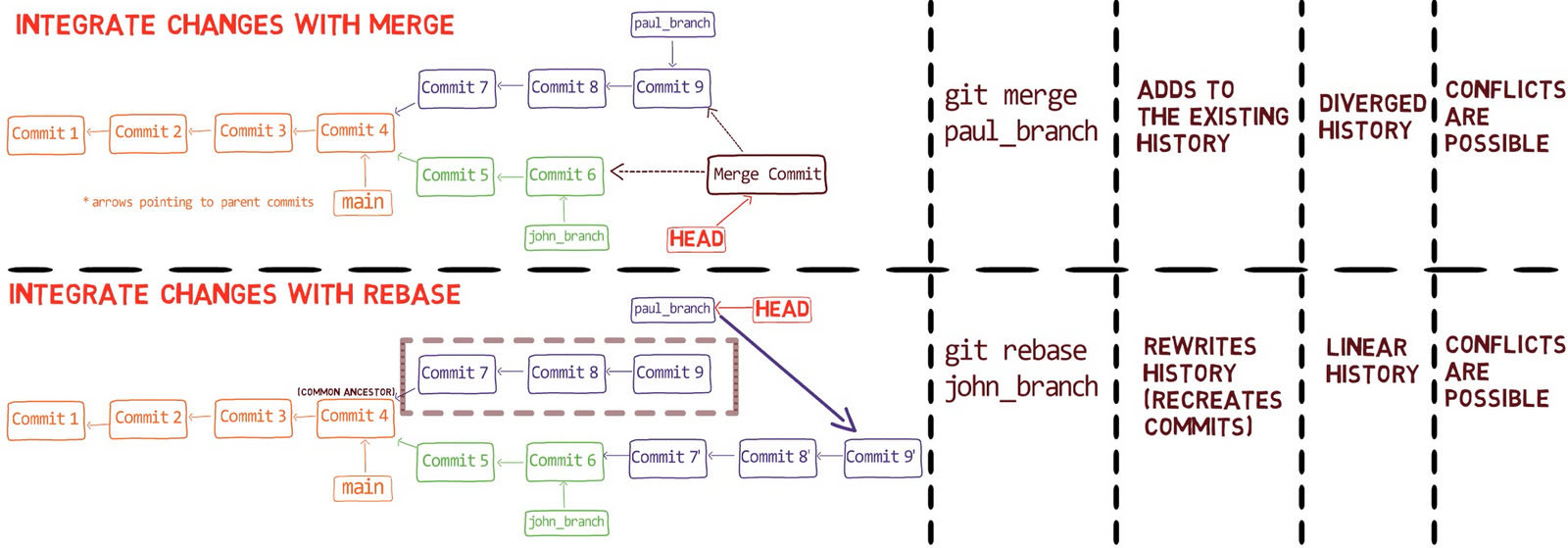
|
||
_Comparing rebase and merge_
|
||
|
||
In the beginning of this chapter, I started by mentioning the similarity between `git merge` and `git rebase`: both are used to integrate changes introduced in different histories.
|
||
|
||
But, as you now know, they are very different in how they operate. While merging results in a _diverged_ history, rebasing results in a _linear_ history. Conflicts are possible in both cases. And there is one more column described in the table above that requires some close attention.
|
||
|
||
Now that you know what "Git rebase" is, and how to use interactive rebase or rebase `--onto`, as I hope you agree, `git rebase` is a super powerful tool. Yet, it has one huge drawback when compared with merging.
|
||
|
||
**Git rebase changes the history.**
|
||
|
||
This means that you should **not** rebase commits that exist outside your local copy of the repository, and that other people may have based their commits on.
|
||
|
||
In other words, if the only commits in question are those you created locally - go ahead, use rebase, go wild.
|
||
|
||
But if the commits have been pushed, this can lead to a huge problem - as someone else may rely on these commits that you later overwrite, and then you and they will have different versions of the repository.
|
||
|
||
This is unlike `merge` which, as we have seen, does not modify history.
|
||
|
||
For example, consider the last case where we rebased and resulted in this history:
|
||
|
||
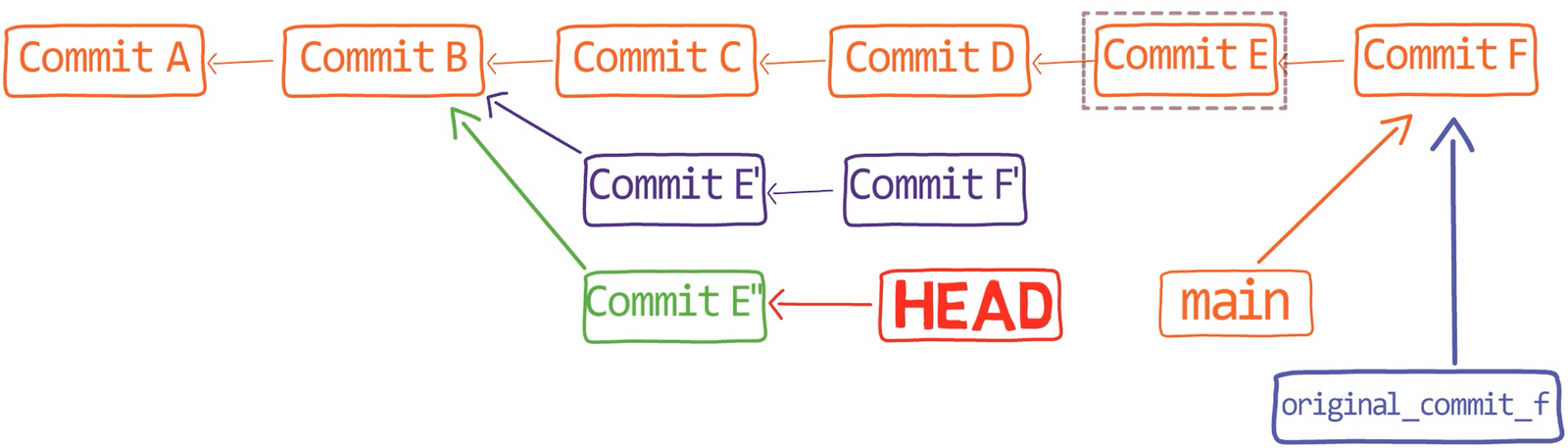
|
||
_The history after rebase_
|
||
|
||
Now, assume that I have already pushed this branch to the remote. And after I had pushed the branch, another developer pulled it and branched out from "Commit C". The other developer didn'</span>t know that meanwhile, I was locally rebasing my branch, and would later push it again.
|
||
|
||
This results <span class="hljs-keyword">in</span> an inconsistency: the other developer works <span class="hljs-keyword">from</span> a commit that is no longer available on my copy <span class="hljs-keyword">of</span> the repository.
|
||
|
||
I will not elaborate on what exactly <span class="hljs-built_in">this</span> causes <span class="hljs-keyword">in</span> <span class="hljs-built_in">this</span> book, <span class="hljs-keyword">as</span> my main message is that you should definitely avoid such cases. If you<span class="hljs-string">'re interested in what would actually happen, I'</span>ll leave a link to a useful resource <span class="hljs-keyword">in</span> the [additional references](#heading-additional-references-by-part). For now, <span class="hljs-keyword">let</span><span class="hljs-string">'s summarize what we have covered.
|
||
|
||
### Recap - Understanding Git Rebase
|
||
|
||
In this chapter, you learned about `git rebase`, a super-powerful tool to rewrite history in Git. You considered a few use cases where git rebase can be helpful, and how to use it with one, two, or three parameters, with and without the `--onto` switch.
|
||
|
||
I hope I was able to convince you that `git rebase` is powerful - but also that it is quite simple once you get the gist. It is a tool you can use to "copy-paste" commits (or, more accurately, patches). And it'</span>s a useful tool to have under your belt. In essence, <span class="hljs-string">`git rebase`</span> takes the patches introduced by commits, and replays them on another commit. As described <span class="hljs-keyword">in</span> <span class="hljs-built_in">this</span> chapter, <span class="hljs-built_in">this</span> is useful <span class="hljs-keyword">in</span> many different scenarios.
|
||
|
||
## Part <span class="hljs-number">2</span> - Summary
|
||
|
||
In <span class="hljs-built_in">this</span> part you learned about branching and integrating changes <span class="hljs-keyword">in</span> Git.
|
||
|
||
You learned what a **diff** is, and the difference between a diff and a **patch**. You also learned how the output <span class="hljs-keyword">of</span> <span class="hljs-string">`git diff`</span> is constructed.
|
||
|
||
Understanding diffs is a major milestone <span class="hljs-keyword">for</span> understanding many other processes within Git such <span class="hljs-keyword">as</span> merging or rebasing.
|
||
|
||
Then, you got an extensive overview <span class="hljs-keyword">of</span> merging <span class="hljs-keyword">with</span> Git. You learned that **merging** is the process <span class="hljs-keyword">of</span> **combining the recent changes <span class="hljs-keyword">from</span> several branches into a single <span class="hljs-keyword">new</span> commit**. The <span class="hljs-keyword">new</span> commit has multiple parents - those commits which had been the tips <span class="hljs-keyword">of</span> the branches that were merged. In most cases, merging combines the changes <span class="hljs-keyword">from</span> two branches, and the resulting merge commit then has two parents - one <span class="hljs-keyword">from</span> each branch.
|
||
|
||
We considered a simple, fast-forward merge, which is possible when one branch diverged <span class="hljs-keyword">from</span> the base branch, and then just added commits on top <span class="hljs-keyword">of</span> the base branch.
|
||
|
||
We then considered three-way merges, and explained the three-stage process:
|
||
|
||
* First, Git locates the merge base. As a reminder, <span class="hljs-built_in">this</span> is the first commit that is reachable <span class="hljs-keyword">from</span> both branches.
|
||
* Second, Git calculates two diffs - one diff <span class="hljs-keyword">from</span> the merge base to the _first_ branch, and another diff <span class="hljs-keyword">from</span> the merge base to the _second_ branch. Git generates patches based on those diffs.
|
||
* Third and last, Git applies both patches to the merge base using a <span class="hljs-number">3</span>-way merge algorithm. The result is the state <span class="hljs-keyword">of</span> the <span class="hljs-keyword">new</span> merge commit.
|
||
|
||
You saw the output <span class="hljs-keyword">of</span> <span class="hljs-string">`git diff`</span> when we are <span class="hljs-keyword">in</span> a conflicting state, and how to resolve conflicts either manually or <span class="hljs-keyword">with</span> VS Code.
|
||
|
||
Ultimately, you got to know Git rebase. You saw that <span class="hljs-string">`git rebase`</span> is powerful - but also that it is quite simple once you understand what it does. It is a tool to <span class="hljs-string">"copy-paste"</span> commits (or, more accurately, patches).
|
||
|
||
</span>
|
||
_Comparing rebase and merge_
|
||
|
||
Both <span class="hljs-string">`git merge`</span> and <span class="hljs-string">`git rebase`</span> are used to integrate changes introduced <span class="hljs-keyword">in</span> different histories.
|
||
|
||
Yet, they differ <span class="hljs-keyword">in</span> how they operate. While merging results <span class="hljs-keyword">in</span> a _diverged_ history, rebasing results <span class="hljs-keyword">in</span> a _linear_ history. <span class="hljs-string">`git rebase`</span> _changes_ the history, whereas <span class="hljs-string">`git merge`</span> adds to the existing history.
|
||
|
||
With <span class="hljs-built_in">this</span> deep understanding <span class="hljs-keyword">of</span> diffs, patches, merge and rebase, you should feel confident introducing changes to a git repository.
|
||
|
||
The next part will focus on what happens when things go wrong - how you can change history (<span class="hljs-keyword">with</span> or without <span class="hljs-string">`git rebase`</span>), or find <span class="hljs-string">"lost"</span> commits.
|
||
|
||
# Part <span class="hljs-number">3</span> - Undoing Changes
|
||
|
||
Did you ever get to a point where you said: <span class="hljs-string">"Uh-oh, what did I just do?"</span> I guess you have, just like about anyone who uses Git.
|
||
|
||
Perhaps you committed to the wrong branch. Perhaps you lost some code that you had written. Perhaps you committed something that you didn<span class="hljs-string">'t mean to.
|
||
|
||
This part will give you the tools to rewrite history with confidence, thereby "undoing" all kinds of changes in Git.
|
||
|
||
Just like the other parts of the book, this part will be practical yet in-depth - so instead of providing you with a list of things to do when things go wrong, we will understand the underlying mechanisms, so that you will feel confident whenever you get to the "uh-oh" moment. Actually, you will find these moments as opportunities for an interesting challenge, rather than a dreadful scenario.
|
||
|
||
## Chapter 9 - Git Reset
|
||
|
||
Our journey starts with a powerful command that can be used to undo many different actions with Git - `git reset`.
|
||
|
||
### A Short Reminder - Recording Changes
|
||
|
||
In [chapter 3](#heading-chapter-3-how-to-record-changes-in-git), you learned how to record changes in Git. If you remember everything from this part, feel free to jump to the next section.
|
||
|
||
It is very useful to think about Git as a system for recording snapshots of a filesystem in time. Considering a Git repository, it has three "states" or "trees":
|
||
|
||
1. The **working directory**, a directory that has a repository associated with it.
|
||
2. The **staging area (index)** which holds the tree for the next commit.
|
||
3. The **repository**, which is a collection of commits and references.
|
||
|
||
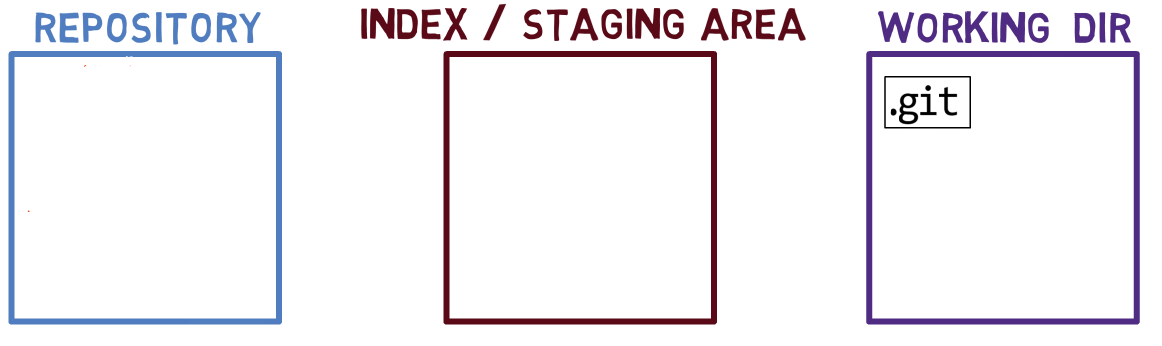
|
||
_The three "trees" of a Git repo_
|
||
|
||
Note regarding the drawing conventions I use: I include `.git` within the working directory, to remind you that it is a folder within the project'</span>s folder on the filesystem. The <span class="hljs-string">`.git`</span> folder actually contains the objects and references <span class="hljs-keyword">of</span> the repository, <span class="hljs-keyword">as</span> explained <span class="hljs-keyword">in</span> [chapter <span class="hljs-number">4</span>](#heading-chapter<span class="hljs-number">-4</span>-how-to-create-a-repo-<span class="hljs-keyword">from</span>-scratch).
|
||
|
||
#### Hands-on Demonstration
|
||
|
||
Use <span class="hljs-string">`git init`</span> to initialize a <span class="hljs-keyword">new</span> repository. Write some text into a file called <span class="hljs-string">`1.txt`</span>:
|
||
|
||
<span class="hljs-string">``</span><span class="hljs-string">`bash
|
||
mkdir my_repo
|
||
cd my_repo
|
||
git init
|
||
echo Hello world > 1.txt</span>
|
||
</code></pre><p>Out of the three tree states described above, where is <code>1.txt</code> now?</p>
|
||
<p>In the working tree, as it hasn't yet been introduced to the index.</p>
|
||
<p><img src="https://www.freecodecamp.org/news/content/images/2023/12/1_txt_working_dir.png" alt="The file is now a part of the working dir only" width="1162" height="346" loading="lazy">
|
||
<em>The file <code>1.txt</code> is now a part of the working dir only</em></p>
|
||
<p>In order to <em>stage</em> it, to <em>add</em> it to the index, use:</p>
|
||
<pre><code class="lang-bash">git add 1.txt
|
||
</code></pre>
|
||
<p><img src="https://www.freecodecamp.org/news/content/images/2023/12/1_txt_index.png" alt="Using stages the file so it is now in the index as well" width="1164" height="346" loading="lazy">
|
||
<em>Using <code>git add</code> stages the file so it is now in the index as well</em></p>
|
||
<p>Notice that once you stage <code>1.txt</code>, Git creates a blob object with the content of this file, and adds it to the internal object database (within <code>.git</code> folder), as covered in <a class="post-section-overview" href="#heading-chapter-3-how-to-record-changes-in-git">chapter 3</a> and <a class="post-section-overview" href="#heading-chapter-4-how-to-create-a-repo-from-scratch">chapter 4</a>. I do not draw it as part of the "repository" as in this representation, the "repository" refers to a tree of commits and their references, and this blob has not been a part of any commit.</p>
|
||
<p>Now, use <code>git commit</code> to commit your changes to the repository:</p>
|
||
<pre><code class="lang-bash">git commit -m <span class="hljs-string">"Commit 1"</span>
|
||
</code></pre>
|
||
<p><img src="https://www.freecodecamp.org/news/content/images/2023/12/commit_1.png" alt="Using creates a commit object in the repository" width="1151" height="437" loading="lazy">
|
||
<em>Using <code>git commit</code> creates a commit object in the repository</em></p>
|
||
<p>You created a new <strong>commit</strong> object, which includes a pointer to a <strong>tree</strong> describing the entire <strong>working tree</strong>. In this case, this tree consists only of <code>1.txt</code> within the root folder. In addition to a pointer to the tree, the commit object includes metadata, such as timestamps and author information.</p>
|
||
<p>When considering the diagrams, notice that we only have a single copy of the file <code>1.txt</code> on disk, and a corresponding blob object in Git's object database. The "repository" tree now shows this file as it is part of the active commit - that is, the commit object "Commit 1" points to a tree that points to the blob with the contents of <code>1.txt</code>, the same blob that the index is pointing to.</p>
|
||
<p>For more information about the objects in Git (such as commits and trees), refer to <a class="post-section-overview" href="#heading-chapter-1-git-objects">chapter 1</a>.</p>
|
||
<p>Next, create a new file, and add it to the index, as before:</p>
|
||
<pre><code class="lang-bash"><span class="hljs-built_in">echo</span> second file > 2.txt
|
||
git add 2.txt
|
||
</code></pre>
|
||
<p><img src="https://www.freecodecamp.org/news/content/images/2023/12/2_txt_index.png" alt="The file is in the working dir and the index after staging it with " width="1151" height="437" loading="lazy">
|
||
<em>The file <code>2.txt</code> is in the working dir and the index after staging it with <code>git add</code></em></p>
|
||
<p>Next, commit:</p>
|
||
<pre><code class="lang-bash">git commit -m <span class="hljs-string">"Commit 2"</span>
|
||
</code></pre>
|
||
<p>Importantly, <code>git commit</code> does two things:</p>
|
||
<p>First, it creates a <strong>commit object</strong>, so there is an object within Git's internal object database with a corresponding SHA-1 value. This new commit object also points to the parent commit. That is the commit that <code>HEAD</code> was pointing to when you wrote the <code>git commit</code> command.</p>
|
||
<p><img src="https://www.freecodecamp.org/news/content/images/2023/12/new_commit_object.png" alt="A new commit object has been created, at first — still points to the previous commit" width="1164" height="439" loading="lazy">
|
||
<em>A new commit object has been created, at first - <code>main</code> still points to the previous commit</em></p>
|
||
<p>Second, <code>git commit</code> <strong>moves the pointer of the active branch</strong> — in our case, that would be <code>main</code>, to point to the newly created commit object.</p>
|
||
<p><img src="https://www.freecodecamp.org/news/content/images/2023/12/commit_updates_active_branch.png" alt=" also updates the active branch to point to the newly created commit object" width="1164" height="439" loading="lazy">
|
||
<em><code>git commit</code> also updates the active branch to point to the newly created commit object</em></p>
|
||
<h3 id="heading-introducing-git-reset">Introducing <code>git reset</code></h3>
|
||
<p>You will now learn how to reverse the process of introducing a commit. For that, you will get to know the command <code>git reset</code>.</p>
|
||
<h4 id="heading-git-reset-soft"><code>git reset --soft</code></h4>
|
||
<p>The very last step you did before was to <code>git commit</code>, which actually means two things — Git created a commit object and moved <code>main</code>, the active branch. To undo this step, use the following command:</p>
|
||
<pre><code class="lang-bash">git reset --soft HEAD~1
|
||
</code></pre>
|
||
<p>The syntax <code>HEAD~1</code> refers to the first parent of <code>HEAD</code>. Consider a case where I had more than one commit in the commit-graph, say "Commit 3" pointing to "Commit 2", which is, in turn, pointing to "Commit 1. And consider <code>HEAD</code> was pointing to "Commit 3". You could use <code>HEAD~1</code> to refer to "Commit 2", and <code>HEAD~2</code> would refer to "Commit 1".</p>
|
||
<p>So, back to the command: <code>git reset --soft HEAD~1</code></p>
|
||
<p>This command asks Git to change whatever <code>HEAD</code> is pointing to. (Note: In the diagrams below, I use <code>*HEAD</code> for "whatever <code>HEAD</code> is pointing to".) In our example, <code>HEAD</code> is pointing to <code>main</code>. So Git will only change the pointer of <code>main</code> to point to <code>HEAD~1</code>. That is, <code>main</code> will point to "Commit 1".</p>
|
||
<p>However, this command did <strong>not</strong> affect the state of the index or the working tree. So if you use <code>git status</code> you will see that <code>2.txt</code> is staged, just like before you ran <code>git commit</code>:</p>
|
||
<p><img src="https://www.freecodecamp.org/news/content/images/2023/12/git_status_after_reset_soft.png" alt=" shows that is in the index, but not in the active commit" width="739" height="330" loading="lazy">
|
||
<em><code>git status</code> shows that <code>2.txt</code> is in the index, but not in the active commit</em></p>
|
||
<p>The state is now:</p>
|
||
<p><img src="https://www.freecodecamp.org/news/content/images/2023/12/reset_soft_1.png" alt="Resetting to "Commit 1"" width="1164" height="439" loading="lazy">
|
||
<em>Resetting <code>main</code> to "Commit 1"</em></p>
|
||
<p>(Note: I removed <code>2.txt</code> from the "repository" in the diagram as it is not part of the active commit - that is, the tree pointed to by "Commit 1" does not reference this file. However, it has not been removed from the file system - as it still exists in the working tree and the index.)</p>
|
||
<p>What about <code>git log</code>? It will start from <code>HEAD</code> , go to <code>main</code>, and then to "Commit 1":</p>
|
||
<p><img src="https://www.freecodecamp.org/news/content/images/2023/12/git_log_after_reset_soft.png" alt="The output of " width="892" height="190" loading="lazy">
|
||
<em>The output of <code>git log</code></em></p>
|
||
<p>Notice that this means that "Commit 2" is no longer reachable from our history.</p>
|
||
<p>Does that mean the commit object of "Commit 2" is deleted?</p>
|
||
<p>No, it's not deleted. It still resides within Git's internal object database of objects.</p>
|
||
<p>If you push the current history now, by using <code>git push</code>, Git will not push "Commit 2" to the remote server (as it is not reachable from the current <code>HEAD</code>), but the commit object <em>still exists</em> on your local copy of the repository.</p>
|
||
<p>Now, commit again - and use the commit message of "Commit 2.1" to differentiate this new object from the original "Commit 2":</p>
|
||
<pre><code class="lang-bash">git commit -m <span class="hljs-string">"Commit 2.1"</span>
|
||
</code></pre>
|
||
<p>This is the resulting state:</p>
|
||
<p><img src="https://www.freecodecamp.org/news/content/images/2023/12/commit_2_1.png" alt="Creating a new commit" width="1164" height="439" loading="lazy">
|
||
<em>Creating a new commit</em></p>
|
||
<p>I omitted "Commit 2" as it is not reachable from <code>HEAD</code>, even though its object exists in Git's internal object database.</p>
|
||
<p>Why are "Commit 2" and "Commit 2.1" different? Even if we used the same commit message, and even though they point to the same tree object (of the root folder consisting of <code>1.txt</code> and <code>2.txt</code>), they still have different timestamps, as they were created at different times. Both "Commit 2" and "Commit 2.1" now point to "Commit 1", but only "Commit 2.1" is reachable from <code>HEAD</code>.</p>
|
||
<h4 id="heading-git-reset-mixed"><code>git reset --mixed</code></h4>
|
||
<p>It's time to undo even further. This time, use:</p>
|
||
<pre><code class="lang-bash">git reset --mixed HEAD~1
|
||
</code></pre>
|
||
<p>(Note: <code>--mixed</code> is the default switch for <code>git reset</code>.)</p>
|
||
<p>This command starts the same as <code>git reset --soft HEAD~1</code>. That is, the command takes the pointer of whatever <code>HEAD</code> is pointing to now, which is the <code>main</code> branch, and sets it to <code>HEAD~1</code>, in our example - "Commit 1".</p>
|
||
<p><img src="https://www.freecodecamp.org/news/content/images/2023/12/git_reset_mixed_1.png" alt="The first step of is the same as " width="1164" height="439" loading="lazy">
|
||
<em>The first step of <code>git reset --mixed</code> is the same as <code>git reset --soft</code></em></p>
|
||
<p>Next, Git goes further, effectively undoing the changes we made to the index. That is, changing the index so that it matches with the current <code>HEAD</code>, the new <code>HEAD</code> after setting it in the first step.</p>
|
||
<p>If we ran <code>git reset --mixed HEAD~1</code>, then <code>HEAD</code> (<code>main</code>) would be set to <code>HEAD~1</code> ("Commit 1"), and then Git would match the index to the state of "Commit 1" - in this case, it means that <code>2.txt</code> would no longer be part of the index.</p>
|
||
<p><img src="https://www.freecodecamp.org/news/content/images/2023/12/git_reset_mixed_2.png" alt="The second step of is to match the index with the new " width="1164" height="439" loading="lazy">
|
||
<em>The second step of <code>git reset --mixed</code> is to match the index with the new <code>HEAD</code></em></p>
|
||
<p>It's time to create a new commit with the state of the original "Commit 2". This time you need to stage <code>2.txt</code> again before creating it:</p>
|
||
<pre><code class="lang-bash">git add 2.txt
|
||
git commit -m <span class="hljs-string">"Commit 2.2"</span>
|
||
</code></pre>
|
||
<p><img src="https://www.freecodecamp.org/news/content/images/2023/12/commit_2_2.png" alt="Creating "Commit 2.2"" width="1164" height="439" loading="lazy">
|
||
<em>Creating "Commit 2.2"</em></p>
|
||
<p>Similarly to "Commit 2.1", I "name" this commit "Commit 2.2" to differentiate it from the original "Commit 2" or "Commit 2.1" - these commits result in the same state as the original "Commit 2", but they are different commit objects.</p>
|
||
<h4 id="heading-git-reset-hard"><code>git reset --hard</code></h4>
|
||
<p>Go on, undo even more!</p>
|
||
<p>This time, use the <code>--hard</code> switch, and run:</p>
|
||
<pre><code class="lang-bash">git reset --hard HEAD~1
|
||
</code></pre>
|
||
<p>Again, Git starts with the <code>--soft</code> stage, setting whatever <code>HEAD</code> is pointing to (<code>main</code>), to <code>HEAD~1</code> ("Commit 1").</p>
|
||
<p><img src="https://www.freecodecamp.org/news/content/images/2023/12/git_reset_hard_1-1.png" alt="The first step of is the same as " width="1164" height="439" loading="lazy">
|
||
<em>The first step of <code>git reset --hard</code> is the same as <code>git reset --soft</code></em></p>
|
||
<p>Next, moving on to the <code>--mixed</code> stage, matching the index with <code>HEAD</code>. That is, Git undoes the staging of <code>2.txt</code>.</p>
|
||
<p><img src="https://www.freecodecamp.org/news/content/images/2023/12/git_reset_hard_2-1.png" alt="The second step of is the same as " width="1164" height="439" loading="lazy">
|
||
<em>The second step of <code>git reset --hard</code> is the same as <code>git reset --mixed</code></em></p>
|
||
<p>Next comes the <code>--hard</code> step, where Git goes even further and matches the working dir with the stage of the index. In this case, it means removing <code>2.txt</code> also from the working dir.</p>
|
||
<p><img src="https://www.freecodecamp.org/news/content/images/2023/12/git_reset_hard_3.png" alt="The third step of matches the state of the working dir with that of the index" width="1164" height="439" loading="lazy">
|
||
<em>The third step of <code>git reset --hard</code> matches the state of the working dir with that of the index</em></p>
|
||
<p>So to introduce a change to Git, you have three steps: you change the working dir, the index, or the staging area, and then you commit a new snapshot with those changes. To undo these changes:</p>
|
||
<ul>
|
||
<li>If we use <code>git reset --soft</code>, we undo the commit step.</li>
|
||
<li>If we use <code>git reset --mixed</code>, we also undo the staging step.</li>
|
||
<li>If we use <code>git reset --hard</code>, we undo the changes to the working dir.</li>
|
||
</ul>
|
||
<p><img src="https://www.freecodecamp.org/news/content/images/2023/12/git_reset_switches.png" alt="The three main switches of " width="1005" height="290" loading="lazy">
|
||
<em>The three main switches of <code>git reset</code></em></p>
|
||
<h3 id="heading-real-life-scenarios">Real-Life Scenarios</h3>
|
||
<h4 id="heading-scenario-1">Scenario #1</h4>
|
||
<p>So in a real-life scenario, write "I love Git" into a file (<code>love.txt</code>), as we all love Git 😍. Go ahead, stage and commit this as well:</p>
|
||
<pre><code class="lang-bash"><span class="hljs-built_in">echo</span> I love Git > love.txt
|
||
git add love.txt
|
||
git commit -m <span class="hljs-string">"Commit 2.3"</span>
|
||
</code></pre>
|
||
<p><img src="https://www.freecodecamp.org/news/content/images/2023/12/commit_2_3.png" alt="Creating "Commit 2.3"" width="1157" height="439" loading="lazy">
|
||
<em>Creating "Commit 2.3"</em></p>
|
||
<p>Also, save a tag so that you can get back to this commit later if needed:</p>
|
||
<pre><code class="lang-bash">git tag scenario-1
|
||
</code></pre>
|
||
<p>Oh, oops!</p>
|
||
<p>Actually, I didn't want you to commit it.</p>
|
||
<p>What I actually wanted you to do is write some more love words in this file before committing it.</p>
|
||
<p>What can you do?</p>
|
||
<p>Well, one way to overcome this would be to use <code>git reset --mixed HEAD~1</code>, effectively undoing both the committing and the staging actions you took:</p>
|
||
<pre><code class="lang-bash">git reset --mixed HEAD~1
|
||
</code></pre>
|
||
<p><img src="https://www.freecodecamp.org/news/content/images/2023/12/reset_commit_2_3.png" alt="Undoing the staging and committing steps" width="1166" height="439" loading="lazy">
|
||
<em>Undoing the staging and committing steps</em></p>
|
||
<p>So <code>main</code> points to "Commit 1" again, and <code>love.txt</code> is no longer a part of the index. However, the file remains in the working dir. You can now add more content to it:</p>
|
||
<pre><code class="lang-bash"><span class="hljs-built_in">echo</span> and Gitting Things Done >> love.txt
|
||
</code></pre>
|
||
<p><img src="https://www.freecodecamp.org/news/content/images/2023/12/adding_love_lyrics.png" alt="Adding more love lyrics" width="1151" height="439" loading="lazy">
|
||
<em>Adding more love lyrics</em></p>
|
||
<p>Stage and commit your file:</p>
|
||
<pre><code class="lang-bash">git add love.txt
|
||
git commit -m <span class="hljs-string">"Commit 2.4"</span>
|
||
</code></pre>
|
||
<p><img src="https://www.freecodecamp.org/news/content/images/2023/12/commit_2_4.png" alt="Introducing "Commit 2.4"" width="1151" height="439" loading="lazy">
|
||
<em>Introducing "Commit 2.4"</em></p>
|
||
<p>Well done!</p>
|
||
<p>You got this clear, nice history of "Commit 2.4" pointing to "Commit 1".</p>
|
||
<p>You now have a new tool in your toolbox, <code>git reset</code>.</p>
|
||
<p>This tool is super, super useful, and you can accomplish almost anything with it. It's not always the most convenient tool to use, but it's capable of solving almost any rewriting-history scenario if you use it carefully.</p>
|
||
<p>For beginners, I recommend using only <code>git reset</code> for almost any time you want to undo in Git. Once you feel comfortable with it, move on to other tools.</p>
|
||
<h4 id="heading-scenario-2">Scenario #2</h4>
|
||
<p>Let us consider another case.</p>
|
||
<p>Create a new file called <code>new.txt</code>; stage and commit:</p>
|
||
<pre><code class="lang-bash"><span class="hljs-built_in">echo</span> this is a new file > new.txt
|
||
git add new.txt
|
||
git commit -m <span class="hljs-string">"Commit 3"</span>
|
||
</code></pre>
|
||
<p><img src="https://www.freecodecamp.org/news/content/images/2023/12/commit_3.png" alt="Creating and "Commit 3"" width="1151" height="439" loading="lazy">
|
||
<em>Creating <code>new.txt</code> and "Commit 3"</em></p>
|
||
<p>(Note: In the drawing I omitted the files from the repository to avoid clutter. Commit 3 includes <code>1.txt</code>, <code>love.txt</code> and <code>new.txt</code> at this stage).</p>
|
||
<p>Oops. Actually, that's a mistake. You were on <code>main</code>, and I wanted you to create this commit on a feature branch. My bad 😇</p>
|
||
<p>There are two most important tools I want you to take from this chapter. The <em>second</em> is <code>git reset</code>. The first and by far more important one is to whiteboard the current state versus the state you want to be in.</p>
|
||
<p>For this scenario, the current state and the desired state look like so:</p>
|
||
<p><img src="https://www.freecodecamp.org/news/content/images/2023/12/scenario_2.png" alt="Scenario #2: current-vs-desired states" width="747" height="445" loading="lazy">
|
||
<em>Scenario #2: current-vs-desired states</em></p>
|
||
<p>(Note: In following diagrams, I will refer to the current state as the "original" state - before starting the process of rewriting history.)</p>
|
||
<p>You will notice three changes:</p>
|
||
<ol>
|
||
<li><code>main</code> points to "Commit 3" (the blue one) in the current state, but to "Commit 2.4" in the desired state.</li>
|
||
<li><code>feature_branch</code> doesn't exist in the current state, yet it exists and points to "Commit 3" in the desired state.</li>
|
||
<li><code>HEAD</code> points to <code>main</code> in the current state, and to <code>feature_branch</code> in the desired state.</li>
|
||
</ol>
|
||
<p>If you can draw this and you know how to use <code>git reset</code>, you can definitely get yourself out of this situation.</p>
|
||
<p>So again, the most important thing is to take a breath and draw this out.</p>
|
||
<p>Observing the drawing above, how do you get from the current state to the desired one?</p>
|
||
<p>There are a few different ways of course, but I will present one option only for each scenario. Feel free to play around with other options as well.</p>
|
||
<p>You can start by using <code>git reset --soft HEAD~1</code>. This would set <code>main</code> to point to the previous commit, "Commit 2.4":</p>
|
||
<pre><code class="lang-bash">git reset --soft HEAD~1
|
||
</code></pre>
|
||
<p><img src="https://www.freecodecamp.org/news/content/images/2023/12/scenario_2_1.png" alt="Changing ; "Commit 3 is still there, just not reachable from " width="1164" height="449" loading="lazy">
|
||
<em>Changing <code>main</code>: "Commit 3" is still there, just not reachable from <code>HEAD</code></em></p>
|
||
<p>Peeking at the current-vs-desired diagram again, you can see that you need a new branch, right? You can use <code>git switch -c feature_branch</code> for it, or <code>git checkout -b feature_branch</code> (which does the same thing):</p>
|
||
<pre><code class="lang-bash">git switch -c feature_branch
|
||
</code></pre>
|
||
<p><img src="https://www.freecodecamp.org/news/content/images/2023/12/scenario_2_2.png" alt="Creating branch" width="1167" height="450" loading="lazy">
|
||
_Creating <code>feature_branch</code> branch_</p>
|
||
<p>This command also updates <code>HEAD</code> to point to the new branch.</p>
|
||
<p>Since you used <code>git reset --soft</code>, you didn't change the index, so it currently has exactly the state you want to commit - how convenient! You can simply commit to <code>feature_branch</code>:</p>
|
||
<pre><code class="lang-bash">git commit -m <span class="hljs-string">"Commit 3.1"</span>
|
||
</code></pre>
|
||
<p><img src="https://www.freecodecamp.org/news/content/images/2023/12/commit_3_1.png" alt="Committing to branch" width="1167" height="450" loading="lazy">
|
||
_Committing to <code>feature_branch</code> branch_</p>
|
||
<p>And you got to the desired state.</p>
|
||
<h4 id="heading-scenario-3">Scenario #3</h4>
|
||
<p>Ready to apply your knowledge to additional cases?</p>
|
||
<p>Still on <code>feature_branch</code>, add some changes to <code>love.txt</code>, and create a new file called <code>cool.txt</code>. Stage them and commit:</p>
|
||
<pre><code class="lang-bash"><span class="hljs-built_in">echo</span> Some changes >> love.txt
|
||
<span class="hljs-built_in">echo</span> Git is cool > cool.txt
|
||
git add love.txt
|
||
git add cool.txt
|
||
git commit -m <span class="hljs-string">"Commit 4"</span>
|
||
</code></pre>
|
||
<p><img src="https://www.freecodecamp.org/news/content/images/2023/12/commit_4.png" alt="The history, as well as the state of the index and the working dir after creating "Commit 4"" width="1185" height="553" loading="lazy">
|
||
<em>The history, as well as the state of the index and the working dir after creating "Commit 4"</em></p>
|
||
<p>Oh, oops, actually I wanted you to create two <em>separate</em> commits, one with each change...</p>
|
||
<p>Want to try this one yourself (before reading on)?</p>
|
||
<p>You can undo the committing and staging steps:</p>
|
||
<pre><code class="lang-bash">git reset --mixed HEAD~1
|
||
</code></pre>
|
||
<p>Following this command, the index no longer includes those two changes, but they're both still in your file system:</p>
|
||
<p><img src="https://www.freecodecamp.org/news/content/images/2023/12/reset_commit_4.png" alt="Resulting state after using " width="1185" height="553" loading="lazy">
|
||
<em>Resulting state after using <code>git reset --mixed HEAD~1</code></em></p>
|
||
<p>So now, if you only stage <code>love.txt</code>, you can commit it separately:</p>
|
||
<pre><code class="lang-bash">git add love.txt
|
||
git commit -m <span class="hljs-string">"Love"</span>
|
||
</code></pre>
|
||
<p><img src="https://www.freecodecamp.org/news/content/images/2023/12/commit_love.png" alt="Resulting state after committing the changes to " width="1162" height="529" loading="lazy">
|
||
<em>Resulting state after committing the changes to <code>love.txt</code></em></p>
|
||
<p>Then, do the same for <code>cool.txt</code>:</p>
|
||
<pre><code class="lang-bash">git add cool.txt
|
||
git commit -m <span class="hljs-string">"Cool"</span>
|
||
</code></pre>
|
||
<p><img src="https://www.freecodecamp.org/news/content/images/2023/12/commit_separately.png" alt="Committing separately" width="1162" height="532" loading="lazy">
|
||
<em>Committing separately</em></p>
|
||
<p>Nice!</p>
|
||
<h4 id="heading-scenario-4">Scenario #4</h4>
|
||
<p>To clear up the state, switch to <code>main</code> and use <code>reset --hard</code> to make it point to "Commit 3.1", while setting the index and the working dir to the state of "Commit 3.1":</p>
|
||
<pre><code class="lang-bash">git checkout main
|
||
git reset --hard <SHA_OF_COMMIT_3_1>
|
||
</code></pre>
|
||
<p><img src="https://www.freecodecamp.org/news/content/images/2023/12/reset_main_commit_3_1.png" alt="Resetting to "Commit 3.1"" width="1140" height="522" loading="lazy">
|
||
<em>Resetting <code>main</code> to "Commit 3.1"</em></p>
|
||
<p>Create another file (<code>another.txt</code>) with some text, and add some text to <code>love.txt</code>. Stage both changes, and commit them:</p>
|
||
<pre><code class="lang-bash"><span class="hljs-built_in">echo</span> Another file > another.txt
|
||
<span class="hljs-built_in">echo</span> More love >> love.txt
|
||
git add another.txt
|
||
git add love.txt
|
||
git commit -m <span class="hljs-string">"Commit 4.1"</span>
|
||
</code></pre>
|
||
<p>This should be the result:</p>
|
||
<p><img src="https://www.freecodecamp.org/news/content/images/2023/12/commit_more_changes.png" alt="A new commit" width="1150" height="544" loading="lazy">
|
||
<em>A new commit</em></p>
|
||
<p>Oops...</p>
|
||
<p>So this time, I wanted it to be on another branch, but not a new branch, rather - an already-existing branch.</p>
|
||
<p>So what can you do?</p>
|
||
<p>I'll give you a hint. The answer is really short and really easy. What do we do first?</p>
|
||
<p>No, not <code>reset</code>. We <em>draw</em>. That's the first thing to do, as it would make everything else so much easier. So this is the current state:</p>
|
||
<p><img src="https://www.freecodecamp.org/news/content/images/2023/12/scenario_4.png" alt="The new commit on appears blue" width="1153" height="532" loading="lazy">
|
||
<em>The new commit on <code>main</code> appears blue</em></p>
|
||
<p>And the desired state?</p>
|
||
<p><img src="https://www.freecodecamp.org/news/content/images/2023/12/scenario_4_1-1.png" alt="We want the "blue" commit to be on another, , branch\label{fig-scenario-4-1}" width="1172" height="743" loading="lazy">
|
||
<em>We want the "blue" commit to be on another, <code>existing</code>, branch</em></p>
|
||
<p>How do you get from the current state to the desired state, what would be easiest?</p>
|
||
<p>One way would be to use <code>git reset</code> as you did before, but there is another way that I would like you to try.</p>
|
||
<p>Note that the following commands indeed assume the branch <code>existing</code> exists on your repository, yet you haven't created it earlier. To match a state where this branch actually exists, you can use the following commands:</p>
|
||
<pre><code class="lang-bash">git checkout <SHA_OF_COMMIT_1>
|
||
git checkout -b existing
|
||
<span class="hljs-built_in">echo</span> <span class="hljs-string">"Hello"</span> > x.txt
|
||
git add x.txt
|
||
git commit -m <span class="hljs-string">"Commit X"</span>
|
||
git checkout <SHA_OF_COMMIT_3_1> -- love.txt
|
||
git commit -m <span class="hljs-string">"Commit Y"</span>
|
||
git checkout main
|
||
</code></pre>
|
||
<p>(The command <code>git checkout <SHA_OF_COMMIT_3_1> -- love.txt</code> copies the contents of <code>love.txt</code> from "Commit 3.1" to the index and the working dir, so that you can commit it on the <code>existing</code> branch. We need the state of <code>love.txt</code> on "Commit Y" to be the same as of "Commit 3.1" to avoid conflicts.)</p>
|
||
<p>Now your history should match the one shown in the picture with the caption "We want the "blue" commit to be on another, <code>existing</code>, branch".</p>
|
||
<p>First, move <code>HEAD</code> to point to existing branch:</p>
|
||
<pre><code class="lang-bash">git switch existing
|
||
</code></pre>
|
||
<p><img src="https://www.freecodecamp.org/news/content/images/2023/12/switch_existing.png" alt="Switch to the branch" width="1760" height="736" loading="lazy">
|
||
<em>Switch to the <code>existing</code> branch</em></p>
|
||
<p>Intuitively, what you want to do is take the changes introduced in "Commit 4.1", and apply these changes ("copy-paste") on top of <code>existing</code> branch. And Git has a tool just for that.</p>
|
||
<p>To ask Git to take the changes introduced between a commit and its parent commit and just apply these changes on the active branch, you can use <code>git cherry-pick</code>, a command we introduced in <a class="post-section-overview" href="#heading-chapter-8-understanding-git-rebase">chapter 8</a>. This command takes the changes introduced in the specified revision and applies them to the state of the active commit. Run:</p>
|
||
<pre><code class="lang-bash">git cherry-pick <SHA_OF_COMMIT_4_1>
|
||
</code></pre>
|
||
<p>You can specify the SHA-1 identifier of the desired commit, but you can also use <code>git cherry-pick main</code>, as the commit whose changes you are applying is the one <code>main</code> is pointing to.</p>
|
||
<p><code>git cherry-pick</code> also creates a new commit object, and updates the active branch to point to this new object, so the resulting state would be:</p>
|
||
<p><img src="https://www.freecodecamp.org/news/content/images/2023/12/cherry_pick.png" alt="The result after using " width="1760" height="736" loading="lazy">
|
||
<em>The result after using <code>git cherry-pick</code></em></p>
|
||
<p>I mark the commit as "Commit 4.2" since it has a different timestamp, parent and SHA-1 value than "Commit 4.1", though the changes it introduces are the same.</p>
|
||
<p>You made good progress - the desired commit is now on the <code>existing</code> branch! But we don't want these changes to exist on <code>main</code> branch. <code>git cherry-pick</code> only applied the changes to the existing branch. How can you remove them from <code>main</code>?</p>
|
||
<p>One way would be to switch back to <code>main</code>, and then <code>reset</code> it:</p>
|
||
<pre><code class="lang-bash">git switch main
|
||
git reset --hard HEAD~1
|
||
</code></pre>
|
||
<p>And the result:</p>
|
||
<p><img src="https://www.freecodecamp.org/news/content/images/2023/12/reset_cherry_pick.png" alt="The resulting state after resetting " width="1760" height="736" loading="lazy">
|
||
<em>The resulting state after resetting <code>main</code></em></p>
|
||
<p>You did it!</p>
|
||
<p>Note that <code>git cherry-pick</code> actually computes the difference between the specified commit and its parent, and then applies the difference to the active commit. This means that sometimes, Git won't be able to apply those changes due to a conflict.</p>
|
||
<p>Also, note that you can ask Git to <code>cherry-pick</code> the changes introduced in any commit, not only commits referenced by a branch.</p>
|
||
<h3 id="heading-recap-git-reset">Recap - Git Reset</h3>
|
||
<p>In this chapter, we learned how <code>git reset</code> operates, and clarified its three main modes of operation:</p>
|
||
<ul>
|
||
<li><code>git reset --soft <commit></code>, which changes whatever <code>HEAD</code> is pointing to - to <code><commit></code>.</li>
|
||
<li><code>git reset --mixed <commit></code>, which goes through the <code>--soft</code> stage, and also sets the state of the index to match that of <code>HEAD</code>.</li>
|
||
<li><code>git reset --hard <commit></code>, which goes through the <code>--soft</code> and <code>--mixed</code> stages, and then sets the state of the working dir to match that of the index.</li>
|
||
</ul>
|
||
<p>You then applied your knowledge about <code>git reset</code> to solve some real-life issues that arise when using Git.</p>
|
||
<p>By understanding the way Git operates, and by whiteboarding the current state versus the desired state, you can confidently tackle all kinds of scenarios.</p>
|
||
<p>In the future chapters, we will cover additional Git commands and how they can help us solve all kinds of undesired situations.</p>
|
||
<h2 id="heading-chapter-10-additional-tools-for-undoing-changes">Chapter 10 - Additional Tools for Undoing Changes</h2>
|
||
<p>In the previous chapter, you met <code>git reset</code>. Indeed, <code>git reset</code> is a super powerful tool, and I highly recommend to use it until you feel completely comfortable with it.</p>
|
||
<p>Yet, <code>git reset</code> is not the only tool at our disposal. Some of the times, it is not the most convenient tool to use. In others, it's just not enough. This short chapter touches a few tools that are helpful for undoing changes in Git.</p>
|
||
<h3 id="heading-git-commit-amend"><code>git commit --amend</code></h3>
|
||
<p>Consider <a target="_blank" href="https://www.freecodecamp.org/news/p/f7b355ea-3f22-4613-8218-e95c67779d9f/scenario-1">Scenario #1</a> from the previous chapter again. As a reminder, you wrote "I love Git" into a file (<code>love.txt</code>), staged and committed this file:</p>
|
||
<p><img src="https://www.freecodecamp.org/news/content/images/2023/12/image-52.png" alt="Image" width="1328" height="460" loading="lazy">
|
||
<em>The state after creating "Commit 2.3"</em></p>
|
||
<p>And then I realized I didn't want you to commit it at that state, but rather - write some more love words in this file before committing it.</p>
|
||
<p>To match this state, simply checkout the tag you created, which points to "Commit 2.3":</p>
|
||
<pre><code class="lang-bash">git checkout scenario-1
|
||
</code></pre>
|
||
<p>In the previous chapter, when we introduced <code>git reset</code>, you solved this issue by using <code>git reset --mixed HEAD~1</code>, effectively undoing both the committing and the staging actions you took.</p>
|
||
<p>Now I would like you to consider another approach. Keep working at the state of the last introduced commit ("Commit 2.3", referenced by the tag "scenario-1"), and make the changes you want:</p>
|
||
<pre><code class="lang-bash"><span class="hljs-built_in">echo</span> And I love this book >> love.txt
|
||
</code></pre>
|
||
<p>Add this change to the index:</p>
|
||
<pre><code class="lang-bash">git add love.txt
|
||
</code></pre>
|
||
<p>Now, you can use <code>git commit</code> with the <code>--amend</code> switch, which tells it to override the commit <code>HEAD</code> is pointing to. Actually, it will create another, new commit, pointing to <code>HEAD~1</code> ("Commit 1" in our example), and make <code>HEAD</code> point to this newly created commit. By providing the <code>-m</code> argument you can specify a new commit message as well:</p>
|
||
<pre><code class="lang-bash">git commit --amend -m <span class="hljs-string">"Commit 2.4"</span>
|
||
</code></pre>
|
||
<p>After running this command, <code>HEAD</code> points to <code>main</code>, which points to "Commit 2.4", which in turn points to "Commit 1". The previous "Commit 2.3" is no longer reachable from the history.</p>
|
||
<p><img src="https://www.freecodecamp.org/news/content/images/2023/12/commit_amend-1.png" alt="Image" width="1316" height="469" loading="lazy">
|
||
<em>The state after using <code>git commit --amend</code> (Commit "2.3" is unreachable and thus not included in the drawing)</em></p>
|
||
<p>This tool is useful when you want to quickly override the last commit you created. Indeed, you could use <code>git reset</code> to accomplish the same thing, but you can view <code>git commit --amend</code> as a more convenient shortcut.</p>
|
||
<h3 id="heading-git-revert"><code>git revert</code></h3>
|
||
<p>Okay, so another day, another problem.</p>
|
||
<p>Add the following text to <code>love.txt</code>, stage and commit as follows:</p>
|
||
<pre><code class="lang-bash"><span class="hljs-built_in">echo</span> This is more tezt >> love.txt
|
||
git add love.txt
|
||
git commit -m <span class="hljs-string">"Commit 3"</span>
|
||
</code></pre>
|
||
<p><img src="https://www.freecodecamp.org/news/content/images/2023/12/git_revert_1-1.png" alt="Committing "More changes"" width="1320" height="468" loading="lazy">
|
||
<em>The state after committing "Commit 3"</em></p>
|
||
<p>And push it to the remote server:</p>
|
||
<pre><code class="lang-bash">git push origin HEAD
|
||
</code></pre>
|
||
<p>Um, oops 😓…</p>
|
||
<p>I just noticed something. I had a typo there. I wrote "This is more tezt" instead of "This is more text". Whoops. So what's the big problem now? I <code>push</code>ed, which means that someone else might have already <code>pull</code>ed those changes.</p>
|
||
<p>If I override those changes by using <code>git reset</code>, we will have different histories, and all hell might break loose. You can rewrite your own copy of the repo as much as you like until you <code>push</code> it.</p>
|
||
<p>Once you <code>push</code> the change, you need to be certain no one else has fetched those changes if you are going to rewrite history.</p>
|
||
<p>Alternatively, you can use another tool called <code>git revert</code>. This command takes the commit you're providing it with and computes the diff from its parent commit, just like <code>git cherry-pick</code>, but this time, it computes the <em>reverse</em> changes. That is, if in the specified commit you added a line, the reverse would delete the line, and vice versa. </p>
|
||
<p>In our case we are reverting "Commit 3", so the reverse would be to delete the line "This is more tezt" from <code>love.txt</code>. Since "Commit 3" is referenced by <code>main</code> and <code>HEAD</code>, we can use any of these named references in this command:</p>
|
||
<p><img src="https://www.freecodecamp.org/news/content/images/2023/12/git_revert_2.png" alt="Using to undo the changes" width="1340" height="538" loading="lazy">
|
||
<em>Using <code>git revert</code> to undo the changes</em></p>
|
||
<p><code>git revert</code> created a new commit object, which means it's an addition to the history. By using <code>git revert</code>, you didn't rewrite history. You admitted your past mistake, and this commit is an acknowledgment that you made a mistake and now you fixed it.</p>
|
||
<p>Some would say it's the more mature way. Some would say it's not as clean a history as you would get if you used <code>git reset</code> to rewrite the previous commit. But this is a way to avoid rewriting history.</p>
|
||
<p>You can now fix the typo and commit again:</p>
|
||
<pre><code class="lang-bash"><span class="hljs-built_in">echo</span> This is more text >> love.txt
|
||
git add love.txt
|
||
git commit -m <span class="hljs-string">"Commit 3.1"</span>
|
||
</code></pre>
|
||
<p><img src="https://www.freecodecamp.org/news/content/images/2023/12/git_revert_3.png" alt="Redoing the changes" width="1340" height="519" loading="lazy">
|
||
<em>The resulting state after redoing the changes</em></p>
|
||
<p>You can use <code>git revert</code> to revert a commit other than <code>HEAD</code>. Say that you want to reverse the parent of <code>HEAD</code>, you can use:</p>
|
||
<pre><code class="lang-bash">git revert HEAD~1
|
||
</code></pre>
|
||
<p>Or you could provide the SHA-1 of the commit to revert.</p>
|
||
<p>Notice that since Git will apply the reverse patch of the previous patch - this operation might fail, as the patch may no longer apply and you might get a conflict.</p>
|
||
<h3 id="heading-git-rebase-as-a-tool-for-undoing-things">Git Rebase as a Tool for Undoing Things</h3>
|
||
<p>In <a class="post-section-overview" href="#heading-chapter-8-understanding-git-rebase">chapter 8</a>, you learned about Git rebase. We then considered it mainly as a tool to combine changes introduced in different branches. Yet, as long as you haven't <code>push</code>ed your changes, using <code>rebase</code> on your own branch can be a very convenient way to rearrange your commit history.</p>
|
||
<p>For that, you would usually <a class="post-section-overview" href="#heading-how-to-rebase-on-a-single-branch">rebase on a single branch</a>, and use interactive rebase. Consider again this example covered in <a class="post-section-overview" href="#heading-chapter-8-understanding-git-rebase">chapter 8</a>, where I worked from <code>feature_branch_2</code>, and specifically edited the file <code>code.py</code>. I started by changing all strings to be wrapped by double quotes rather than single quotes:</p>
|
||
<p><img src="https://www.freecodecamp.org/news/content/images/2023/12/code_py_4-1.png" alt="Changing into in " width="588" height="382" loading="lazy">
|
||
<em>Changing <code>'</code> into <code>"</code> in <code>code.py</code></em></p>
|
||
<p>Then, I staged and committed:</p>
|
||
<pre><code class="lang-bash">git add code.py
|
||
git commit -m <span class="hljs-string">"Commit 17"</span>
|
||
</code></pre>
|
||
<p>I then decided to add a new function at the beginning of the file:</p>
|
||
<p><img src="https://www.freecodecamp.org/news/content/images/2023/12/code_py_5-1.png" alt="Adding the function " width="590" height="423" loading="lazy">
|
||
_Adding the function <code>another_feature</code>_</p>
|
||
<p>Again, I staged and committed:</p>
|
||
<pre><code class="lang-bash">git add code.py
|
||
git commit -m <span class="hljs-string">"Commit 18"</span>
|
||
</code></pre>
|
||
<p>And now I realized I actually forgot to change the single quotes to double quotes wrapping the <code>__main__</code> (as you might have noticed), so I did that too:</p>
|
||
<p><img src="https://www.freecodecamp.org/news/content/images/2023/12/code_py_6-1.png" alt="Changing into " width="599" height="446" loading="lazy">
|
||
<em>Changing <code>'__main__'</code> into <code>"__main__"</code></em></p>
|
||
<p>Of course, I staged and committed this change:</p>
|
||
<pre><code class="lang-bash">git add code.py
|
||
git commit -m <span class="hljs-string">"Commit 19"</span>
|
||
</code></pre>
|
||
<p>Now, consider the history:</p>
|
||
<p><img src="https://www.freecodecamp.org/news/content/images/2023/12/history_after_commit_19-1.png" alt="The commit history after introducing "Commit 19"" width="1600" height="462" loading="lazy">
|
||
<em>The commit history after introducing "Commit 19"</em></p>
|
||
<p>As explained in <a class="post-section-overview" href="#heading-chapter-8-understanding-git-rebase">chapter 8</a>, I got to a state with two commits that are related to one another, "Commit 17" and "Commit 19" (turning <code>'</code>s into <code>"</code>s), but they are split by the unrelated "Commit 18" (where I added a new function).</p>
|
||
<p>This is a classic case where <code>git rebase</code> would come in handy, to undo the local changes before <code>push</code>ing a clean history.</p>
|
||
<p>Intuitively, I want to edit the history here:</p>
|
||
<p><img src="https://www.freecodecamp.org/news/content/images/2023/12/plan_edit_commits_17_18-1.png" alt="These are the commits I want to edit" width="1600" height="436" loading="lazy">
|
||
<em>These are the commits I want to edit</em></p>
|
||
<p>I can <code>rebase</code> the history from "Commit 17" to "Commit 19", on top of "Commit 15". To do that:</p>
|
||
<pre><code class="lang-bash">git rebase --interactive --onto <SHA_OF_COMMIT_15> <SHA_OF_COMMIT_15>
|
||
</code></pre>
|
||
<p><img src="https://www.freecodecamp.org/news/content/images/2023/12/rebase_onto_4-1.png" alt="Using on a single branch" width="1023" height="391" loading="lazy">
|
||
<em>Using <code>rebase --onto</code> on a single branch</em></p>
|
||
<p>This results in the following screen:</p>
|
||
<p><img src="https://www.freecodecamp.org/news/content/images/2023/12/interactive_rebase_4-1.png" alt="Interactive rebase" width="904" height="638" loading="lazy">
|
||
<em>Interactive rebase</em></p>
|
||
<p>So what would I do? I want to put "Commit 19" before "Commit 18", so it comes right after "Commit 17". I can go further and <code>squash</code> them together, like so:</p>
|
||
<p><img src="https://www.freecodecamp.org/news/content/images/2023/12/interactive_rebase_5-1.png" alt="Interactive rebase - changing the order of commit and squashing" width="1010" height="396" loading="lazy">
|
||
<em>Interactive rebase - changing the order of commit and squashing</em></p>
|
||
<p>Now when I get prompted for a commit message, I can provide the message "Commit 17+19":</p>
|
||
<p><img src="https://www.freecodecamp.org/news/content/images/2023/12/interactive_rebase_6-1.png" alt="Providing a commit message" width="799" height="393" loading="lazy">
|
||
<em>Providing a commit message</em></p>
|
||
<p>And now, see our beautiful history:</p>
|
||
<p><img src="https://www.freecodecamp.org/news/content/images/2023/12/rebase_onto_5-1.png" alt="The resulting history" width="1030" height="493" loading="lazy">
|
||
<em>The resulting history</em></p>
|
||
<p>The syntax used above, <code>git rebase --interactive --onto <COMMIT X> <COMMIT X></code> would be the most commonly used syntax by those who use <code>rebase</code> regularly. The state of mind these developers usually have is to create atomic commits while working, all the time, without being scared to change them later. Then, before <code>push</code>ing their changes, they would <code>rebase</code> the entire set of changes since the last <code>push</code>, and rearrange it so the history becomes coherent.</p>
|
||
<h3 id="heading-git-reflog"><code>git reflog</code></h3>
|
||
<p>Time to consider a more startling case.</p>
|
||
<p>Go back to "Commit 2.4":</p>
|
||
<pre><code class="lang-bash">git reset --hard <SHA_OF_COMMIT_2_4>
|
||
</code></pre>
|
||
<p>Get some work done, write some code, and add it to <code>love.txt</code>. Stage this change, and commit it:</p>
|
||
<pre><code class="lang-bash"><span class="hljs-built_in">echo</span> lots of work >> love.txt
|
||
git add love.txt
|
||
git commit -m <span class="hljs-string">"Commit 3.2"</span>
|
||
</code></pre>
|
||
<p>(I'm using "Commit 3.2" to indicate that this is not the same commit as "Commit 3" we used when explaining <code>git revert</code>.)</p>
|
||
<p><img src="https://www.freecodecamp.org/news/content/images/2023/12/reflog_commit_3-1.png" alt="Another commit" width="1320" height="468" loading="lazy">
|
||
<em>Another commit - "Commit 3.2"</em></p>
|
||
<p>I did the same on my machine, and I used the <code>Up</code> arrow key on my keyboard to scroll back to previous commands, and then I hit <code>Enter</code>, and… Wow.</p>
|
||
<p>Whoops.</p>
|
||
<p><img src="https://www.freecodecamp.org/news/content/images/2023/12/reflog_commit_3_reset.png" alt="Did I just ?" width="929" height="120" loading="lazy">
|
||
<em>Did I just <code>git reset -- hard</code>?</em></p>
|
||
<p>Did I just use <code>git reset --hard</code>? 😨</p>
|
||
<p>What actually happened? As you learned in the <a class="post-section-overview" href="#heading-chapter-9-git-reset">previous chapter</a>, Git moved the pointer to <code>HEAD~1</code>, so the last commit, with all of my precious work, is not reachable from the current history. Git also removed all the changes from the staging area, and then matched the working dir to the state of the staging area.</p>
|
||
<p>That is, everything matches this state where my work is… gone.</p>
|
||
<p>Freak out time. Freaking out.</p>
|
||
<p>But, really, is there a reason to freak out? Not really… We're relaxed people. What do we do? Well, intuitively, is the commit really, really gone?</p>
|
||
<p>No. Why not? It still exists inside the internal database of Git.</p>
|
||
<p>If I only knew where that is, I would know the <code>SHA-1</code> value that identifies this commit, and we could restore it. I could even undo the undoing, and <code>reset</code> back to this commit.</p>
|
||
<p>Actually, the only thing I really need here is the <code>SHA-1</code> of the "deleted" commit.</p>
|
||
<p>Now the question is, how do I find it? Would <code>git log</code> be useful?</p>
|
||
<p>Well, not really. <code>git log</code> would go to <code>HEAD</code>, which points to <code>main</code>, which points to the parent commit of the commit we are looking for. Then, <code>git log</code> would trace back through the parent chain, which does not include the commit with my precious work.</p>
|
||
<p><img src="https://www.freecodecamp.org/news/content/images/2023/12/reflog_git_log.png" alt=" doesn't help in this case" width="1155" height="465" loading="lazy">
|
||
<em><code>git log</code> doesn't help in this case</em></p>
|
||
<p>Thankfully, the very smart people who created Git also created a backup plan for us, and that is called the <code>reflog</code>.</p>
|
||
<p>While you work with Git, whenever you change <code>HEAD</code>, which you can do by using <code>git reset</code>, but also other commands like <code>git switch</code> or <code>git checkout</code>, Git adds an entry to the <code>reflog</code>.</p>
|
||
<p><img src="https://www.freecodecamp.org/news/content/images/2023/12/git_reflog.png" alt=" shows us where was" width="1155" height="94" loading="lazy">
|
||
<em><code>git reflog</code> shows us where <code>HEAD</code> was</em></p>
|
||
<p>We found our commit! It's the one starting with <code>0fb929e</code>.</p>
|
||
<p>We can also relate to it by its "nickname" - <code>HEAD@{1}</code>. Similar to the way Git uses <code>HEAD~1</code> to get to the first parent of <code>HEAD</code>, and <code>HEAD~2</code> to refer to the second parent of <code>HEAD</code> and so on, Git uses <code>HEAD@{1}</code> to refer to the first <em>reflog</em> parent of <code>HEAD</code>, that is, where <code>HEAD</code> pointed to in the previous step.</p>
|
||
<p>We can also ask <code>git rev-parse</code> to show us its value:</p>
|
||
<p><img src="https://www.freecodecamp.org/news/content/images/2023/12/reflog_revparse.png" alt="Using " width="1155" height="335" loading="lazy">
|
||
<em>Using <code>git rev-parse HEAD@{1}</code></em></p>
|
||
<p>Note: In case you are using Windows, you may need to wrap it with quotation marks - like so:</p>
|
||
<pre><code class="lang-bash">git rev-parse <span class="hljs-string">"HEAD@{1}"</span>
|
||
</code></pre>
|
||
<p>Another way to view the <code>reflog</code> is by using <code>git log -g</code>, which asks <code>git log</code> to actually consider the <code>reflog</code>:</p>
|
||
<p><img src="https://www.freecodecamp.org/news/content/images/2023/12/git_log_g.png" alt="The output of " width="1155" height="551" loading="lazy">
|
||
<em>The output of <code>git log -g</code></em></p>
|
||
<p>You can see in the output of <code>git log -g</code> that the <code>reflog</code>'s entry <code>HEAD@{0}</code>, just like <code>HEAD</code>, points to <code>main</code>, which points to "Commit 2". But the parent of that entry in the <code>reflog</code> points to "Commit 3".</p>
|
||
<p>So to get back to "Commit 3", you can just use <code>git reset --hard HEAD@{1}</code> (or the <code>SHA-1</code> value of "Commit 3"):</p>
|
||
<p><img src="https://www.freecodecamp.org/news/content/images/2023/12/git_reflog_reset.png" alt="Image" width="1155" height="378" loading="lazy">
|
||
<em><code>git reset --hard HEAD@{1}</code></em></p>
|
||
<p>And now, if you <code>git log</code>:</p>
|
||
<p><img src="https://www.freecodecamp.org/news/content/images/2023/12/git_log_2.png" alt="Our history is back!!!" width="1155" height="629" loading="lazy">
|
||
<em>Our history is back!!!</em></p>
|
||
<p>We saved the day!</p>
|
||
<p>What would happen if I used this command again? And ran <code>git reset --hard HEAD@{1}</code>?</p>
|
||
<p>Git would set <code>HEAD</code> to where <code>HEAD</code> was pointing before the last <code>reset</code>, meaning to "Commit 2". We can keep going all day:</p>
|
||
<p><img src="https://www.freecodecamp.org/news/content/images/2023/12/git_reset_again.png" alt=" again" width="1155" height="389" loading="lazy">
|
||
<em><code>git reset --hard</code> again</em></p>
|
||
<h3 id="heading-recap-additional-tools-for-undoing-changes">Recap - Additional Tools for Undoing Changes</h3>
|
||
<p>In the previous chapter, you learned how to use <code>git reset</code> to undo changes.</p>
|
||
<p>In this chapter, you extended your toolbox for undoing changes in Git with a few new commands:</p>
|
||
<ul>
|
||
<li><code>git commit --amend</code> - which "overrides" the last commit with the stage of the index. Mostly useful when you just committed something and want to modify that last commit.</li>
|
||
<li><code>git revert</code> - which creates a new commit, that reverts a past commit by adding a new commit to the history with the reversed changes. Useful especially when the "faulty" commit has already been pushed to the remote.</li>
|
||
<li><code>git rebase</code> - which you already know from <a class="post-section-overview" href="#heading-chapter-8-understanding-git-rebase">chapter 8</a>, and is useful for rewriting the history of multiple commits, especially before pushing them.</li>
|
||
<li><code>git reflog</code> (and <code>git log -g</code>) - which tracks all changes to <code>HEAD</code>, so you might find the SHA-1 value of a commit you need to get back to.</li>
|
||
</ul>
|
||
<p>The most important tool, even more important than the tools I just listed, is to whiteboard the current situation vs the desired one. Trust me on this, it will make every situation seem less daunting and the solution more clear.</p>
|
||
<p>There are additional tools that allow you to reverse changes in Git (I will provide links in the <a class="post-section-overview" href="#heading-additional-references-by-part">appendix</a>), but the collection of tools covered here should prepare you to tackle any challenge with confidence.</p>
|
||
<h2 id="heading-chapter-11-exercises">Chapter 11 - Exercises</h2>
|
||
<p>This chapter includes a few exercises to deepen your understanding of the tools you learned in Part 3. The full version of this book also includes detailed solutions for each.</p>
|
||
<p>The exercises are found on this repository:</p>
|
||
<p><a target="_blank" href="https://github.com/Omerr/undo-exercises.git">https://github.com/Omerr/undo-exercises.git</a></p>
|
||
<p>Each exercise exists on a branch with the name <code>exercise_XX</code>, so Exercise 1 is found on branch <code>exercise_01</code>, Exercise 2 is found on branch <code>exercise_02</code> and so on.</p>
|
||
<p>Note: As explained in previous chapters, if you work with commits that can be found on a remote server (which you are in this case, as you are using my repository "undo-exercises"), you should probably use <code>git revert</code> instead of <code>git reset</code>. Similar to <code>git rebase</code>, the command <code>git reset</code> also rewrites history - and thus you should refrain from using it on commits that others may have relied on. </p>
|
||
<p>For the purposes of these exercises, you can assume no one else has cloned or pulled code from the remote repository. Just remember - in real life, you should probably use <code>git revert</code> instead of commands that rewrite history in such cases.</p>
|
||
<h3 id="heading-exercise-1">Exercise 1</h3>
|
||
<p>On branch <code>exercise_01</code>, consider the file <code>hello.txt</code>:</p>
|
||
<p><img src="https://www.freecodecamp.org/news/content/images/2023/12/ex_01_1.png" alt="The file " width="1068" height="110" loading="lazy">
|
||
<em>The file <code>hello.txt</code></em></p>
|
||
<p>This file includes a typo (in the last character). Find the commit that introduced this typo.</p>
|
||
<h4 id="heading-exercise-1a">Exercise (1a)</h4>
|
||
<p>Remove this commit from the reachable history using <code>git reset</code> (with the right arguments), fix the typo, and commit again. Consider your history.</p>
|
||
<p>Revert to the previous state.</p>
|
||
<h4 id="heading-exercise-1b">Exercise (1b)</h4>
|
||
<p>Remove the faulty commit using <code>git commit --amend</code>, and get to the same state of the history as in the end of exercise (1a).</p>
|
||
<p>Revert to the previous state.</p>
|
||
<h4 id="heading-exercise-1c">Exercise (1c)</h4>
|
||
<p><code>revert</code> the faulty commit using <code>git revert</code> and fix the typo. Consider your history.</p>
|
||
<p>Revert to the previous state.</p>
|
||
<h4 id="heading-exercise-1d">Exercise (1d)</h4>
|
||
<p>Using <code>git rebase</code>, get to the same state as in the end of exercise (1a).</p>
|
||
<h3 id="heading-exercise-2">Exercise 2</h3>
|
||
<p>Switch to <code>exercise_02</code>, and consider the contents of <code>exercise_02.txt</code>:</p>
|
||
<p><img src="https://www.freecodecamp.org/news/content/images/2023/12/ex_02_1.png" alt="The contents of " width="462" height="359" loading="lazy">
|
||
_The contents of <code>exercise_02.txt</code>_</p>
|
||
<p>A simple file, with one character at each line.</p>
|
||
<p>Consider the history (using <code>git lol</code>):</p>
|
||
<p><img src="https://www.freecodecamp.org/news/content/images/2023/12/ex_02_2.png" alt="Image" width="1339" height="450" loading="lazy">
|
||
<em><code>git lol</code></em></p>
|
||
<p>Oh my. Each character was introduced in a separate commit. That doesn't make any sense!</p>
|
||
<p>Use the tools you've acquired to create a history where the creation of <code>exercise_02.txt</code> is all done in a single commit.</p>
|
||
<h3 id="heading-exercise-3">Exercise 3</h3>
|
||
<p>Consider the history on branch <code>exercise_03</code>:</p>
|
||
<p><img src="https://www.freecodecamp.org/news/content/images/2023/12/ex_03_1.png" alt="The history on " width="1083" height="296" loading="lazy">
|
||
_The history on <code>exercise_03</code>_</p>
|
||
<p>This seems like a mess. You will notice that:</p>
|
||
<ul>
|
||
<li>The order is skewed. We need "Commit 1" to be the earliest commit on this branch, and have "Initial Commit" as its parent, followed by "Commit 2" and so on.</li>
|
||
<li>We shouldn't have "Commit 2a" and "Commit 2b", or "Commit 4a" and "Commit 4b" - these two pairs need to be combined into a single commit each - "Commit 2" and "Commit 4".</li>
|
||
<li>There is a typo on the commit message of "Commit 1", it should not have 3 <code>m</code>s.</li>
|
||
</ul>
|
||
<p>Fix these issues, but rely on the changes of each original commit. The resulting history should look like so:</p>
|
||
<p><img src="https://www.freecodecamp.org/news/content/images/2023/12/ex_03_2.png" alt="The desired history" width="1076" height="244" loading="lazy">
|
||
<em>The desired history</em></p>
|
||
<h3 id="heading-exercise-4">Exercise 4</h3>
|
||
<p>This exercise actually consists of three branches: <code>exercise_04</code>, <code>exercise_04_a</code>, and <code>exercise_04_b</code>.</p>
|
||
<p>To see the history of these branches without others, use the following syntax:</p>
|
||
<pre><code class="lang-bash">git lol --branches=<span class="hljs-string">"exercise_04*"</span>
|
||
</code></pre>
|
||
<p>The result is:</p>
|
||
<p><img src="https://www.freecodecamp.org/news/content/images/2023/12/ex_04_1.png" alt="The output of " width="1104" height="337" loading="lazy">
|
||
_The output of <code>git lol --branches="exercise_04*"</code>_</p>
|
||
<p>Your goal is to make <code>exercise_04_b</code> independent of <code>exercise_04_a</code>. That is, get to this history:</p>
|
||
<p><img src="https://www.freecodecamp.org/news/content/images/2023/12/ex_04_2.png" alt="The desired history" width="1098" height="304" loading="lazy">
|
||
<em>The desired history</em></p>
|
||
<p><strong>Good luck!</strong></p>
|
||
<h1 id="heading-part-4-amazing-and-useful-git-tools">Part 4 - Amazing and Useful Git Tools</h1>
|
||
<p>Git has lots of commands, and these commands have so many options and arguments. I could try to cover them all (though they do change over time), but I don't see a point in that. You should probably know a subset of these commands really well, those that you use regularly. Then, you can always search for a specific command to perform a task at hand.</p>
|
||
<p>This part relies on the basics you acquired in the previous parts, and covers specific commands and options that you may find useful. Given your understanding of how Git works, having these small tools can make you a real pro in Gitting things done.</p>
|
||
<h2 id="heading-chapter-12-git-log">Chapter 12 - Git Log</h2>
|
||
<p>You used <code>git log</code> many times across different chapters, and you had probably used it many times before reading this book.</p>
|
||
<p>Most developers use <code>git log</code>, few use it effectively. In this chapter you will learn useful tweaks for making the most of <code>git log</code>. Once you feel comfortable with the different switches of this command, it will be a game changer in your day to day work with Git.</p>
|
||
<p>Thinking about it, <code>git log</code> encompasses the essence of every version control system - that is, to record changes in versions. You record versions so that you can consider the history of your project - perhaps revert or apply specific changes, prefer to switch to a different point in time and test things there. Perhaps you would like to know who contributed a certain piece of code or when they did that.</p>
|
||
<p>While <code>git</code> does preserve this information by using commit objects, that also point to their parent commits, and references to commit objects (such as branches or <code>HEAD</code>), this storing of versions is not enough. Without being able to find the relevant commit you would like to consider, or gather the relevant information about it, having this data stored is pretty useless.</p>
|
||
<p>You can think of your commit objects as different books that pile up in a huge stack, or in a library, filling long shelves. The information you might need is in these books, but if you don't have an index - a way to know in which book the information you seek lies, or where this book is located within the library - you wouldn't be able to make much use of it. <code>git log</code> is this indexing of your library - it's a way to find the relevant commits and the information about them.</p>
|
||
<p>The useful arguments for <code>git log</code> that you will learn in this chapter either format how commits are displayed in the log, or filter specific commits.</p>
|
||
<p><code>git lol</code>, an alias which I have used throughout the book, uses some of these switches, as I will demonstrate. Feel free to tweak this alias (or create another from scratch) after reading this chapter.</p>
|
||
<p>As in other chapters, the goal is not to provide a complete reference, therefore I will not provide <em>all</em> different switches of <code>git log</code>. I will focus on the switches I believe you will find useful.</p>
|
||
<h3 id="heading-filtering-commits">Filtering Commits</h3>
|
||
<p>Consider the default output of <code>git log</code>:</p>
|
||
<p><img src="https://www.freecodecamp.org/news/content/images/2023/12/git_log_1.png" alt="The output of without additional switches" width="890" height="695" loading="lazy">
|
||
<em>The output of <code>git log</code> without additional switches</em></p>
|
||
<p>The log starts from <code>HEAD</code>, and follows the parent chain.</p>
|
||
<h4 id="heading-commits-not-reachable-from">Commits (Not) Reachable From...</h4>
|
||
<p>When you write <code>git log <revision></code>, <code>git log</code> will include all entries reachable from <code><revision></code>. By "reachable", I refer to reachable by following the parent chain. So running <code>git log</code> without any arguments is equivalent to running <code>git log HEAD</code>.</p>
|
||
<p>You can specify multiple revisions for <code>git log</code> - if you write <code>git log branch_1 branch_2</code>, you ask <code>git log</code> to include every commit that is reachable from <code>branch_1</code> or <code>branch_2</code> (or both).</p>
|
||
<p><code>git log</code> will <strong>exclude</strong> any commits that are reachable from revisions preceded by a <code>^</code>.</p>
|
||
<p>For example, the following command:</p>
|
||
<pre><code class="lang-bash">git <span class="hljs-built_in">log</span> branch_1 ^branch_2
|
||
</code></pre>
|
||
<p>asks <code>git log</code> to include every commit that is reachable from <code>branch_1</code>, but not those reachable from <code>branch_2</code>.</p>
|
||
<p>Consider the history when I use <code>git log feature_branch_1</code> on this repo:</p>
|
||
<p><img src="https://www.freecodecamp.org/news/content/images/2023/12/git_log_2-1.png" alt="Image" width="937" height="854" loading="lazy">
|
||
_<code>git log feature_branch_1</code>_</p>
|
||
<p>The history includes all commits reachable by <code>feature_branch_1</code>. Since this branch "branched off" <code>main</code> (that is, "Commit 12", which <code>main</code> points to, is reachable from the parent chain) - the log also includes the commits reachable from <code>main</code>.</p>
|
||
<p>What would happen if I ran this command?</p>
|
||
<pre><code class="lang-bash">git <span class="hljs-built_in">log</span> feature_branch_1 ^main
|
||
</code></pre>
|
||
<p><img src="https://www.freecodecamp.org/news/content/images/2023/12/git_log_3.png" alt="Image" width="952" height="325" loading="lazy">
|
||
_<code>git log feature_branch_1 ^main</code>_</p>
|
||
<p>Indeed, <code>git log</code> outputs only "Commit 13" and "Commit 16", which are reachable from <code>feature_branch_1</code> but not from <code>main</code>.</p>
|
||
<h4 id="heading-git-log-all"><code>git log --all</code></h4>
|
||
<p>To follow commits that are reachable from any named reference or (any refs in <code>refs/</code>) or <code>HEAD</code>.</p>
|
||
<h4 id="heading-by-author">By Author</h4>
|
||
<p>If you know you are looking for a commit that a specific person has authored, you can filter these commits by using that user's name or email, like so:</p>
|
||
<pre><code class="lang-bash">git <span class="hljs-built_in">log</span> --author=<span class="hljs-string">"Name"</span>
|
||
</code></pre>
|
||
<p>You can use regular expressions to look for author names that match a specific pattern, for example:</p>
|
||
<pre><code class="lang-bash">git <span class="hljs-built_in">log</span> --author=<span class="hljs-string">"John\|Jane"</span>
|
||
</code></pre>
|
||
<p>will filter commits authored by either John or Jane.</p>
|
||
<h4 id="heading-by-date">By Date</h4>
|
||
<p>When you know that the change you are looking for has been committed within a specific timeframe, you can use <code>--before</code> or <code>--after</code> to filter commits from that timeframe.</p>
|
||
<p>For example, to get all commits introduced after April 12th, 2023 (inclusive), use:</p>
|
||
<pre><code class="lang-bash">git <span class="hljs-built_in">log</span> --after=<span class="hljs-string">"2023-04-12"</span>
|
||
</code></pre>
|
||
<h4 id="heading-by-paths">By Paths</h4>
|
||
<p>You can ask <code>git log</code> to only show commits where <em>changes</em> to files in specific paths have been introduced. Notice that this does not mean any commit that points to a tree that includes the files in question, but rather that if we compute the difference between the commit in question and its parent, we would see that at least one of the paths has been modified.</p>
|
||
<p>For example, you can use:</p>
|
||
<pre><code class="lang-bash">git <span class="hljs-built_in">log</span> --all -- 1.py
|
||
</code></pre>
|
||
<p>to find all commits that are reachable from any named pointer, or <code>HEAD</code>, and introduce a change to <code>1.py</code>. You can specify multiple paths:</p>
|
||
<pre><code class="lang-bash">git <span class="hljs-built_in">log</span> --all -- 1.py 2.py
|
||
</code></pre>
|
||
<p>The previous command will make <code>git log</code> include reachable commits that introduced a change to <code>1.py</code> or <code>2.py</code> (or both).</p>
|
||
<p>You can also use a glob pattern, for example:</p>
|
||
<pre><code class="lang-bash">git <span class="hljs-built_in">log</span> -- *.py
|
||
</code></pre>
|
||
<p>will include commits reachable from <code>HEAD</code> that include a change to any file in the root directory whose name ends with a <code>.py</code>. To look for any file whose name ends with <code>.py</code>, you can use:</p>
|
||
<pre><code class="lang-bash">git <span class="hljs-built_in">log</span> -- **/*.py
|
||
</code></pre>
|
||
<h4 id="heading-by-commit-message">By Commit Message</h4>
|
||
<p>If you know the commit message (or parts of it) of the commit you are searching, you can use the <code>--grep</code> switch for "git log", for example:</p>
|
||
<pre><code class="lang-bash">git <span class="hljs-built_in">log</span> --grep=<span class="hljs-string">"Commit 12"</span>
|
||
</code></pre>
|
||
<p>yields back the commit with the message "Commit 12".</p>
|
||
<h4 id="heading-by-diff-content">By Diff Content</h4>
|
||
<p>This one is super useful, and it saved me countless times. By using <code>git log -S</code>, you can search for commits that introduce or remove a particular line of source code. </p>
|
||
<p>This comes in handy, for example, when you know you have created something in the repo, but you don't know where it is now. You can't find it anywhere on your filesystem (it's not in <code>HEAD</code>), and you know it must be there - lurking somewhere in this library (bunch of commits) that you have.</p>
|
||
<p>Say I remember I wrote a line with the text <code>Git is awesome</code>, but I can't find it now. I could run:</p>
|
||
<pre><code class="lang-bash">git <span class="hljs-built_in">log</span> --all -S<span class="hljs-string">"Git is awesome"</span>
|
||
</code></pre>
|
||
<p>Notice I used <code>--all</code> to avoid restraining myself to commits reachable from <code>HEAD</code>.</p>
|
||
<p>You can also search for a regular expression, using <code>-G</code>:</p>
|
||
<pre><code class="lang-bash">git <span class="hljs-built_in">log</span> --all -G<span class="hljs-string">"Git .* awesome"</span>
|
||
</code></pre>
|
||
<h3 id="heading-formatting-log">Formatting Log</h3>
|
||
<p>Consider the default output of <code>git log</code> again:</p>
|
||
<p><img src="https://www.freecodecamp.org/news/content/images/2023/12/git_log_1-1.png" alt="The output of without additional switches" width="890" height="695" loading="lazy">
|
||
<em>The output of <code>git log</code> without additional switches</em></p>
|
||
<p>The log starts from <code>HEAD</code>, and follows the parent chain.</p>
|
||
<p>Each log entry begins with a line starting with <code>commit</code> and then the SHA-1 of the commit, perhaps followed by additional pointers that point to this commit.<br>It is then followed by the author, date, and commit message.</p>
|
||
<h4 id="heading-oneline"><code>--oneline</code></h4>
|
||
<p>The main difficulty with the default output of <code>git log</code> is that it is hard to understand a history with more than a few commits, as you simply don't see them all. </p>
|
||
<p>In the output of <code>git log</code> shown before, only four commit objects appeared on my screen. Using <code>git log --oneline</code> provides a more concise view, showing the SHA-1 of the commit, next to its message, and named references if relevant:</p>
|
||
<p><img src="https://www.freecodecamp.org/news/content/images/2023/12/git_log_5.png" alt="The output of " width="473" height="214" loading="lazy">
|
||
<em>The output of <code>git log --oneline</code></em></p>
|
||
<p>If you wish to omit the named references, you can add the <code>--no-decorate</code> switch:</p>
|
||
<p><img src="https://www.freecodecamp.org/news/content/images/2023/12/git_log_6.png" alt="The output of " width="262" height="217" loading="lazy">
|
||
<em>The output of <code>git log --oneline --no-decorate</code></em></p>
|
||
<p>To explicitly ask for <code>git log</code> to show decorations, you can use <code>git log --decorate</code>.</p>
|
||
<h4 id="heading-graph"><code>--graph</code></h4>
|
||
<p><code>git log --oneline</code> shows a compact representation. That is great when we have a linear history, perhaps on a single branch. But what happens when we have multiple branches, that may diverge from one another?</p>
|
||
<p>Consider the output of the following command on my repository:</p>
|
||
<pre><code class="lang-bash">git <span class="hljs-built_in">log</span> --oneline feature_branch_1 feature_branch_2
|
||
</code></pre>
|
||
<p><img src="https://www.freecodecamp.org/news/content/images/2023/12/git_log_7.png" alt="The output of " width="532" height="386" loading="lazy">
|
||
_The output of <code>git log --oneline feature_branch_1 feature_branch_2</code>_</p>
|
||
<p><code>git log</code> outputs any commit reachable by <code>feature_branch_1</code>, <code>feature_branch_2</code>, or both. But what does the history look like? Did <code>feature_branch_2</code> diverge from <code>feature_branch_1</code>? Or did it diverge from <code>main</code>? It is impossible to tell from this view. </p>
|
||
<p>This is where <code>--graph</code> comes in handy, drawing an ASCII graph representing the branch structure of the commit history. If we add this option to the previous command:</p>
|
||
<p><img src="https://www.freecodecamp.org/news/content/images/2023/12/git_log_8.png" alt="The output of " width="584" height="414" loading="lazy">
|
||
_The output of <code>git log --oneline --graph feature_branch_1 feature_branch_2</code>_</p>
|
||
<p>You can actually <em>see</em> that <code>feature_branch_1</code> branched from <code>main</code> (as "Commit 12", <code>main</code>, is the parent of "Commit 13"), and also that <code>feature_branch_2</code> branched from <code>main</code> (as the parent of "Commit 14" is also "Commit 12").</p>
|
||
<p>The <code>*</code> symbol tells us which branch a certain commit is "on", so you can know for sure that "Commit 13" is on <code>feature_branch_1</code>, and not <code>feature_branch_2</code>.</p>
|
||
<h4 id="heading-prettyformat"><code>--pretty=format</code></h4>
|
||
<p>The above result is already very useful! Yet, it lacks a few things. We don't know the author or the time of the commit. These two information details were included in the default output of <code>git log</code> which was very long. Perhaps we can add them in a more compact way?</p>
|
||
<p>By using <code>--pretty=format:</code>, you can display the information of each commit in various ways using <code>printf</code>-style placeholders.</p>
|
||
<p>In the following command, the <code>%s</code>, <code>%an</code> and <code>%cd</code> placeholders are replaced by the commit's subject (message), author name, and the commit's date, respectively.</p>
|
||
<pre><code class="lang-bash">git <span class="hljs-built_in">log</span> --oneline --graph feature_branch_1 feature_branch_2 --pretty=format:<span class="hljs-string">"%s (%an) [%cd]"</span>
|
||
</code></pre>
|
||
<p>The output looks like this:</p>
|
||
<p><img src="https://www.freecodecamp.org/news/content/images/2023/12/git_log_9.png" alt="Image" width="905" height="385" loading="lazy">
|
||
_<code>git log --oneline --graph feature_branch_1 feature_branch_2 --pretty=format:"%s (%an) [%cd]</code>_</p>
|
||
<p>That's useful, but not really great to look at. We can then use other formatting tricks, specifically <code>%C(color)</code> that will switch the color to <code>color</code>, until reaching a <code>%Creset</code> that resets the color. To make the author name's yellow, you can use:</p>
|
||
<pre><code class="lang-bash">git <span class="hljs-built_in">log</span> --oneline --graph feature_branch_1 feature_branch_2 --pretty=format:<span class="hljs-string">"%s %C(yellow)(%an)%Creset [%cd]"</span>
|
||
</code></pre>
|
||
<p><img src="https://www.freecodecamp.org/news/content/images/2023/12/git_log_10.png" alt="Image" width="922" height="427" loading="lazy">
|
||
_<code>git log --oneline --graph feature_branch_1 feature_branch_2 --pretty=format:"%s %C(yellow)(%an)%Creset [%cd]"</code>_</p>
|
||
<p>For some colors, like <code>red</code> or <code>green</code>, it is unnecessary to include the parenthesis, so <code>Cred</code> is enough.</p>
|
||
<h4 id="heading-how-is-git-lol-structured">How is <code>git lol</code> Structured?</h4>
|
||
<p>When I run <code>git lol</code>, it actually executes the following:</p>
|
||
<p><code>git log --graph --pretty=format:'%Cred%h%Creset -%C(yellow)%d%Creset %s %Cgreen(%cr) %C(bold blue)<%an>%Creset' --abbrev-commit</code></p>
|
||
<p>Can you take this bit by bit?</p>
|
||
<p>You already know <code>--graph</code>, which makes the output include an ASCII graph.</p>
|
||
<p><code>--abbrev-commit</code> uses a short prefix from the full SHA-1 of the commit (in my configuration, the first seven characters).</p>
|
||
<p>The rest is just coloring of various details about the commit:</p>
|
||
<pre><code class="lang-bash">git lol --all
|
||
</code></pre>
|
||
<p><img src="https://www.freecodecamp.org/news/content/images/2023/12/git_log_11.png" alt="Image" width="1051" height="386" loading="lazy">
|
||
<em><code>git lol --all</code></em></p>
|
||
<p>I like this output because I find it clear. It gives me the information I need, with enough coloring so that every detail stands out without hurting my eyes. But if you prefer other information, other colors, a different order, or anything else - go ahead and tweak it to your liking.</p>
|
||
<h3 id="heading-setting-an-alias">Setting an alias</h3>
|
||
<p>As you know, I set <code>git lol</code> as an alias - that is, when I run <code>git lol</code>, it executes the long command I provided previously.</p>
|
||
<p>How can you create an alias in Git?</p>
|
||
<p>The easiest way is to use <code>git alias</code>, like so:</p>
|
||
<pre><code class="lang-bash">git config --global alias.co checkout
|
||
</code></pre>
|
||
<p>This command sets <code>co</code> to be an alias for the command <code>checkout</code>, so you can use <code>git co main</code> instead of <code>git checkout main</code>.</p>
|
||
<p>To define <code>git lol</code> as an alias, you can use:</p>
|
||
<pre><code class="lang-bash">git config --global alias.lol <span class="hljs-string">'log --graph --pretty=format:'</span>%Cred%h%Creset -%C(yellow)%d%Creset %s %Cgreen(%cr) %C(bold blue)<%an>%Creset<span class="hljs-string">' --abbrev-commit'</span>
|
||
</code></pre>
|
||
<h2 id="heading-chapter-13-git-bisect">Chapter 13 - Git Bisect</h2>
|
||
<p>Oops.</p>
|
||
<p>I have a bug.</p>
|
||
<p>Yes, that happens some times, to all of us. Something in my system is broken, and I can't tell why. I have been debugging for a while, but the solution is not clear.</p>
|
||
<p>I can tell that two weeks ago, this didn't happen. Luckily for me, I have been using Git (obviously, I know...), so I can go back in time and test a past version of my code. Indeed, in this version - everything worked fine.</p>
|
||
<p>But... I have made many changes in these two weeks. Alas, not just me - my entire team has contributed commits that add, delete, or modify parts of the code base. Where do I begin? Should I go over every change introduced in those two weeks?</p>
|
||
<p>Enter - <code>git bisect</code>.</p>
|
||
<p>The goal of <code>git bisect</code> is help you find the commit where a bug was introduced, in an effective manner.</p>
|
||
<h3 id="heading-how-does-git-bisect-work">How Does <code>git bisect</code> Work?</h3>
|
||
<p><code>git bisect</code> first asks you to mark one commit as "bad" (where the bug occurs), and another commit as "good" (one without the bug). Then, it checks out a commit halfway between these two commits, and then asks you to identify the commit as either "good" or "bad". This process is repeated until you find the first "bad" commit.</p>
|
||
<p>The key here is using binary search - by looking at the halfway point and deciding if it is the new top or bottom of the list of commits, you can find the right commit efficiently. Even if you have 10,000 commits to hunt through, it only takes a maximum of 13 steps to find the first commit that introduced the bug.</p>
|
||
<h3 id="heading-git-bisect-example"><code>git bisect</code> Example</h3>
|
||
<p>For this example, I will use the repository on <a target="_blank" href="https://github.com/Omerr/bisect-exercise.git">https://github.com/Omerr/bisect-exercise.git</a>. To create it, I adapted the open source repository <a target="_blank" href="https://github.com/bast/git-bisect-exercise">https://github.com/bast/git-bisect-exercise</a> (according to its license).</p>
|
||
<p>In this repository, we have a single python file that is used to compute the value of pi (which is approximately <code>3.14</code>). If you run <code>python3 get_pi.py</code> on <code>main</code>, however, you will get a wrong result:</p>
|
||
<p><img src="https://www.freecodecamp.org/news/content/images/2023/12/bisect_1.png" alt="A wrong result, we have a bug" width="677" height="63" loading="lazy">
|
||
<em>A wrong result, we have a bug</em></p>
|
||
<p>This branch consists of more than 500 commits.</p>
|
||
<p>Find the first commit on this branch by using:</p>
|
||
<pre><code class="lang-bash">git <span class="hljs-built_in">log</span> --oneline | tail -n 1
|
||
</code></pre>
|
||
<p><img src="https://www.freecodecamp.org/news/content/images/2023/12/bisect_2.png" alt="Image" width="839" height="66" loading="lazy">
|
||
<em><code>git log --oneline | tail -n 1</code></em></p>
|
||
<p>If you <code>checkout</code> to this commit and run <code>python3 get_pi.py</code> again, the result is correct:</p>
|
||
<p><img src="https://www.freecodecamp.org/news/content/images/2023/12/commit_1_pi.png" alt="From the first commit, the result is valid" width="1125" height="658" loading="lazy">
|
||
<em>From the first commit, the result is valid</em></p>
|
||
<p>So somewhere between <code>HEAD</code> and commit <code>f0ea950</code>, a change was introduced that resulted in this wrong output.</p>
|
||
<p>To find it using <code>git bisect</code>, <code>start</code> the bisect process, and mark this commit as "good":</p>
|
||
<pre><code class="lang-bash">git bisect start
|
||
git bisect good
|
||
</code></pre>
|
||
<p>By default, <code>git bisect good</code> would take <code>HEAD</code> as the "good" commit. To mark <code>main</code> as "bad", you can use <code>git bisect bad main</code>:</p>
|
||
<p><img src="https://www.freecodecamp.org/news/content/images/2023/12/bisect_3.png" alt="Image" width="947" height="174" loading="lazy">
|
||
<em><code>git bisect bad main</code></em></p>
|
||
<p><code>git bisect</code> checked out commit number <code>251</code>, the "middle point" of <code>main</code> branch. Does the state in this commit produce the right or wrong output?</p>
|
||
<p><img src="https://www.freecodecamp.org/news/content/images/2023/12/bisect_4.png" alt="Trying again..." width="953" height="172" loading="lazy">
|
||
<em>Trying again...</em></p>
|
||
<p>We still get the wrong output, which means we can discard commits <code>252</code> through <code>500</code> (and additional commits after that), and narrow our search to commits <code>2</code> through <code>251</code>. Mark this as <code>bad</code>:</p>
|
||
<p><img src="https://www.freecodecamp.org/news/content/images/2023/12/bisect_5.png" alt="Mark as " width="929" height="148" loading="lazy">
|
||
<em>Mark as <code>bad</code></em></p>
|
||
<p><code>git bisect</code> checked out the "middle" commit (number <code>126</code>), and running the code again results in the right answer! This means that this commit is "good", and that the first "bad" commit is somewhere between <code>127</code> and <code>251</code>. Mark it as "good":</p>
|
||
<p><img src="https://www.freecodecamp.org/news/content/images/2023/12/bisect_6.png" alt="Mark as " width="928" height="146" loading="lazy">
|
||
<em>Mark as <code>good</code></em></p>
|
||
<p>Nice, <code>git bisect</code> takes us to commit <code>188</code>, as this is the "middle" commit between <code>127</code> and <code>251</code>. By running the code again, you can see that the result is wrong, so this is actually a "bad" commit, which means the first faulty commit is somewhere between <code>127</code> and <code>188</code>. As you can see, <code>git bisect</code> narrows down the search space by half on each iteration.</p>
|
||
<p>Come on, now it's your turn - keep going from here! Test the result of <code>python3 get_pi.py</code> and use <code>git bisect good</code> or <code>git bisect bad</code> to mark the commit accordingly. What is the faulty commit?</p>
|
||
<p>When you are done, use <code>git bisect reset</code> to stop the bisect process.</p>
|
||
<h3 id="heading-automatic-git-bisect">Automatic <code>git bisect</code></h3>
|
||
<p>In the previous example, you could simply run <code>python3 get_pi.py</code> and check the result. Other times, the process of validating whether a certain commit is "good" or "bad" can be tricky, error prone, or just time consuming. </p>
|
||
<p>It is possible to automate the process of <code>git bisect</code> by creating code that would be executed on each iteration, returning <code>0</code> when the current commit is "good", and a value between <code>1-127</code> (inclusive), except <code>125</code>, if it should be considered "bad".</p>
|
||
<p>The syntax is:</p>
|
||
<pre><code class="lang-bash">git bisect run my_script arguments
|
||
</code></pre>
|
||
<p>As this book is not about programming and doesn't assume you know a specific programming language, I will not show an example of implementing <code>my_script</code>. The <code>README.md</code> file in the repository used in this chapter (<a target="_blank" href="https://github.com/Omerr/bisect-exercise.git">https://github.com/Omerr/bisect-exercise.git</a>) includes an example for a script that you can run with <code>git bisect run</code> to automatically find the faulty commit for the previous example.</p>
|
||
<h2 id="heading-chapter-14-other-useful-commands">Chapter 14 - Other Useful Commands</h2>
|
||
<p>This chapter highlights a few commands that had have already been mentioned in previous chapters. I am putting them here together so that you can come back to them as a reference when needed.</p>
|
||
<h3 id="heading-git-cherry-pick"><code>git cherry-pick</code></h3>
|
||
<p>Introduced in <a class="post-section-overview" href="#heading-chapter-8-understanding-git-rebase">chapter 8</a>, this command takes a given commit, computes the <strong>patch</strong> this commit introduces by computing the difference between the parent's commit and the commit itself, and then <code>cherry-pick</code> "replays" this difference. It is like "copy-pasting" a commit, that is, the diff this commit introduced.</p>
|
||
<p>In <a class="post-section-overview" href="#heading-chapter-8-understanding-git-rebase">chapter 8</a> we considered the difference introduced by "Commit 5" (using <code>git diff main <SHA_OF_COMMIT_5></code>):</p>
|
||
<p><img src="https://www.freecodecamp.org/news/content/images/2023/12/git_diff_main_commit_5-1.png" alt="Running to observe the patch introduced by "Commit 5"" width="791" height="362" loading="lazy">
|
||
<em>Running <code>git diff</code> to observe the patch introduced by "Commit 5"</em></p>
|
||
<p>You can see that in this commit, John started working on a song called "Lucy in the Sky with Diamonds":</p>
|
||
<p><img src="https://www.freecodecamp.org/news/content/images/2023/12/git_diff_main_commit_5_output-1.png" alt="The output of - the patch introduced by "Commit 5"" width="1189" height="786" loading="lazy">
|
||
<em>The output of <code>git diff</code> - the patch introduced by "Commit 5"</em></p>
|
||
<p>As a reminder, you can also use the command <code>git show</code> to get the same output:</p>
|
||
<pre><code class="lang-bash">git show <SHA_OF_COMMIT_5>
|
||
</code></pre>
|
||
<p>Now, if you <code>cherry-pick</code> this commit, you will introduce <em>this change</em> specifically, on the active branch. You can switch to <code>main</code> branch:</p>
|
||
<pre><code class="lang-bash">git checkout main (or git switch main)
|
||
</code></pre>
|
||
<p>And create another branch:</p>
|
||
<pre><code class="lang-bash">git checkout -b my_branch (or git switch -c my_branch)
|
||
</code></pre>
|
||
<p><img src="https://www.freecodecamp.org/news/content/images/2023/12/create_my_branch-1.png" alt="Creating that branches from " width="801" height="493" loading="lazy">
|
||
_Creating <code>my_branch</code> that branches from <code>main</code>_</p>
|
||
<p>Next, <code>cherry-pick</code> "Commit 5":</p>
|
||
<pre><code class="lang-bash">git cherry-pick <SHA_OF_COMMIT_5>
|
||
</code></pre>
|
||
<p><img src="https://www.freecodecamp.org/news/content/images/2023/12/cherry_pick_commit_5-1.png" alt="Using to apply the changes introduced in "Commit 5" onto " width="801" height="685" loading="lazy">
|
||
<em>Using <code>cherry-pick</code> to apply the changes introduced in "Commit 5" onto <code>main</code></em></p>
|
||
<p>Consider the log (output of <code>git lol</code>):</p>
|
||
<p><img src="https://www.freecodecamp.org/news/content/images/2023/12/git_lol_commit_5-1.png" alt="The output of " width="1055" height="191" loading="lazy">
|
||
<em>The output of <code>git lol</code></em></p>
|
||
<p>It seems like you <em>copy-pasted</em> "Commit 5". Remember that even though it has the same commit message, and introduces the same changes, and even points to the same tree object as the original "Commit 5" in this case - it is still a different commit object, as it was created with a different timestamp.</p>
|
||
<p>Looking at the changes, using <code>git show HEAD</code>:</p>
|
||
<p><img src="https://www.freecodecamp.org/news/content/images/2023/12/git_show_HEAD-3.png" alt="The output of " width="862" height="643" loading="lazy">
|
||
<em>The output of <code>git show HEAD</code></em></p>
|
||
<p>They are the same as "Commit 5"'s.</p>
|
||
<h3 id="heading-git-revert-1"><code>git revert</code></h3>
|
||
<p><code>git revert</code> is essentially the reverse of <code>git cherry-pick</code>, introduced in <a class="post-section-overview" href="#heading-chapter-10-additional-tools-for-undoing-changes">chapter 10</a>. This command takes the commit you're providing it with and computes the diff from its parent commit, just like <code>git cherry-pick</code>, but this time, it computes the <em>reverse</em> changes. That is, if in the specified commit you added a line, the reverse would delete the line, and vice versa.</p>
|
||
<h3 id="heading-git-add-p"><code>git add -p</code></h3>
|
||
<p>Staging changes is an integral part of introducing changes to Git. Sometimes, you wish to stage all changes together (with <code>git add .</code>), or perhaps stage all changes of a specific file (using <code>git add <file_path></code>). Yet there are times where it would be convenient to stage only certain parts of modified files.</p>
|
||
<p>In <a target="_blank" href="https://www.freecodecamp.org/news/p/f7b355ea-3f22-4613-8218-e95c67779d9f/chapter-6-diffs-and-patches">chapter 6</a>, we introduced <code>git add -p</code>. This command allows you to stage certain parts of files, by splitting them into hunks (<code>p</code> stands for <code>patch</code>). For example, say you have this file, <code>my_file.py</code>:</p>
|
||
<p><img src="https://www.freecodecamp.org/news/content/images/2023/12/my_file_py_1.png" alt="Image" width="595" height="563" loading="lazy">
|
||
_<code>my_file.py</code>_</p>
|
||
<p>You then modify this file - by changing text within <code>function_1</code>, and also adding a new function, <code>function_5</code>:</p>
|
||
<p><img src="https://www.freecodecamp.org/news/content/images/2023/12/my_file_py_2.png" alt=" after the changes" width="612" height="673" loading="lazy">
|
||
_<code>my_file.py</code> after the changes_</p>
|
||
<p>If you used <code>git add my_file.py</code> at this point, you would stage both of these changes together. In case you want to separate them into different commits, you could use <code>git add -p</code>, which splits these two changes and asks you about each one as a standalone hunk:</p>
|
||
<p><img src="https://www.freecodecamp.org/news/content/images/2023/12/add_p_1.png" alt="Image" width="720" height="388" loading="lazy">
|
||
<em><code>git add -p</code></em></p>
|
||
<p>By typing <code>?</code>, you can see what the different options stand for:</p>
|
||
<p><img src="https://www.freecodecamp.org/news/content/images/2023/12/add_p_2.png" alt="Using a to get a description of the different options" width="916" height="932" loading="lazy">
|
||
<em>Using a <code>?</code> to get a description of the different options</em></p>
|
||
<p>In this case, say we only want to stage the change introducing <code>function_5</code>. We do not want to stage the change of <code>function_1</code>, so we select <code>n</code>:</p>
|
||
<p><img src="https://www.freecodecamp.org/news/content/images/2023/12/add_p_3.png" alt="Not staging the change to " width="718" height="570" loading="lazy">
|
||
_Not staging the change to <code>function_1</code>_</p>
|
||
<p>Next, we are prompted for the second change - the one introducing <code>function_5</code>. We want to stage this hunk indeed, to can do so we can type <code>y</code>.</p>
|
||
<h1 id="heading-summary">Summary</h1>
|
||
<p>Well, this was FUN!</p>
|
||
<p>Can you believe how much you have learned?</p>
|
||
<p>In <strong>Part 1</strong> you learned about - blobs, trees, and commits.</p>
|
||
<p>You then learned about <strong>branches</strong>, seeing that they are nothing but a named reference to a commit.</p>
|
||
<p>You learned the process of recording changes in Git, and that it involves the <strong>working directory</strong>, the <strong>staging area (index)</strong>, and the <strong>repository</strong>.</p>
|
||
<p>Then - you created a new repository from scratch, by using <code>echo</code> and low-level commands such as <code>git hash-object</code>. You created a blob, a tree, and a commit object pointing to that tree.</p>
|
||
<p>In <strong>Part 2</strong> you learned about branching and integrating changes in Git.</p>
|
||
<p>You learned what a <strong>diff</strong> is, and the difference between a diff and a <strong>patch</strong>. You also learned how the output of <code>git diff</code> is constructed.</p>
|
||
<p>Then, you got an extensive overview of merging with Git, specifically understanding the three-way merge algorithm. You understood when <strong>merging conflicts</strong> occur, when Git can resolve them automatically, and how to resolve them manually when needed.</p>
|
||
<p>You saw that <code>git rebase</code> is powerful - but also that it is quite simple once you understand what it does. You understood the differences between merging and rebasing, and when you should use each.</p>
|
||
<p>In <strong>Part 3</strong> you learned how to <strong>undo changes</strong> in Git - especially when things go wrong. You learned how to use a bunch of tools, like <code>git reset</code>, <code>git commit --amend</code>, <code>git revert</code>, <code>git reflog</code> (and <code>git log -g</code>).</p>
|
||
<p>The most important tool, even more important than the tools I just listed, is to whiteboard the current situation vs the desired one. Trust me on this, it will make every situation seem less daunting and the solution more clear.</p>
|
||
<p>In <strong>Part 4</strong> you acquired additional powerful tools, like different switches of <code>git log</code>, <code>git bisect</code>, <code>git cherry-pick</code>, <code>git revert</code> and <code>git add -p</code>.</p>
|
||
<p>Wow, you should be proud of yourself!</p>
|
||
<h3 id="heading-a-message-from-me-to-you">A Message From Me to You</h3>
|
||
<p>Indeed, this was fun, but all things must pass. You finished reading this book, but this doesn't mean your learning journey ends here.</p>
|
||
<p>What you have acquired, more than any specific tool, is intuition and understanding of how Git operates, and how to think about various operations in Git. Keep researching, reading, and using Git. I am sure you will be able to teach me something new, and by all means - please do.</p>
|
||
<p>If you liked this book, please share it with more people.</p>
|
||
<p>If you want to read more of my Git articles and handbooks, here they are:</p>
|
||
<ol>
|
||
<li><a target="_blank" href="https://www.freecodecamp.org/news/git-rebase-handbook/">The Git Rebase Handbook</a></li>
|
||
<li><a target="_blank" href="https://www.freecodecamp.org/news/the-definitive-guide-to-git-merge/">The Git Merge Handbook</a></li>
|
||
<li><a target="_blank" href="https://www.freecodecamp.org/news/git-diff-and-patch/">The Git Diff and Patch Handbook</a></li>
|
||
<li><a target="_blank" href="https://www.freecodecamp.org/news/git-internals-objects-branches-create-repo/">Git Internals - Objects, Branches, and How to Create a Repo</a></li>
|
||
<li><a target="_blank" href="https://www.freecodecamp.org/news/save-the-day-with-git-reset/">Git Reset Command Explained</a></li>
|
||
</ol>
|
||
<h3 id="heading-acknowledgements">Acknowledgements</h3>
|
||
<p>Many people helped make this book the best it can be. Among them, I was lucky to have many beta readers that provided me with feedback so that I can improve the book. Specifically, I would like to thank Jason S. Shapiro, Anna Łapińska, C. Bruce Hilbert, and Jonathon McKitrick for their thorough reviews.</p>
|
||
<p>Abbey Rennemeyer has been a wonderful editor. After she has reviewed my posts for freeCodeCamp for over three years, it was clear that I would like to ask her to be the editor of this book as well. She helped me improve the book in many ways, and I am grateful for her help.</p>
|
||
<p>Quincy Larson founded the amazing community at freeCodeCamp, motivated me throughout emails and face to face discussions. I thank him for starting this incredible community, and for his friendship.</p>
|
||
<p>Estefania Cassingena Navone designed the cover of this book. I am grateful for her professional work and her patience with my perfectionism and requests.</p>
|
||
<p>Daphne Gray-Grant's website, <a target="_blank" href="https://www.publicationcoach.com/">"Publication Coach"</a>, has provided me with inspiring as well as technical advice that has greatly helped me with my writing process.</p>
|
||
<h3 id="heading-if-you-wish-to-support-this-book">If You Wish to Support This Book</h3>
|
||
<p>If you would like to support this book, you are welcome to buy the <a target="_blank" href="https://www.amazon.com/dp/B0CQXTJ5V5">Paperback version</a>, an <a target="_blank" href="https://www.buymeacoffee.com/omerr/e/197232">E-Book version</a>, or <a target="_blank" href="https://www.buymeacoffee.com/omerr">buy me a coffee</a>. Thank you!</p>
|
||
<h3 id="heading-contact-me">Contact Me</h3>
|
||
<p>This book has been created to help you and people like you learn, understand Git, and apply their knowledge in real life. </p>
|
||
<p>Right from the beginning, I asked for feedback and was lucky to receive it from great people (mentioned in the <a class="post-section-overview" href="#heading-acknowledgements">Acknowledgements</a>) to make sure the book achieves these goals. If you liked something about this book, felt that something was missing or needed improvement - I would love to hear from you. Please reach out at <a target="_blank" href="mailto:gitting.things@gmail.com">gitting.things@gmail.com</a>.</p>
|
||
<p>Thank you for learning and allowing me to be a part of your journey.</p>
|
||
<ul>
|
||
<li>Omer Rosenbaum</li>
|
||
</ul>
|
||
<h1 id="heading-appendixes">Appendixes</h1>
|
||
<h2 id="heading-additional-references-by-part">Additional References - By Part</h2>
|
||
<p>(Note - this is a short list. You can find a longer list of references on the <a target="_blank" href="https://www.buymeacoffee.com/omerr/e/197232">E-Book</a> or <a target="_blank" href="https://www.amazon.com/dp/B0CQXTJ5V5">printed</a> version.)</p>
|
||
<h3 id="heading-part-1">Part 1</h3>
|
||
<ul>
|
||
<li>Git Internals YouTube playlist - by Brief:<br><a target="_blank" href="https://www.youtube.com/playlist?list=PL9lx0DXCC4BNUby5H58y6s2TQVLadV8v7">https://www.youtube.com/playlist?list=PL9lx0DXCC4BNUby5H58y6s2TQVLadV8v7</a></li>
|
||
<li>Tim Berglund's lecture - "Git From the Bits Up":<br><a target="_blank" href="https://www.youtube.com/watch?v=MYP56QJpDr4">https://www.youtube.com/watch?v=MYP56QJpDr4</a></li>
|
||
<li>as promised, docs: Git for the confused:<br><a target="_blank" href="https://www.gelato.unsw.edu.au/archives/git/0512/13748.html">https://www.gelato.unsw.edu.au/archives/git/0512/13748.html</a></li>
|
||
</ul>
|
||
<h3 id="heading-part-2">Part 2</h3>
|
||
<h4 id="heading-diffs-and-patches">Diffs and Patches</h4>
|
||
<p>Git Diffs algorithms:</p>
|
||
<ul>
|
||
<li><a target="_blank" href="https://en.wikipedia.org/wiki/Diff">https://en.wikipedia.org/wiki/Diff</a></li>
|
||
</ul>
|
||
<p>The most default diff algorithm in Git is Myers:</p>
|
||
<ul>
|
||
<li><a target="_blank" href="https://www.nathaniel.ai/myers-diff/">https://www.nathaniel.ai/myers-diff/</a></li>
|
||
<li><a target="_blank" href="https://blog.jcoglan.com/2017/02/12/the-myers-diff-algorithm-part-1/">https://blog.jcoglan.com/2017/02/12/the-myers-diff-algorithm-part-1/</a></li>
|
||
<li><a target="_blank" href="https://blog.robertelder.org/diff-algorithm/">https://blog.robertelder.org/diff-algorithm/</a></li>
|
||
</ul>
|
||
<h4 id="heading-git-merge">Git Merge</h4>
|
||
<ul>
|
||
<li><a target="_blank" href="https://git-scm.com/book/en/v2/Git-Tools-Advanced-Merging">https://git-scm.com/book/en/v2/Git-Tools-Advanced-Merging</a></li>
|
||
<li><a target="_blank" href="https://blog.plasticscm.com/2010/11/live-to-merge-merge-to-live.html">https://blog.plasticscm.com/2010/11/live-to-merge-merge-to-live.html</a></li>
|
||
</ul>
|
||
<h4 id="heading-git-rebase">Git Rebase</h4>
|
||
<ul>
|
||
<li><a target="_blank" href="https://jwiegley.github.io/git-from-the-bottom-up/1-Repository/7-branching-and-the-power-of-rebase.html">https://jwiegley.github.io/git-from-the-bottom-up/1-Repository/7-branching-and-the-power-of-rebase.html</a></li>
|
||
<li><a target="_blank" href="https://git-scm.com/book/en/v2/Git-Branching-Rebasing">https://git-scm.com/book/en/v2/Git-Branching-Rebasing</a></li>
|
||
</ul>
|
||
<h4 id="heading-beatles-related-resources-1">Beatles-Related Resources</h4>
|
||
<ul>
|
||
<li><a target="_blank" href="https://www.the-paulmccartney-project.com/song/ive-got-a-feeling/">https://www.the-paulmccartney-project.com/song/ive-got-a-feeling/</a></li>
|
||
<li><a target="_blank" href="https://www.cheatsheet.com/entertainment/did-john-lennon-or-paul-mccartney-write-the-classic-a-day-in-the-life.html/">https://www.cheatsheet.com/entertainment/did-john-lennon-or-paul-mccartney-write-the-classic-a-day-in-the-life.html/</a></li>
|
||
<li><a target="_blank" href="http://lifeofthebeatles.blogspot.com/2009/06/ive-got-feeling-lyrics.html">http://lifeofthebeatles.blogspot.com/2009/06/ive-got-feeling-lyrics.html</a></li>
|
||
</ul>
|
||
<h3 id="heading-part-3">Part 3</h3>
|
||
<ul>
|
||
<li><a target="_blank" href="https://git-scm.com/book/en/v2/Git-Tools-Reset-Demystified">https://git-scm.com/book/en/v2/Git-Tools-Reset-Demystified</a></li>
|
||
<li><a target="_blank" href="https://www.edureka.co/blog/common-git-mistakes/">https://www.edureka.co/blog/common-git-mistakes/</a></li>
|
||
</ul>
|
||
<h1 id="heading-about-the-author">About the Author</h1>
|
||
<p><a target="_blank" href="https://www.linkedin.com/in/omer-rosenbaum-034a08b9/">Omer Rosenbaum</a> is <a target="_blank" href="https://swimm.io/">Swimm</a>’s Chief Technology Officer. He's the author of the <a target="_blank" href="https://youtube.com/@BriefVid">Brief YouTube Channel</a>. He's also a cyber training expert and founder of Checkpoint Security Academy. He's the author of <a target="_blank" href="https://data.cyber.org.il/networks/networks.pdf">Computer Networks (in Hebrew)</a>. You can find him on <a target="_blank" href="https://twitter.com/Omer_Ros">Twitter</a>.</p>
|
||
|
||
|
||
</section>
|
||
|
||
<div class="sidebar">
|
||
|
||
|
||
<script>var localizedAdText = "ADVERTISEMENT";</script>
|
||
|
||
</div>
|
||
|
||
</div>
|
||
<hr>
|
||
|
||
<div class="post-full-author-header" data-test-label="author-header-with-bio">
|
||
|
||
|
||
|
||
|
||
|
||
|
||
<section class="author-card" data-test-label="author-card">
|
||
|
||
|
||
<img srcset="https://cdn.hashnode.com/res/hashnode/image/upload/v1723363637693/639d28f7-9988-40dd-9e95-cb5fffbadb78.png 60w" sizes="60px" src="https://cdn.hashnode.com/res/hashnode/image/upload/v1723363637693/639d28f7-9988-40dd-9e95-cb5fffbadb78.png" class="author-profile-image" alt="Omer Rosenbaum" width="96" height="96" onerror="this.style.display='none'" loading="lazy" data-test-label="profile-image">
|
||
|
||
|
||
|
||
<section class="author-card-content ">
|
||
<span class="author-card-name">
|
||
<a href="/news/author/omerros/" data-test-label="profile-link">
|
||
|
||
Omer Rosenbaum
|
||
|
||
</a>
|
||
</span>
|
||
|
||
|
||
<p data-test-label="default-bio">
|
||
Read <a href="/news/author/omerros/">more posts</a>.
|
||
</p>
|
||
|
||
|
||
</section>
|
||
</section>
|
||
|
||
|
||
</div>
|
||
<hr>
|
||
|
||
|
||
|
||
|
||
|
||
|
||
|
||
|
||
<p data-test-label="social-row-cta" class="social-row">
|
||
If this article was helpful, <button id="tweet-btn" class="cta-button" data-test-label="tweet-button">share it</button>.
|
||
</p>
|
||
|
||
|
||
|
||
<script>document.addEventListener("DOMContentLoaded",(()=>{const t=document.getElementById("tweet-btn"),n=window.location,e="Gitting%20Things%20Done%20%E2%80%93%20A%20Visual%20and%20Practical%20Guide%20to%20Git%20%5BFull%20Book%5D".replace(/'/g,"%27"),o="",i="",r=Boolean("");let s;if(r&&(o||i)){const t={originalPostAuthor:"",currentPostAuthor:"Omer Rosenbaum"};s=encodeURIComponent(`Thank you ${o||t.originalPostAuthor} for writing this helpful article, and ${i||t.currentPostAuthor} for translating it.`)}else!r&&i&&(s=encodeURIComponent(`Thank you ${i} for writing this helpful article.`));const a=`window.open(\n '${s?`https://x.com/intent/post?text=${s}%0A%0A${e}%0A%0A${n}`:`https://x.com/intent/post?text=${e}%0A%0A${n}`}',\n 'share-twitter',\n 'width=550, height=235'\n ); return false;`;t.setAttribute("onclick",a)}));</script>
|
||
|
||
|
||
|
||
|
||
<div class="learn-cta-row" data-test-label="learn-cta-row">
|
||
<p>
|
||
Learn to code for free. freeCodeCamp's open source curriculum has helped more than 40,000 people get jobs as developers. <a href="https://www.freecodecamp.org/learn/" class="cta-button" id="learn-to-code-cta" rel="noopener noreferrer" target="_blank">Get started</a>
|
||
</p>
|
||
</div>
|
||
|
||
|
||
</section>
|
||
|
||
<div class="banner-ad-bottom">
|
||
|
||
|
||
|
||
<div class="ad-text" data-test-label="ad-text">ADVERTISEMENT</div>
|
||
<div style="display: block; height: auto" id="gam-ad-bottom">
|
||
</div>
|
||
|
||
|
||
</div>
|
||
|
||
</article>
|
||
</div>
|
||
</main>
|
||
|
||
|
||
|
||
|
||
|
||
<footer class="site-footer">
|
||
<div class="footer-top">
|
||
<div class="footer-desc-col">
|
||
<p data-test-label="tax-exempt-status">freeCodeCamp is a donor-supported tax-exempt 501(c)(3) charity organization (United States Federal Tax Identification Number: 82-0779546)</p>
|
||
<p data-test-label="mission-statement">Our mission: to help people learn to code for free. We accomplish this by creating thousands of videos, articles, and interactive coding lessons - all freely available to the public.</p>
|
||
<p data-test-label="donation-initiatives">Donations to freeCodeCamp go toward our education initiatives, and help pay for servers, services, and staff.</p>
|
||
<p class="footer-donation" data-test-label="donate-text">
|
||
You can <a href="https://www.freecodecamp.org/donate/" class="inline" rel="noopener noreferrer" target="_blank">make a tax-deductible donation here</a>.
|
||
</p>
|
||
</div>
|
||
<div class="trending-guides" data-test-label="trending-guides">
|
||
<h2 id="trending-guides" class="col-header">Trending Books and Handbooks</h2>
|
||
<ul class="trending-guides-articles" aria-labelledby="trending-guides">
|
||
<li>
|
||
<a href="https://www.freecodecamp.org/news/complete-guide-to-css-transform-functions-and-properties/" rel="noopener noreferrer" target="_blank">Learn CSS Transform
|
||
</a>
|
||
</li>
|
||
<li>
|
||
<a href="https://www.freecodecamp.org/news/how-to-create-a-static-blog-with-lume/" rel="noopener noreferrer" target="_blank">Build a Static Blog
|
||
</a>
|
||
</li>
|
||
<li>
|
||
<a href="https://www.freecodecamp.org/news/how-to-build-an-ai-chatbot-with-redis-python-and-gpt/" rel="noopener noreferrer" target="_blank">Build an AI Chatbot
|
||
</a>
|
||
</li>
|
||
<li>
|
||
<a href="https://www.freecodecamp.org/news/what-is-programming-tutorial-for-beginners/" rel="noopener noreferrer" target="_blank">What is Programming?
|
||
</a>
|
||
</li>
|
||
<li>
|
||
<a href="https://www.freecodecamp.org/news/python-code-examples-sample-script-coding-tutorial-for-beginners/" rel="noopener noreferrer" target="_blank">Python Code Examples
|
||
</a>
|
||
</li>
|
||
<li>
|
||
<a href="https://www.freecodecamp.org/news/a-practical-guide-to-start-opensource-contributions/" rel="noopener noreferrer" target="_blank">Open Source for Devs
|
||
</a>
|
||
</li>
|
||
<li>
|
||
<a href="https://www.freecodecamp.org/news/http-full-course/" rel="noopener noreferrer" target="_blank">HTTP Networking in JS
|
||
</a>
|
||
</li>
|
||
<li>
|
||
<a href="https://www.freecodecamp.org/news/how-to-write-unit-tests-in-react-redux/" rel="noopener noreferrer" target="_blank">Write React Unit Tests
|
||
</a>
|
||
</li>
|
||
<li>
|
||
<a href="https://www.freecodecamp.org/news/introduction-to-algorithms-with-javascript-examples/" rel="noopener noreferrer" target="_blank">Learn Algorithms in JS
|
||
</a>
|
||
</li>
|
||
<li>
|
||
<a href="https://www.freecodecamp.org/news/how-to-write-clean-code/" rel="noopener noreferrer" target="_blank">How to Write Clean Code
|
||
</a>
|
||
</li>
|
||
<li>
|
||
<a href="https://www.freecodecamp.org/news/the-php-handbook/" rel="noopener noreferrer" target="_blank">Learn PHP
|
||
</a>
|
||
</li>
|
||
<li>
|
||
<a href="https://www.freecodecamp.org/news/the-java-handbook/" rel="noopener noreferrer" target="_blank">Learn Java
|
||
</a>
|
||
</li>
|
||
<li>
|
||
<a href="https://www.freecodecamp.org/news/the-swift-handbook/" rel="noopener noreferrer" target="_blank">Learn Swift
|
||
</a>
|
||
</li>
|
||
<li>
|
||
<a href="https://www.freecodecamp.org/news/learn-golang-handbook/" rel="noopener noreferrer" target="_blank">Learn Golang
|
||
</a>
|
||
</li>
|
||
<li>
|
||
<a href="https://www.freecodecamp.org/news/get-started-with-nodejs/" rel="noopener noreferrer" target="_blank">Learn Node.js
|
||
</a>
|
||
</li>
|
||
<li>
|
||
<a href="https://www.freecodecamp.org/news/complete-guide-to-css-grid/" rel="noopener noreferrer" target="_blank">Learn CSS Grid
|
||
</a>
|
||
</li>
|
||
<li>
|
||
<a href="https://www.freecodecamp.org/news/learn-solidity-handbook/" rel="noopener noreferrer" target="_blank">Learn Solidity
|
||
</a>
|
||
</li>
|
||
<li>
|
||
<a href="https://www.freecodecamp.org/news/the-express-handbook/" rel="noopener noreferrer" target="_blank">Learn Express.js
|
||
</a>
|
||
</li>
|
||
<li>
|
||
<a href="https://www.freecodecamp.org/news/javascript-es-modules-and-module-bundlers/" rel="noopener noreferrer" target="_blank">Learn JS Modules
|
||
</a>
|
||
</li>
|
||
<li>
|
||
<a href="https://www.freecodecamp.org/news/apache-kafka-handbook/" rel="noopener noreferrer" target="_blank">Learn Apache Kafka
|
||
</a>
|
||
</li>
|
||
<li>
|
||
<a href="https://www.freecodecamp.org/news/rest-api-design-best-practices-build-a-rest-api/" rel="noopener noreferrer" target="_blank">REST API Best Practices
|
||
</a>
|
||
</li>
|
||
<li>
|
||
<a href="https://www.freecodecamp.org/news/front-end-javascript-development-react-angular-vue-compared/" rel="noopener noreferrer" target="_blank">Front-End JS Development
|
||
</a>
|
||
</li>
|
||
<li>
|
||
<a href="https://www.freecodecamp.org/news/build-consume-and-document-a-rest-api/" rel="noopener noreferrer" target="_blank">Learn to Build REST APIs
|
||
</a>
|
||
</li>
|
||
<li>
|
||
<a href="https://www.freecodecamp.org/news/build-strongly-typed-polymorphic-components-with-react-and-typescript/" rel="noopener noreferrer" target="_blank">Intermediate TS and React
|
||
</a>
|
||
</li>
|
||
<li>
|
||
<a href="https://www.freecodecamp.org/news/command-line-for-beginners/" rel="noopener noreferrer" target="_blank">Command Line for Beginners
|
||
</a>
|
||
</li>
|
||
<li>
|
||
<a href="https://www.freecodecamp.org/news/an-introduction-to-operating-systems/" rel="noopener noreferrer" target="_blank">Intro to Operating Systems
|
||
</a>
|
||
</li>
|
||
<li>
|
||
<a href="https://www.freecodecamp.org/news/building-consuming-and-documenting-a-graphql-api/" rel="noopener noreferrer" target="_blank">Learn to Build GraphQL APIs
|
||
</a>
|
||
</li>
|
||
<li>
|
||
<a href="https://www.freecodecamp.org/news/oss-security-best-practices/" rel="noopener noreferrer" target="_blank">OSS Security Best Practices
|
||
</a>
|
||
</li>
|
||
<li>
|
||
<a href="https://www.freecodecamp.org/news/design-patterns-for-distributed-systems/" rel="noopener noreferrer" target="_blank">Distributed Systems Patterns
|
||
</a>
|
||
</li>
|
||
<li>
|
||
<a href="https://www.freecodecamp.org/news/an-introduction-to-software-architecture-patterns/" rel="noopener noreferrer" target="_blank">Software Architecture Patterns
|
||
</a>
|
||
</li>
|
||
</ul>
|
||
<div class="spacer" style="padding: 15px 0;"></div>
|
||
<div>
|
||
<h2 id="mobile-app" class="col-header">
|
||
Mobile App
|
||
</h2>
|
||
<div class="min-h-[1px] px-[15px] md:w-2/3 md:ml-[16.6%]">
|
||
<ul aria-labelledby="mobile-app" class="mobile-app-container">
|
||
<li>
|
||
<a href="https://apps.apple.com/us/app/freecodecamp/id6446908151?itsct=apps_box_link&itscg=30200" rel="noopener noreferrer" target="_blank">
|
||
<img src="https://cdn.freecodecamp.org/platform/universal/apple-store-badge.svg" lang="en" alt="Download on the App Store">
|
||
</a>
|
||
</li>
|
||
<li>
|
||
<a href="https://play.google.com/store/apps/details?id=org.freecodecamp" rel="noopener noreferrer" target="_blank">
|
||
<img src="https://cdn.freecodecamp.org/platform/universal/google-play-badge.svg" lang="en" alt="Get it on Google Play">
|
||
</a>
|
||
</li>
|
||
</ul>
|
||
</div>
|
||
</div>
|
||
</div>
|
||
</div>
|
||
<div class="footer-bottom">
|
||
<h2 class="col-header" data-test-label="our-nonprofit">Our Charity</h2>
|
||
<div class="our-nonprofit">
|
||
<a href="https://www.freecodecamp.org/news/about/" rel="noopener noreferrer" target="_blank" data-test-label="about">
|
||
About
|
||
</a>
|
||
<a href="https://www.linkedin.com/school/free-code-camp/people/" rel="noopener noreferrer" target="_blank" data-test-label="alumni">
|
||
Alumni Network
|
||
</a>
|
||
<a href="https://github.com/freeCodeCamp/" rel="noopener noreferrer" target="_blank" data-test-label="open-source">
|
||
Open Source
|
||
</a>
|
||
<a href="https://www.freecodecamp.org/news/shop/" rel="noopener noreferrer" target="_blank" data-test-label="shop">
|
||
Shop
|
||
</a>
|
||
<a href="https://www.freecodecamp.org/news/support/" rel="noopener noreferrer" target="_blank" data-test-label="support">
|
||
Support
|
||
</a>
|
||
<a href="https://www.freecodecamp.org/news/sponsors/" rel="noopener noreferrer" target="_blank" data-test-label="sponsors">
|
||
Sponsors
|
||
</a>
|
||
<a href="https://www.freecodecamp.org/news/academic-honesty-policy/" rel="noopener noreferrer" target="_blank" data-test-label="honesty">
|
||
Academic Honesty
|
||
</a>
|
||
<a href="https://www.freecodecamp.org/news/code-of-conduct/" rel="noopener noreferrer" target="_blank" data-test-label="coc">
|
||
Code of Conduct
|
||
</a>
|
||
<a href="https://www.freecodecamp.org/news/privacy-policy/" rel="noopener noreferrer" target="_blank" data-test-label="privacy">
|
||
Privacy Policy
|
||
</a>
|
||
<a href="https://www.freecodecamp.org/news/terms-of-service/" rel="noopener noreferrer" target="_blank" data-test-label="tos">
|
||
Terms of Service
|
||
</a>
|
||
<a href="https://www.freecodecamp.org/news/copyright-policy/" rel="noopener noreferrer" target="_blank" data-test-label="copyright">
|
||
Copyright Policy
|
||
</a>
|
||
</div>
|
||
</div>
|
||
</footer>
|
||
|
||
</div>
|
||
|
||
|
||
|
||
|
||
|
||
|
||
|
||
</body>
|
||
</html>
|